In Monitoring PSIM, you can build a report on alarms as system failures (see System failures) by specifying the beginning of the alarm, its ending, and duration. For this, the alarms must have starting and finishing events. To build such a report on failures, do the following:
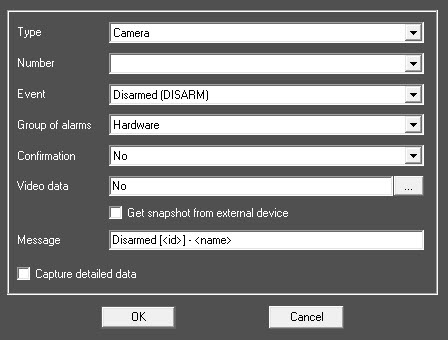
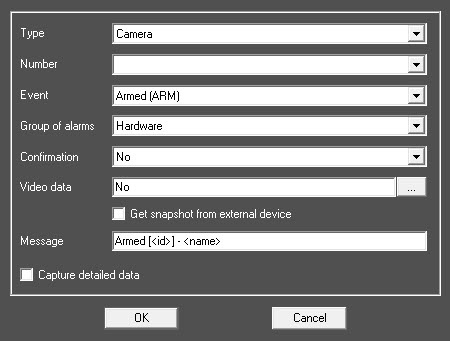
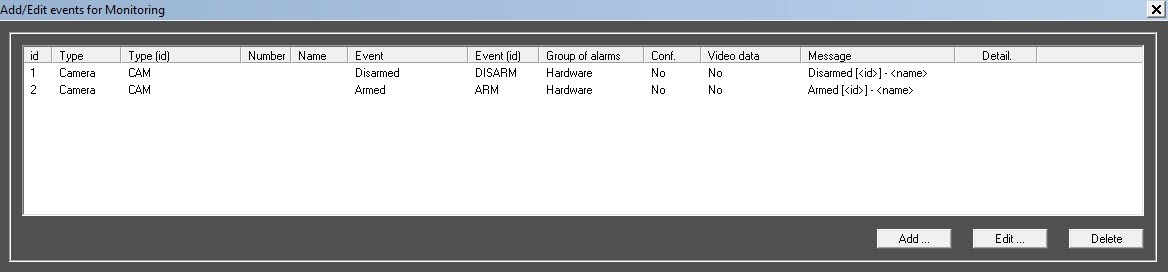
On the Control Server side, these alarms are registered as short-term. |
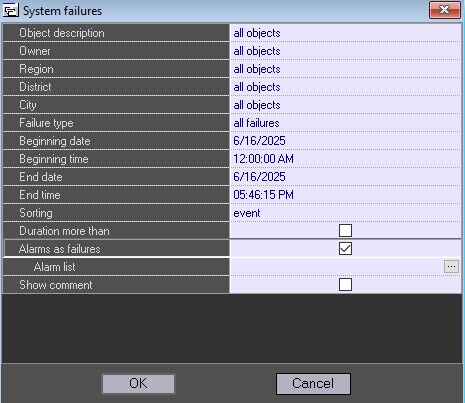
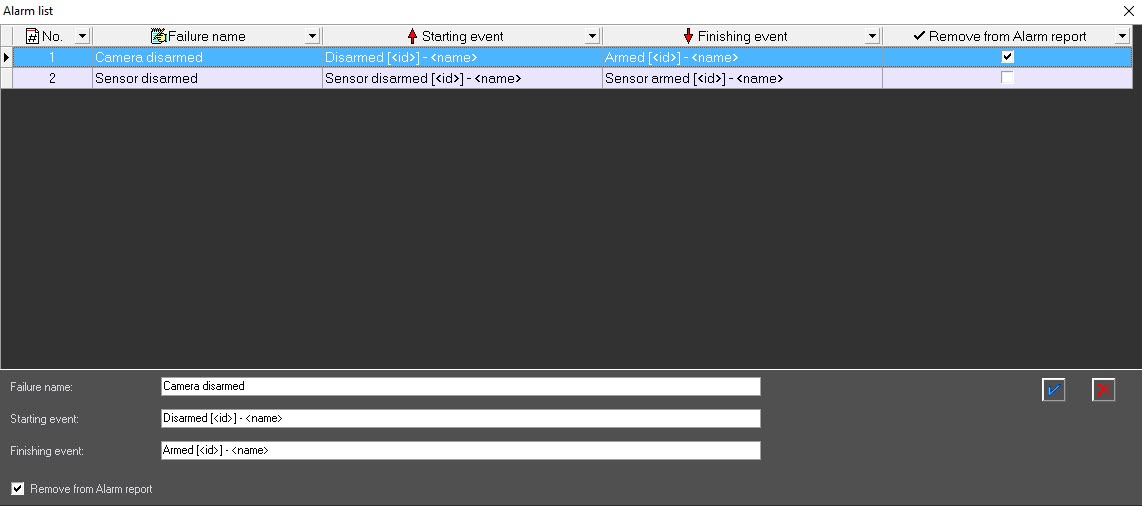
 button, to expand the Alarm list window.
 button, to add an entry.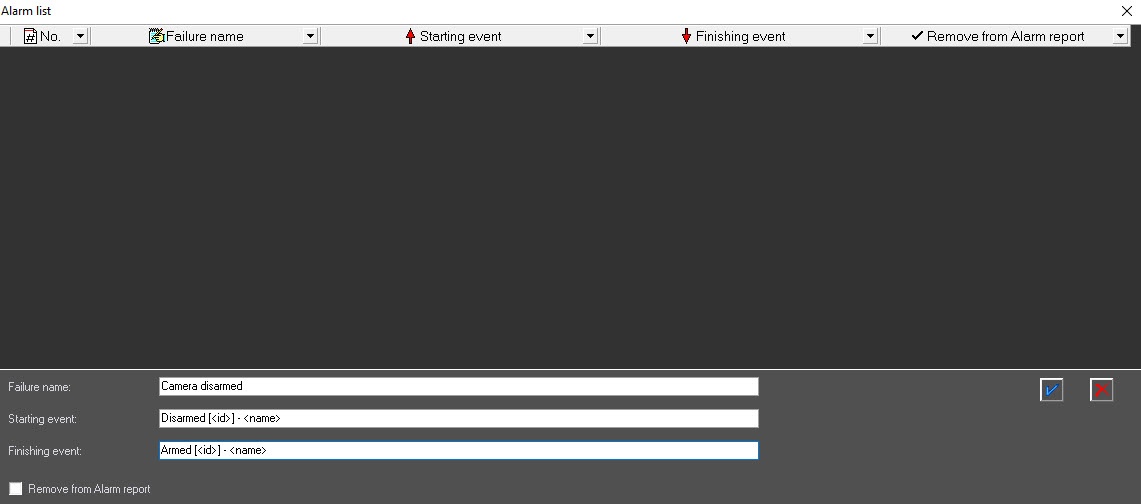
 button.
The button to add an entry appears only if you fill in all the data, and the description of the starting and finishing events contains the [<id>] - <name> template. Further, you can edit or remove the created entry. |
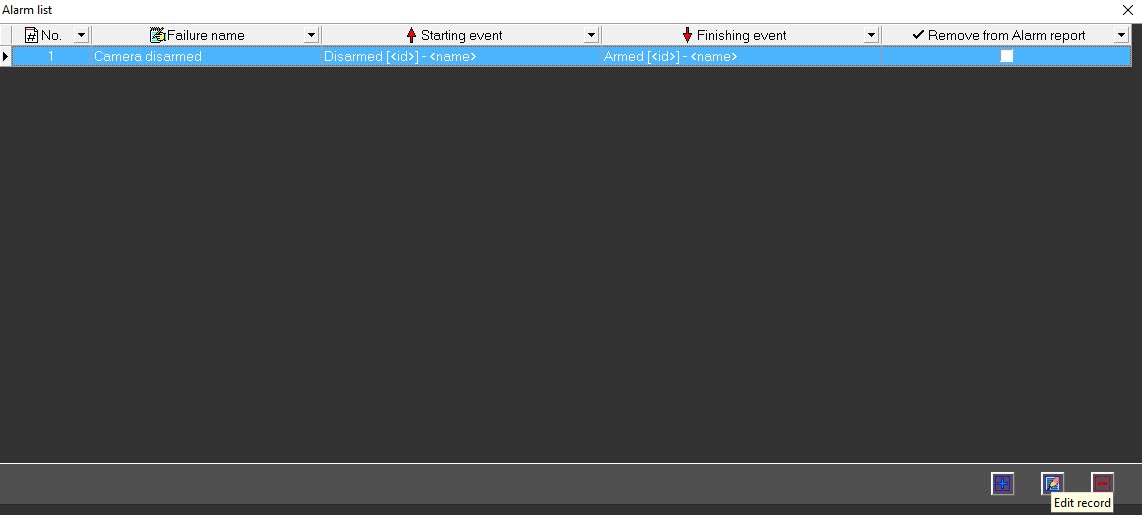
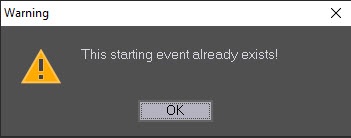
When you add the following entry, don't duplicate the values of the edited fields. If you try to enter a duplicate, the error message appears. |
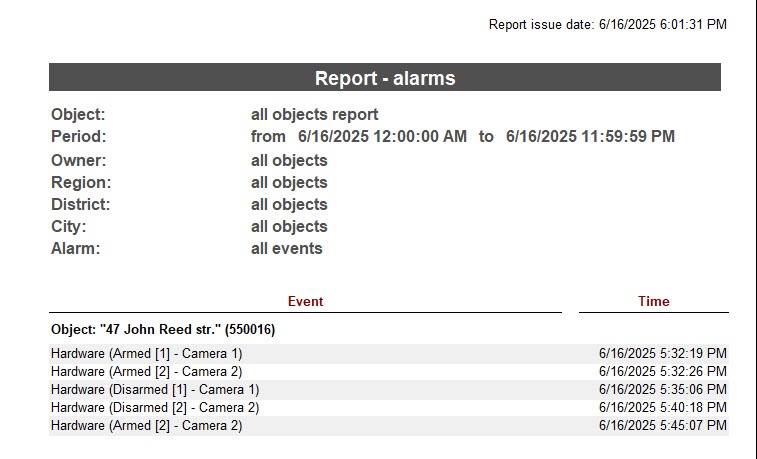
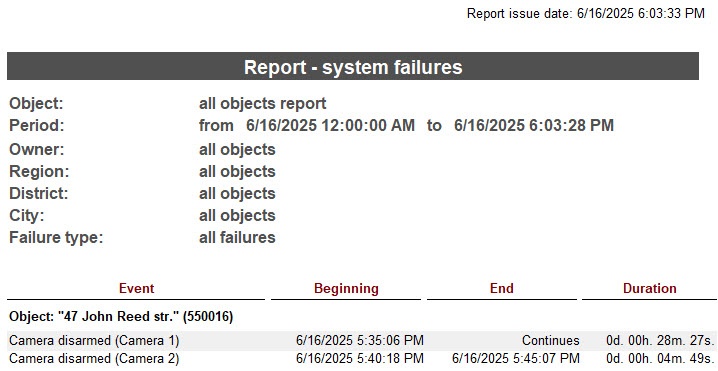
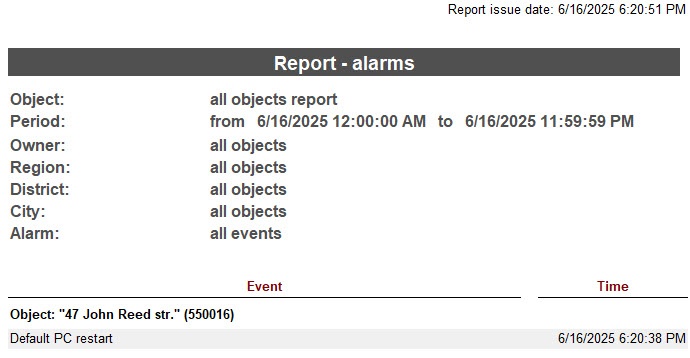
Building a report on alarms as system failures is complete.
When you clear the Alarms as failures checkbox, then the Failure type list displays standard failures.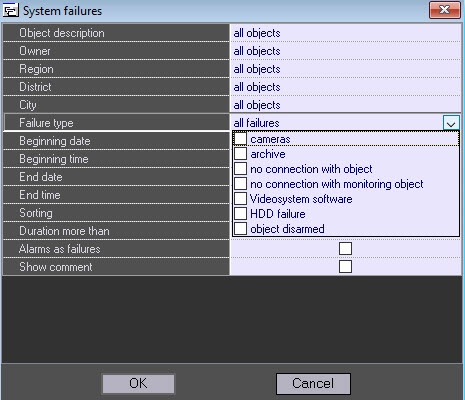
When you set the Alarms as failures checkbox, then the Failure type list displays failures described in the Alarm list window.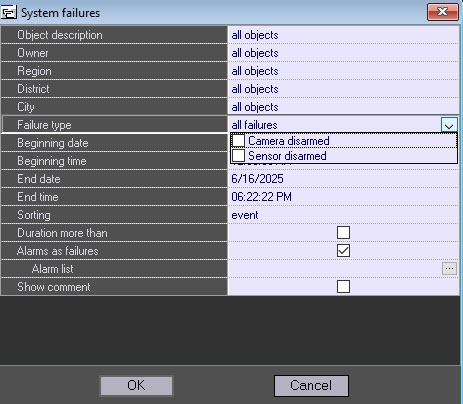
You can build a report either for all failures (Failure type=all failures) or for several ones (in the Failure type field, select specific failures).
If the starting event is lost, then the Alarms as failures incorrect report is built. To avoid this, we recommend using scripts on the Control Agent side to generate, for example, once a day, a starting or finishing event depending on the current state of the object. For more details on how to create scripts, see Guide for creating scripts (programming).
Example of a script for a timer with number 1, which triggers once a day.
if (Event.SourceType=="TIMER" && Event.SourceId=="1" && Event.Action=="TRIGGER")
{
  var msg = CreateMsg();
  msg.StringToMsg(GetObjectIds("CAM"));
  var count = msg.GetParam("id.count");
  var i;
  for(i = 0; i < count; i++)
  {
    if(GetObjectState("CAM", msg.GetParam("id." + i))=="DISARMED")
    {
      NotifyEventStr("CAM",msg.GetParam("id." + i),"DISARM","");
    }
    else
    {
      NotifyEventStr("CAM",msg.GetParam("id." + i),"ARM","");
    }
  }
} |