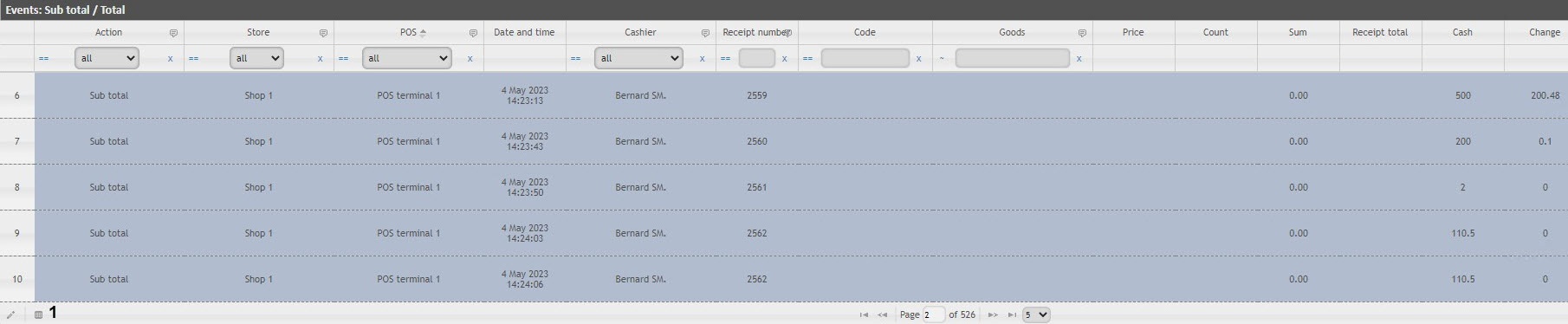
 button (1) in the lower left part of the event list. As a result, the Select columns window will open.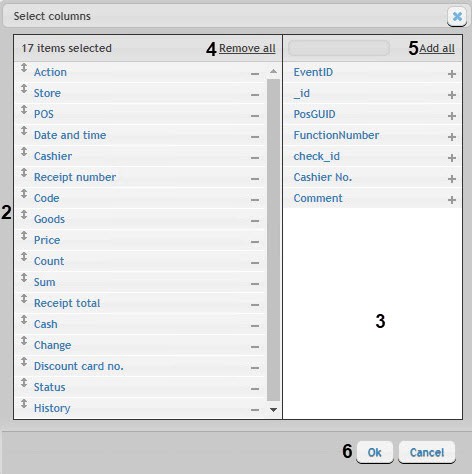
- To remove a column, click on the
 icon next to the name of the corresponding column in the field (2).
 - To remove all columns, click Remove all (4).
To change the order of the columns, in the field (2) drag the column name up and down to the required position.
The inactive (not displayed) columns are displayed in the (3) field.
To add a column, click on the
 icon next to the name of the corresponding column in the field (3).
To add all columns, click Add all (4).
To save changes, click Ok (6).