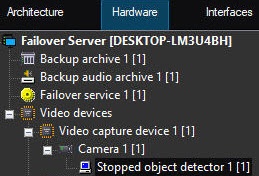
To configure the stopped object detector, do the following:
To configure the Stopped object detector program module, use the settings panel of the Stopped object detector object that is created on the basis of the Camera object on the Hardware tab of the System settings window.
To configure the stopped object detector, do the following:
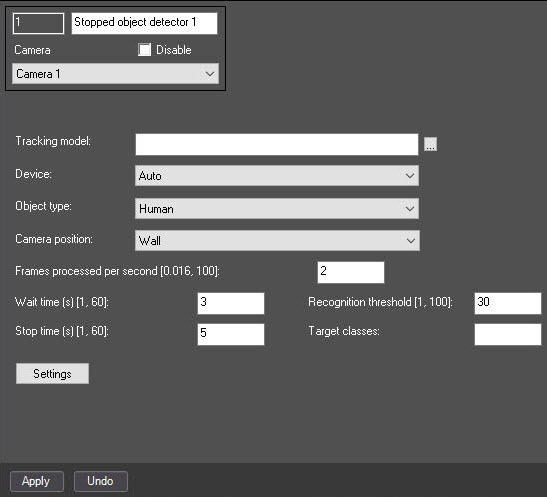
 button to the right of the Tracking model field and specify its file in the standard Windows Explorer window that opens.
To train the neural network, contact AxxonSoft technical support (see Data collection requirements for neural network training). The use of the trained neural network for a particular scene allows you to detect only objects of a certain type (for example, a person, a cyclist, a motorcyclist, and so on). |
|
Neural networks are named taking into account the objects they detect. The names can include the size of the neural network (Nano, Medium, Large), which indicates the amount of consumed resources. The larger the neural network, the higher the accuracy of the object recognition but the greater the load on the CPU. |
If the detector works incorrectly, we recommend selecting the value of the Frames processed per second [0.016, 100] parameter empirically. The number of frames with static objects must be at least 2. For frames with moving objects—at least 4. The greater the value, the higher the accuracy, but the greater the load on the selected processor for this operation. With the number of frames equal to 1, the accuracy is 70%. This parameter varies depending on the object movement speed. For solving typical tasks, the frame rate from 3 to 20 is enough. Examples:
|
|
Click the Stop video button to pause playback and capture a frame of the image. To run the video, click the Start video button. To specify the area of interest or the ignore area, click the corresponding button. The button is highlighted in blue. There can be only one area of interest and one ignore area. To remove the area, click the If you don't specify an area of interest, the entire frame is analyzed. |
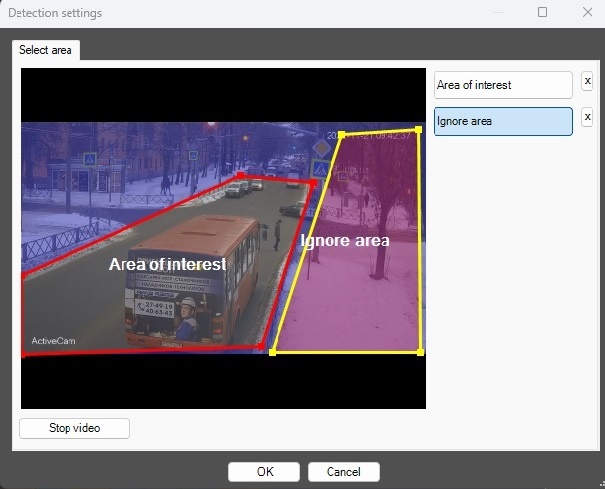
Configuring the Stopped object detector program module is complete.
 button.