General information
You can use the Domains tab to manage domains and user access permissions.
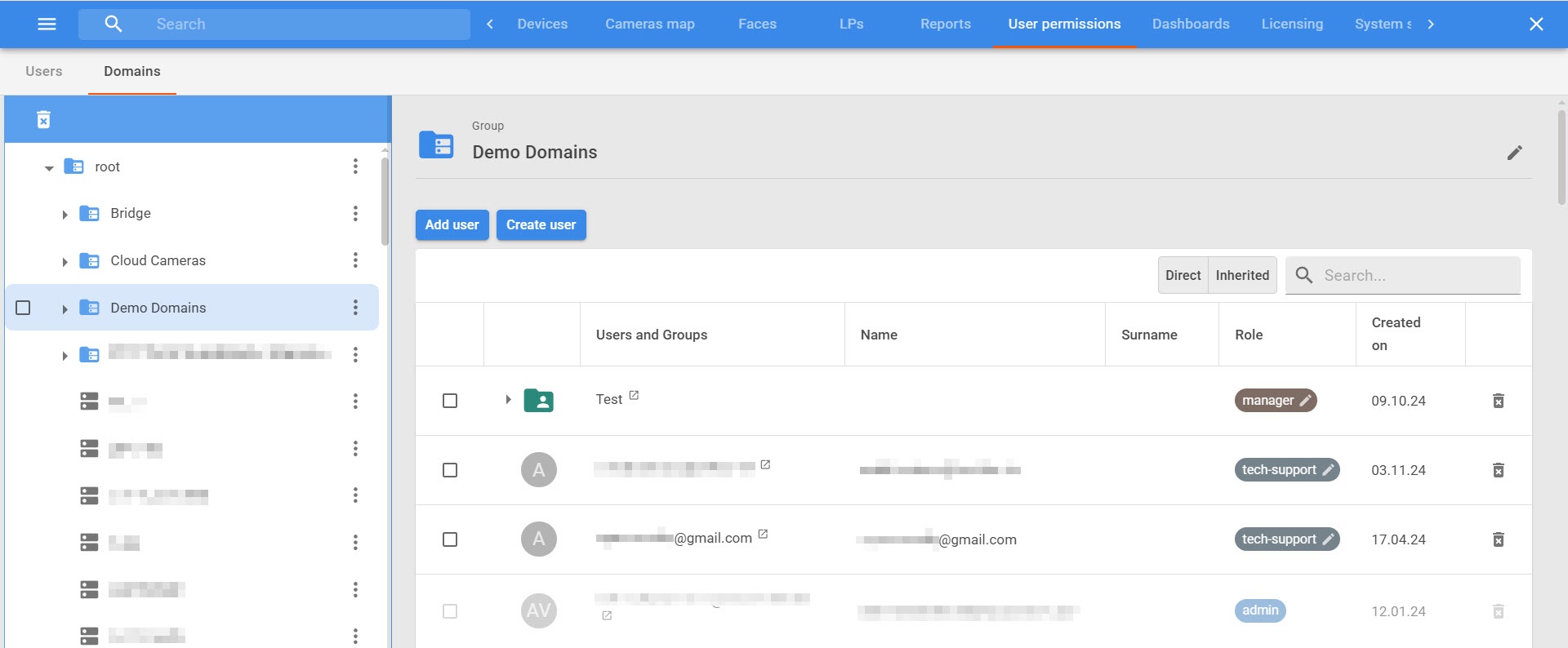
The main interface elements are listed in the table:
| Interface element | Description |
|---|
| Domain tree | - It is located on the left side of the window.
- It displays the hierarchy of available domains and groups.
- The root folder includes all subfolders
|
| Domain management area | - It is located on the right side of the window.
- The name of the selected domain or group is displayed at the top.
- The table contains information about users and their assigned roles:
- Users and Groups—the name of the account or group.
- Name/Surname—the user's personal information.
- Role—the assigned domain role (for example, admin).
- Created on—the date the user was added to the system.
- Expires at—indicates an account expiration date (if set).
- Display filters are also available:
- Direct—shows users created directly in the current domain or group.
- Inherited—displays users added from other groups or domains
|
| Search field | - It is located in the upper right corner of the table.
- Allows you to quickly find a user or group by name
|
Create a user
On the Domains tab, you can create a user and assign a domain role to them. To do this:
- Go to the User permissions tab → the Domains section.
- In the domain tree, find the required domain or group of domains to which you want to add a new user.
A user created in the root folder has access to all domains of the system. |
- Click the Create user button.
- In the window that opens, click the New user field.
- In the window that opens:
- In the Email field, enter the user's email address.
In the Cloud permissions field, select the cloud role that you want to assign to the user from the drop-down list.
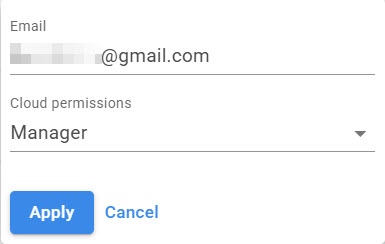
- Click the Apply button.
- In the Role field, select the domain role that you want to assign to the user from the drop-down list.
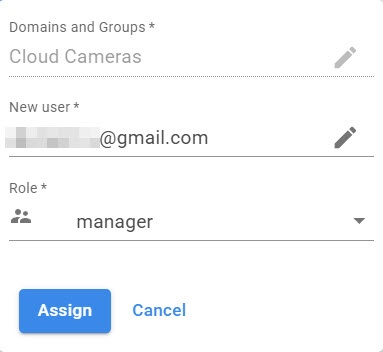
- Click the Assign button.
A new user is created. The user is displayed in the table of the corresponding domain or group.
Assign a domain role
In the Domains section, you can assign domain roles to existing users in the system. To do this:
- Go to the User permissions tab → the Domains section.
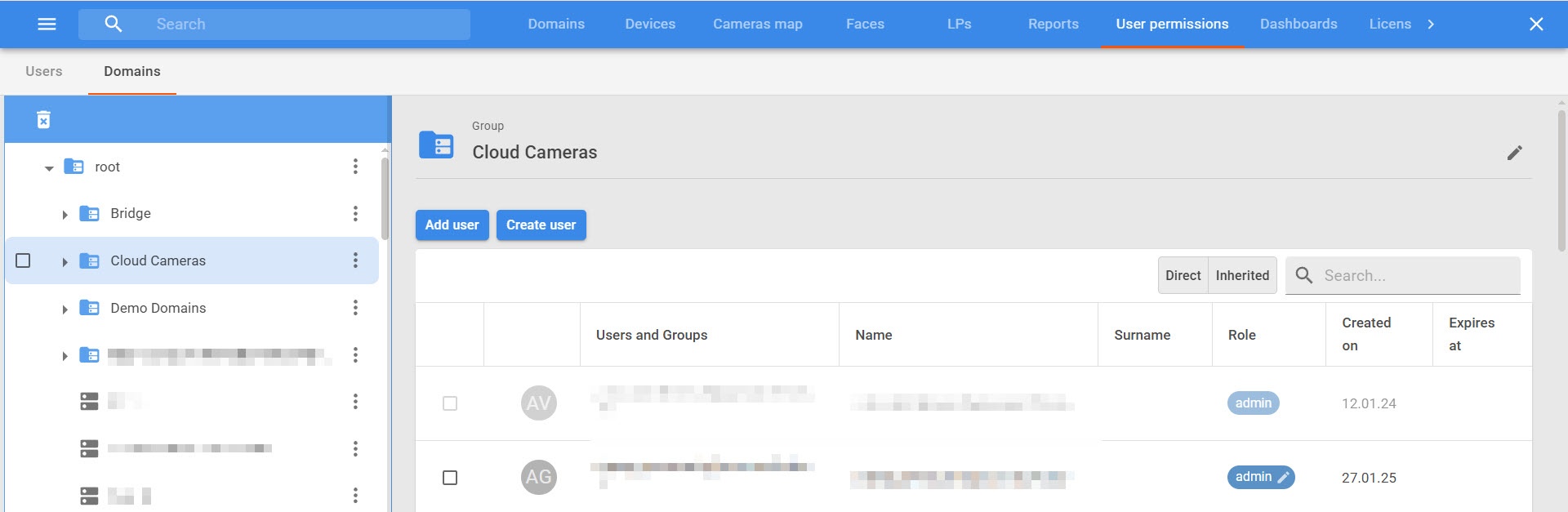
- In the list, find the required domain or domain group to which you want to add a user.
A user added to the root folder has access to all domains of the system. |
- Click the Add user button.
- In the window that opens, click the Users and Groups field.
- Set the checkboxes next to the users or user groups that you want to add to domain permissions. To show all users, turn on the Show all users toggle.
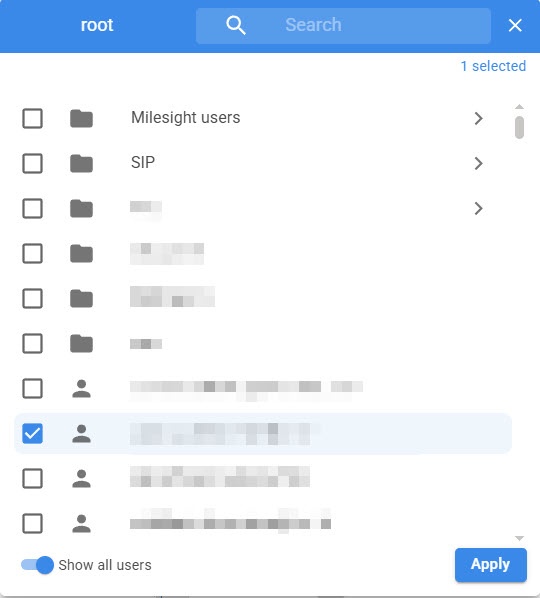
To search for a specific user or group, use the search field. |
- Click the Apply button.
- In the Role field, select the domain role that you want to assign to the users from the drop-down list.
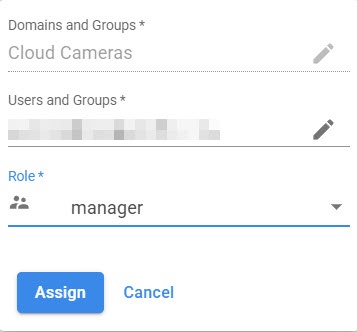
- Click the Assign button.
A domain role is assigned to the user.
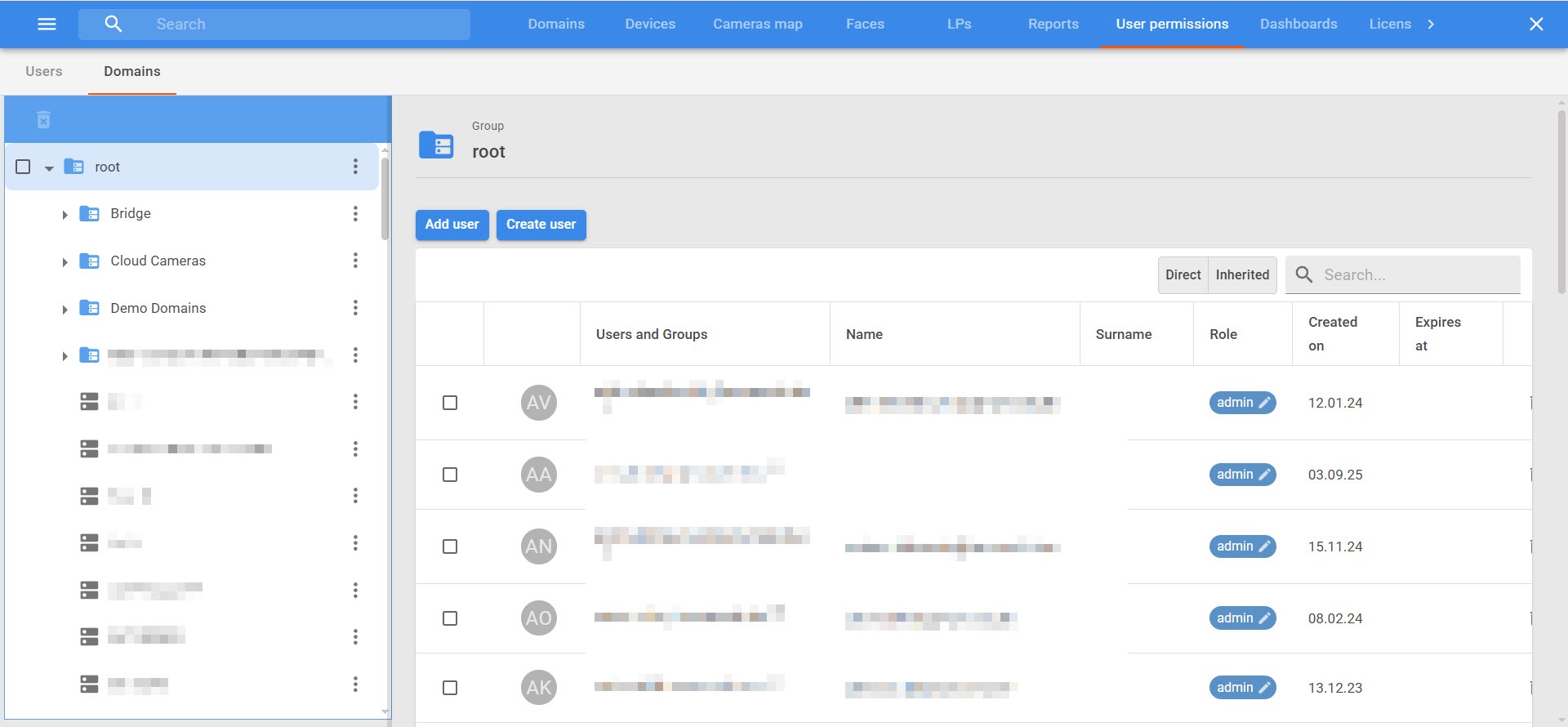
If necessary, you can change the domain role in the Role column. Increase of access level is performed upon request to users with higher access permissions (for example, users with the Admin role). To view detailed user information, click the  button next to the user's email address in the Users and Groups column.
To remove a user from the domain, click the Delete  button next to the user.
Create domain groups
To create a domain group:
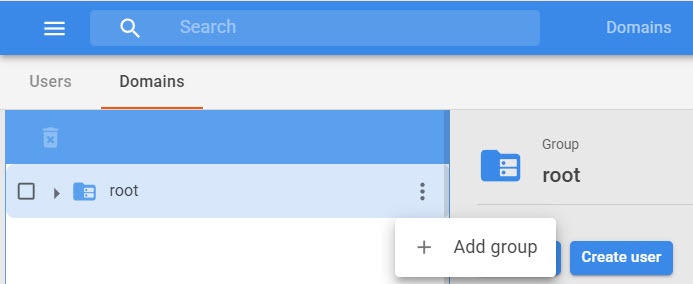
- Click the
 button next to the group to which you want to add a new group. Initial groups are created in the root group.
 - Click the Add group button.
- In the window that opens, in the Name field, enter the name of the group.
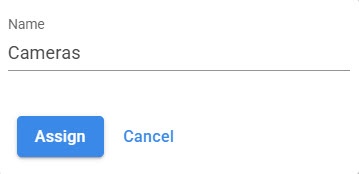
- Click the Assign button.
A new group is created.
When you click the button next to a group, the following actions are available:
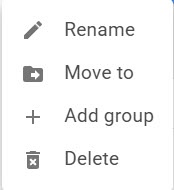
- You can rename a group.
- You can move a group.
- You can add a group.
- You can delete a group.
You can only delete groups that don't contain any domains. |