You can use the Licensing tab to manage license keys. In the tab, you can add new keys, view their expiration dates, and view the number of available licenses and modules.
To view the Licensing tab, you must set the License keys: Manage checkbox on the System settings tab → Cloud permissions (see Сloud permissions). To get this permission and access the Licensing tab, you must contact a user with the Admin role. |
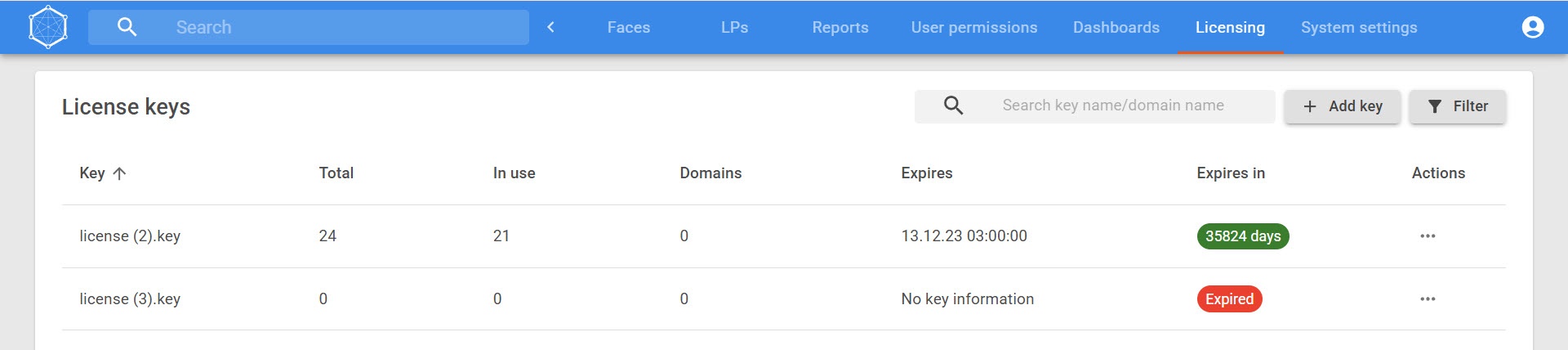
In the Licensing tab, you can see a table with keys. The following columns are displayed for each key:
You can sort the license keys by each column. To do this, click the buttons next to the column title:
 —sort in descending order.
 —sort in ascending order.
To search for the required license, enter the license key or domain name in the search field.
To add a license key:
 button.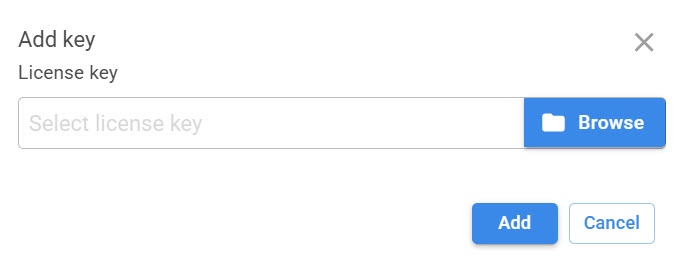
As a result, the key appears in the tab and becomes available for use.
To view detailed information about a license, find the required license key in the table and click it. An additional panel with detailed license information opens.
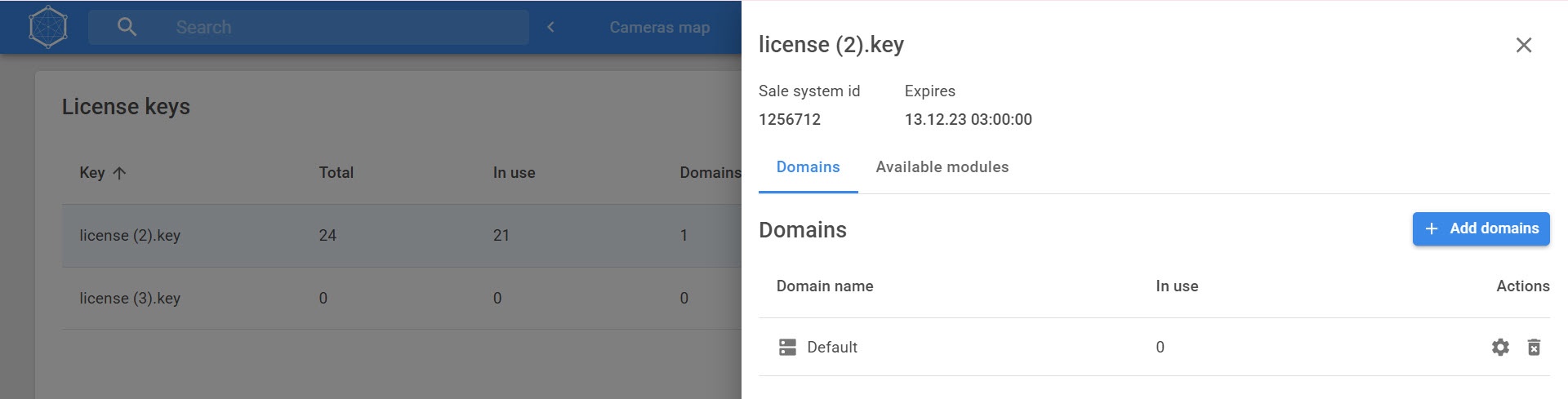
The panel that opens displays the following information about the selected license key:
To view available modules in the license key, go to the Available modules tab. A table opens where you can see:
The Domains tab displays all domains for which the selected license key has been activated. To add a new domain to a license key:
 button.
 button.
As a result, the domain is bound to the license key.
To manage modules of a specific domain:
 button next to the required domain. button.
As a result, the limits for the selected modules are changed.
To remove a domain from the license key:
 button next to the required domain.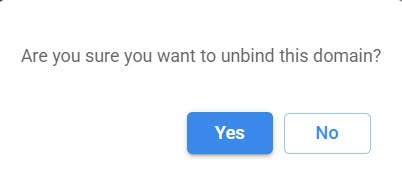
As a result, the selected domain is excluded from the license key.
To view specific license keys, you can filter them. To do this:
 button.
 button.
As a result, the license keys that match the filter criteria are displayed.
To receive notifications about license expiration:
 three-dot button in the Actions column next to the required license key.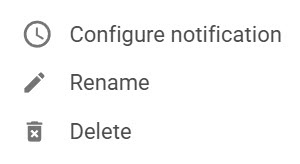
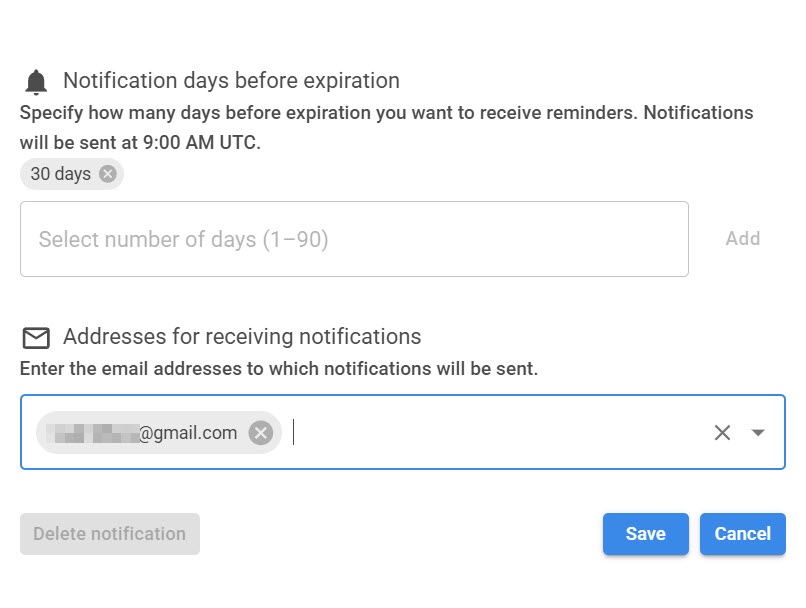
As a result, the specified users will receive notifications about the expiration of the license key.
To disable notifications:
three-dot button in the Actions column next to the required license key. button.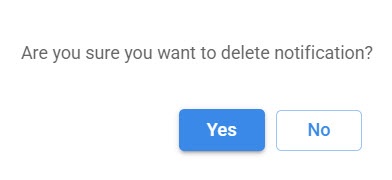
As a result, notifications are deleted.
To change the name of the license key:
three-dot button in the Actions column next to the required license key.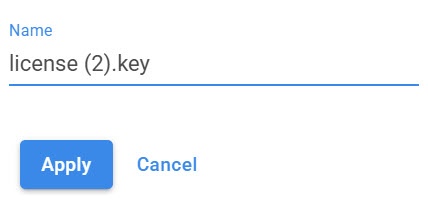
As a result, the name of the license key is changed.
To delete a license key in the Licensing tab:
three-dot button in the Actions column next to the required license key.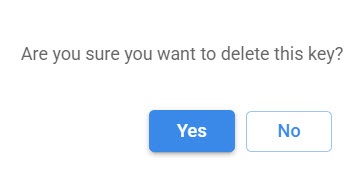
As a result, the license key is deleted.