- If you need the monitoring data, select the event type from the list, the statistics of which you want to display in a report. If you don't select anything, a report is built by all event types.
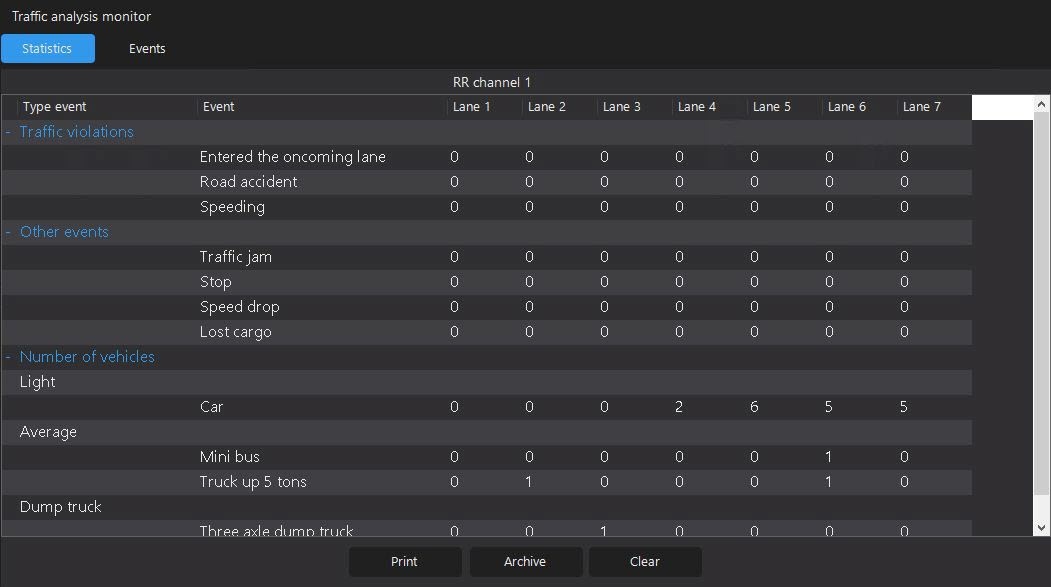
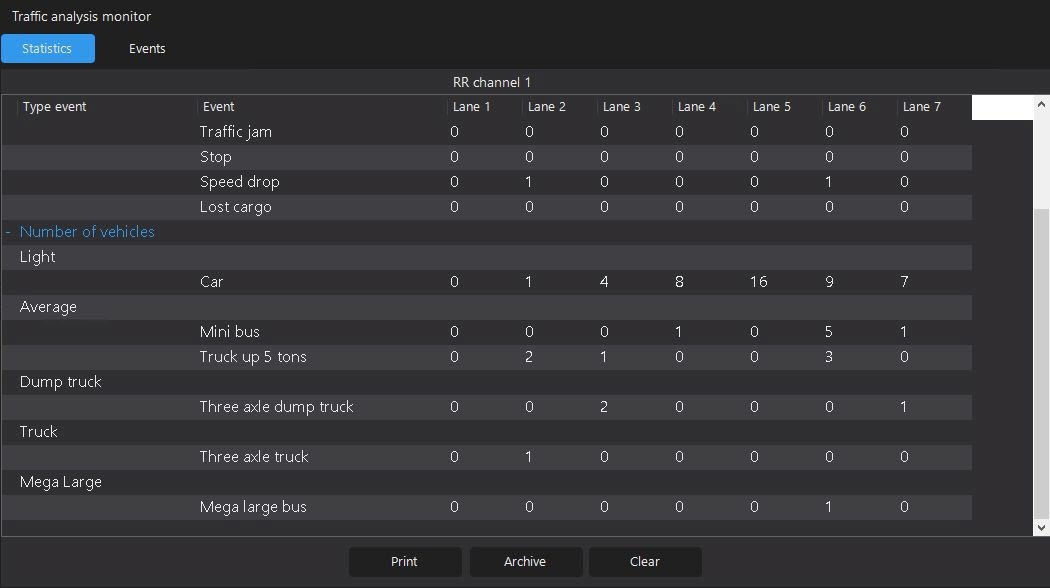
- If you need the archive data from a camera, then
- Go to the archive by clicking the Archive button.
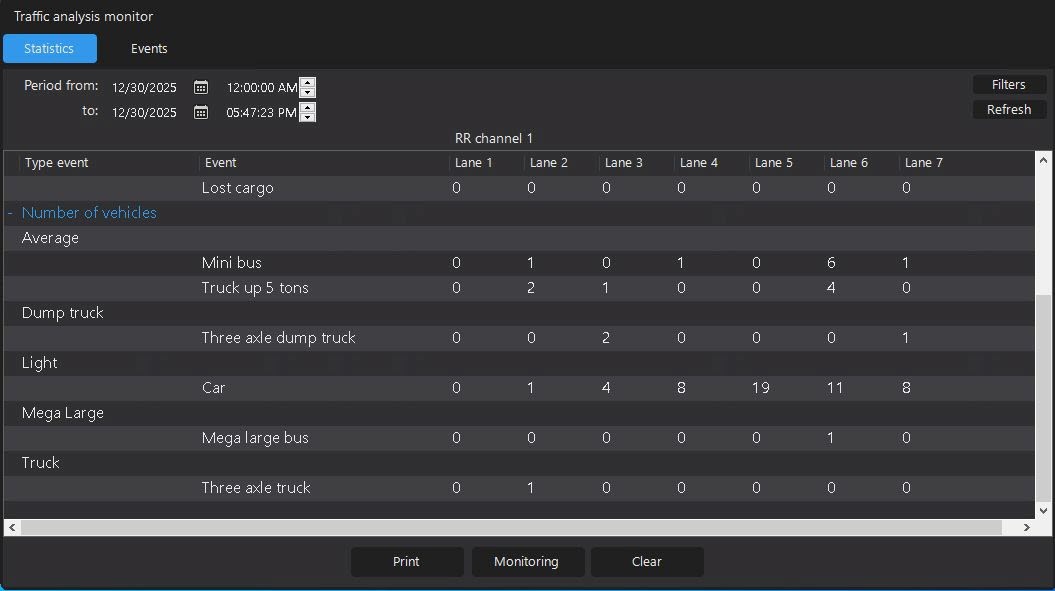
- In the Period from and to fields, specify the beginning and ending of the data receiving period using arrows and a calendar, respectively.
- Click the Filters button to filter the data by the detector, as well as by an event and by the vehicle of this detector.
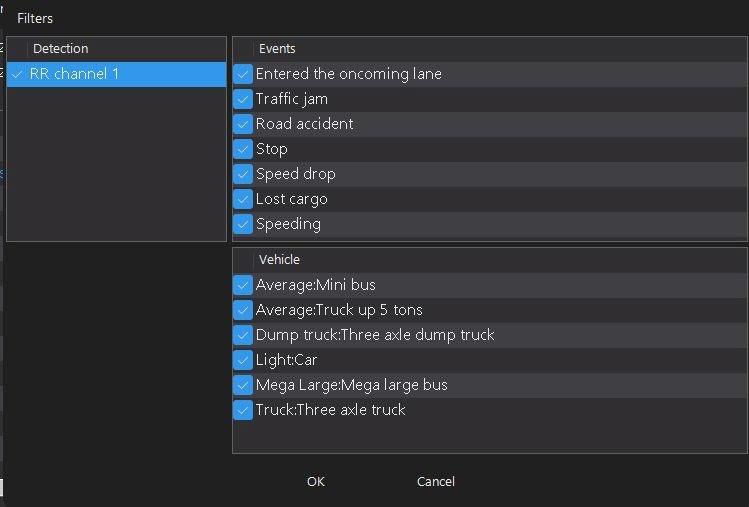
- To save the selection, click the OK button; to reset, click the Cancel button.
- Click the Refresh button.
- Go to the archive by clicking the Archive button.
As a result, the window for viewing the Statistics of violations, events and vehicle access report opens:
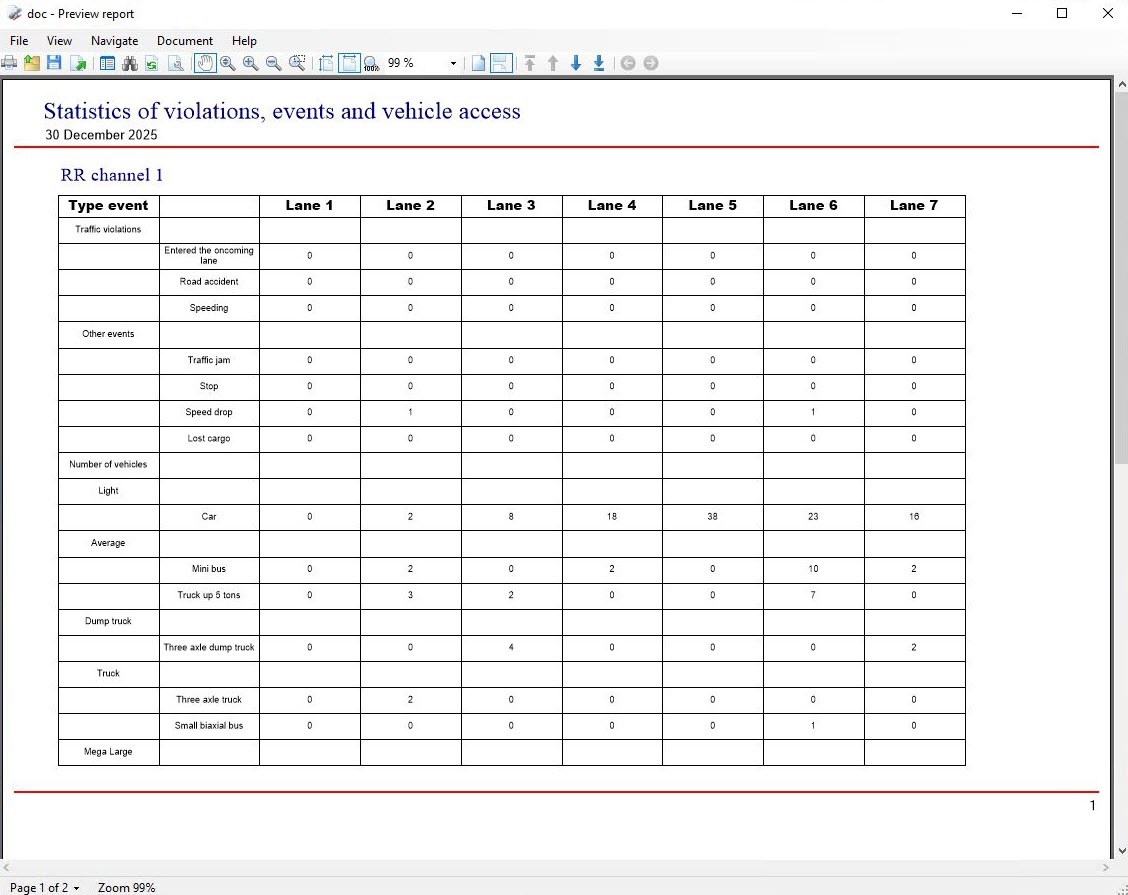
You can view and print a report using the print button located on the top panel of the toolbar (for more details, see The program for viewing reports of the traffic analysis monitor).
Viewing and printing the information about the statistics from a camera is complete.