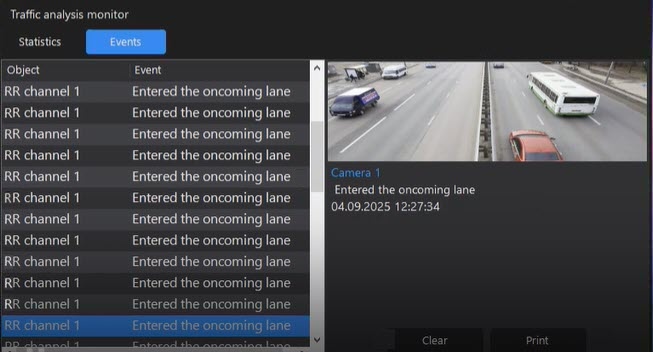
As a result, the information about this event is displayed on the right side of the window: the camera name, the lane name, the event name, the date in the DD.MM.YYYY format, and the time of the event detection, as well as the photo from a camera that detects an event.
As a result, the Report on event window for viewing a report opens:
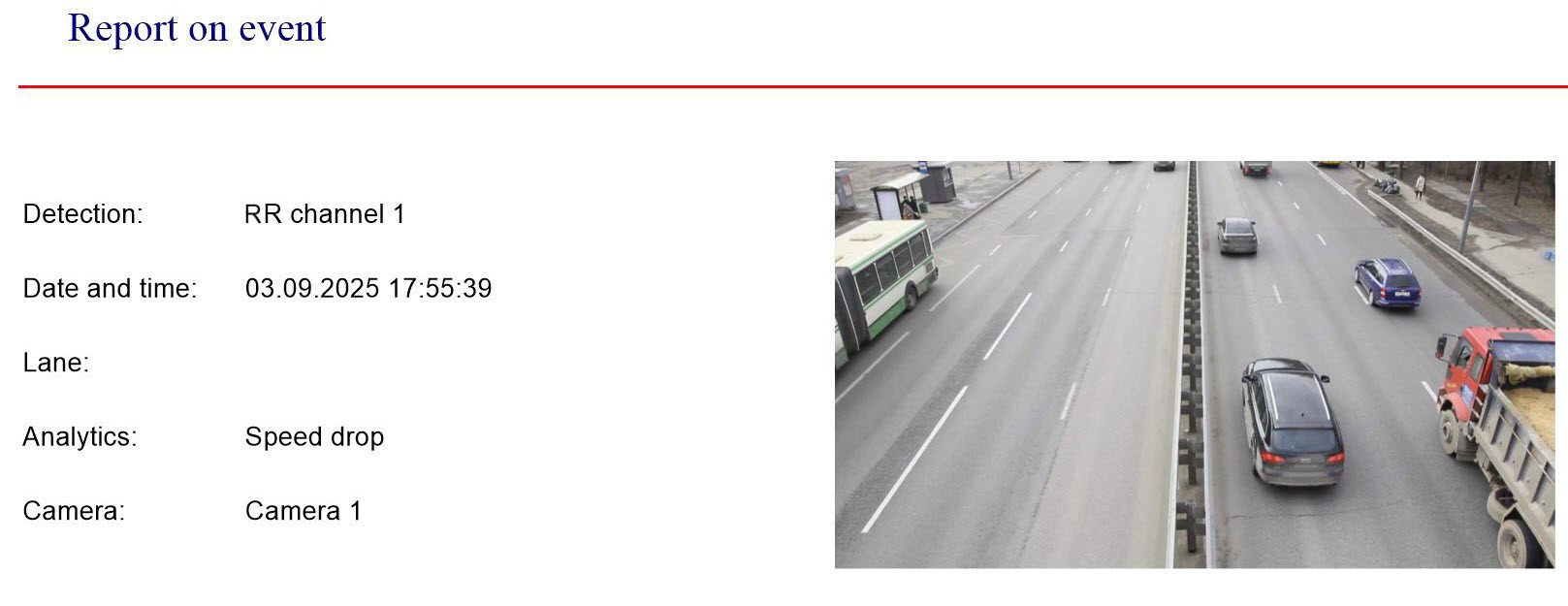
You can view it and, if necessary, print it by using the print button located on the top panel of the toolbar (for more details, see The program for viewing reports of the traffic analysis monitor).