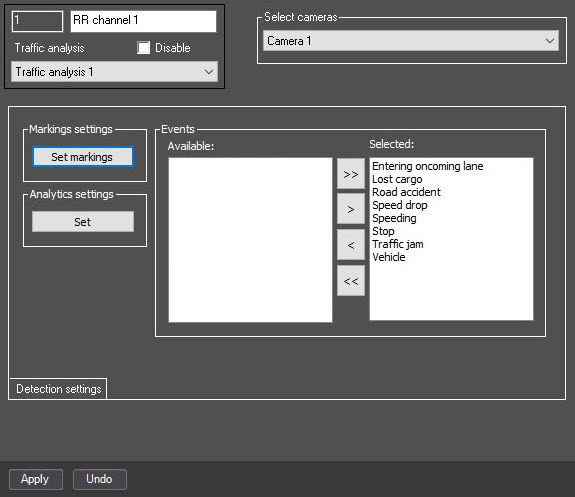
 button on the settings panel to open the editing utility.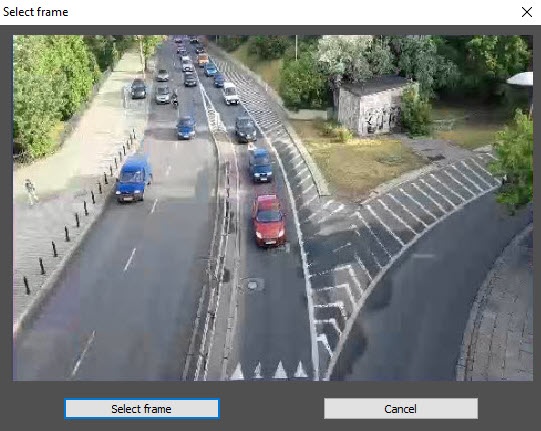
As a result, the marking editing utility opens.
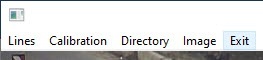
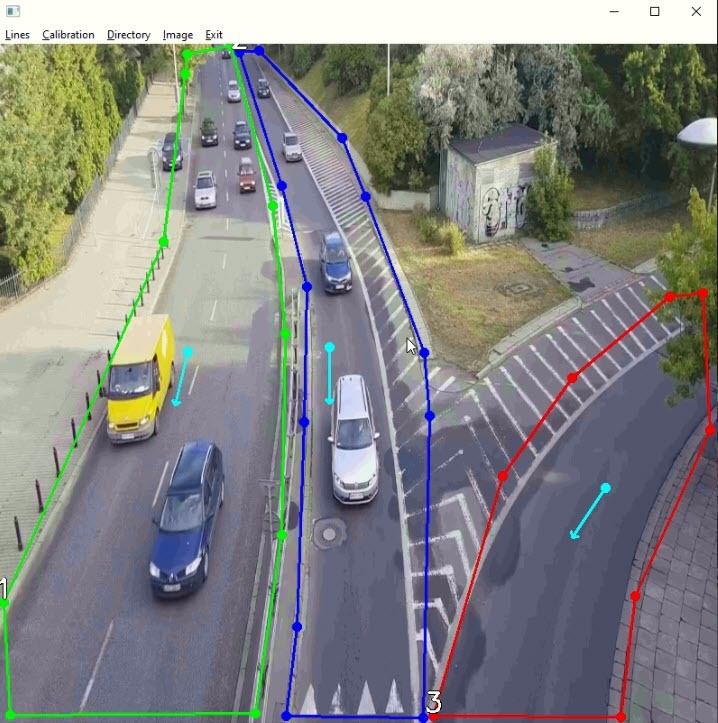
- Select the Lines → Draw new line item in the menu line. Select Clear lines to delete a line.
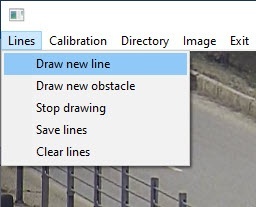
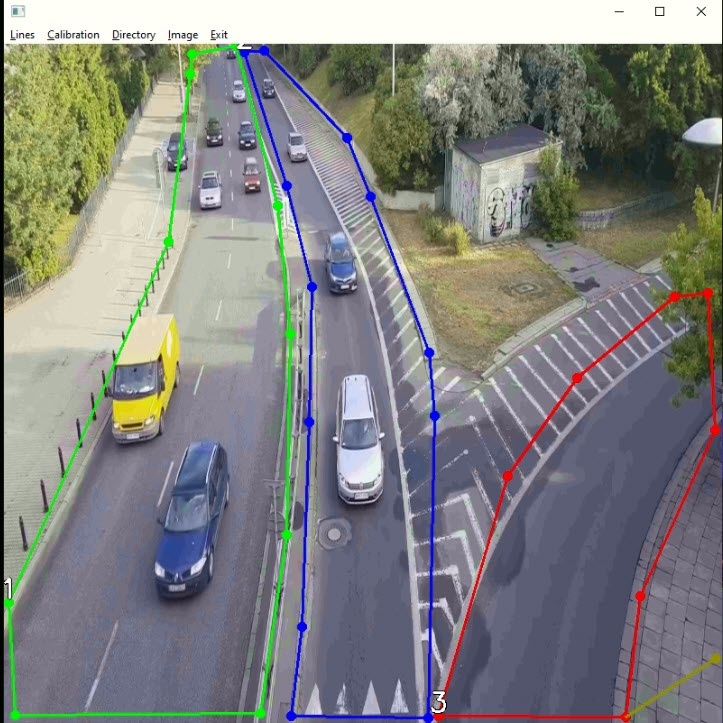
- Mark the lane borders.
- Repeat steps 4a and 4b as many times as there are lanes on the roadway.
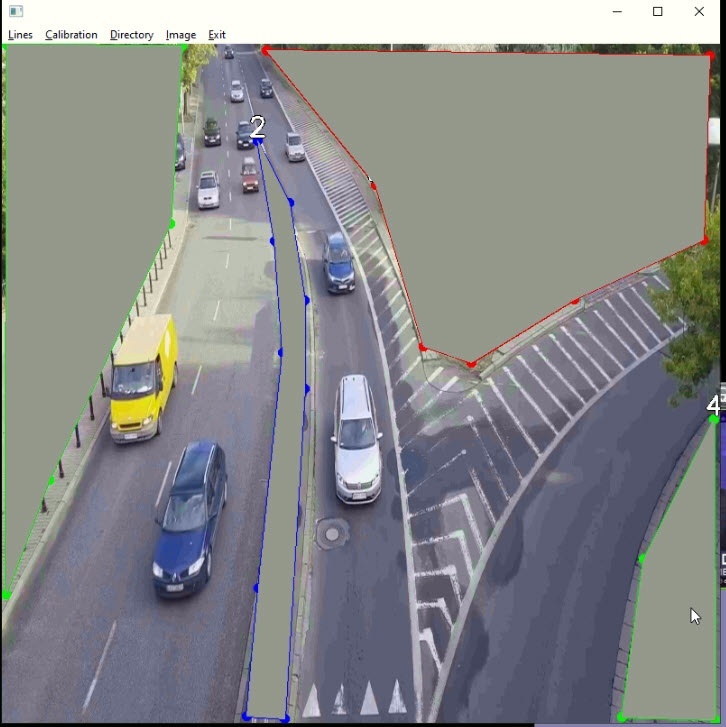
- Select the Lines → Draw new obstacle item in the menu line.
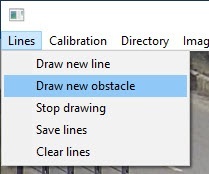
- Mark the borders of static objects.
- Repeat steps 5a and 5b as many times as there are static objects in the frame.
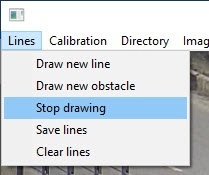
- Select the Lines → Stop drawing item in the menu line.
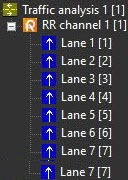
- Point the arrows that appear on the lanes in the direction of traffic. This is required to generate an event of entering an oncoming lane.
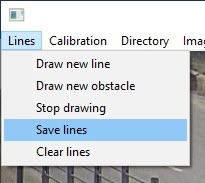
- Set the correspondence of pixels to meters:
- Select the Calibration → Draw calibration grid (1) item in the menu line to specify the dimensions of the calibration grid;
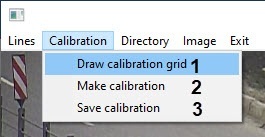
- Double-click a dimension. As a result, the window for editing the corresponding dimension of the calibration grid opens: Height or Width;
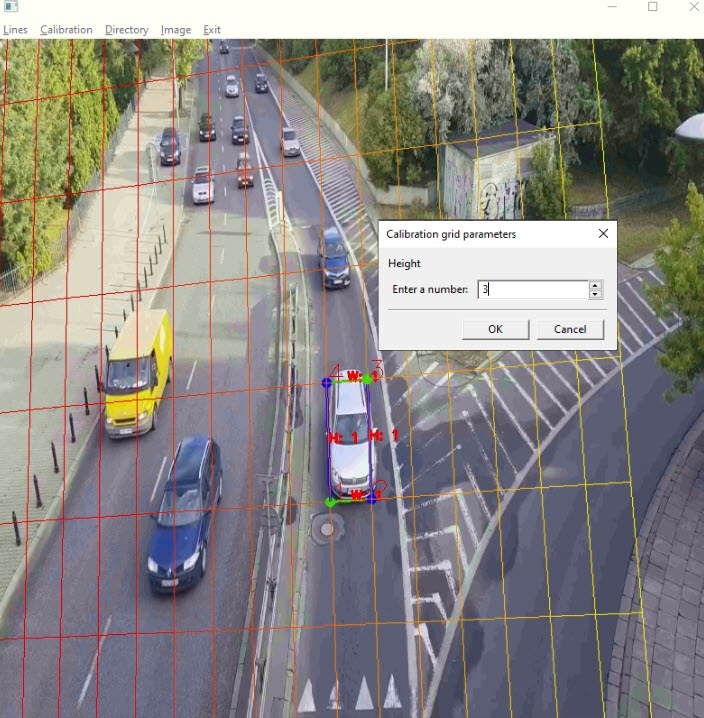
- In the Enter a number field, set the value in meters;
- Press the Enter key.
- Repeat steps 8aii-8aiv for the second dimension of the calibration grid.
- Select the Calibration → Draw calibration grid (1) item in the menu line to specify the dimensions of the calibration grid;
- Select the Calibration → Make calibration item in the menu line to calibrate dimensions according to the calibration grid specified in step 8a (2);
- Select the Calibration → Save calibration item in the menu line to save the specified calibration in the file of the JSON format next to the EXE file (3).