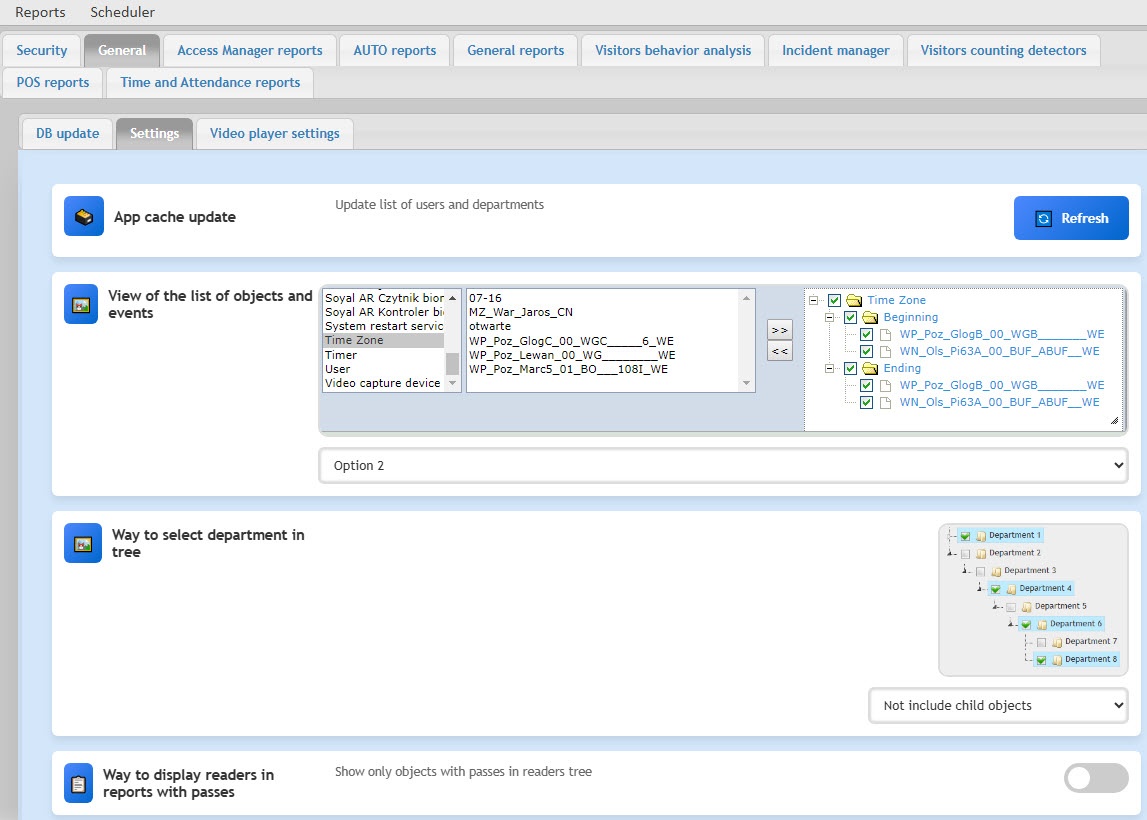
You can configure the general report settings of the WEB Report System PSIM on the General tab Settings on the administration page.

  1. If necessary, you can update the list of users and departments by selecting App cache update and clicking the Refresh button.
  2. If necessary, you can change the view of the list of objects and events by selecting the View of the list of objects and events. From the drop-down list, select Option 1 or Option 2 (default). 
  3. By default, the departments in the object tree include child objects. If necessary, you can exclude them from the list. To do this, select Way to select department in tree and from the drop-down list, select Not include child objects (the default value is Include child objects).
  4. If necessary, you can configure the object tree to display only readers with passes. To do this, select Way to display readers in reports with passes and turn on the Show only objects with passes in readers tree toggle (by default, the toggle is turned off).

    The Way to display readers in reports with passes setting is used to create the following reports: Report by employee passes, Report by employee passes with photo.