To configure the Traffic analysis monitor window, do the following:
- Go to the Interfaces tab of the System settings window.
- Select the Traffic analysis monitor object in the object tree.
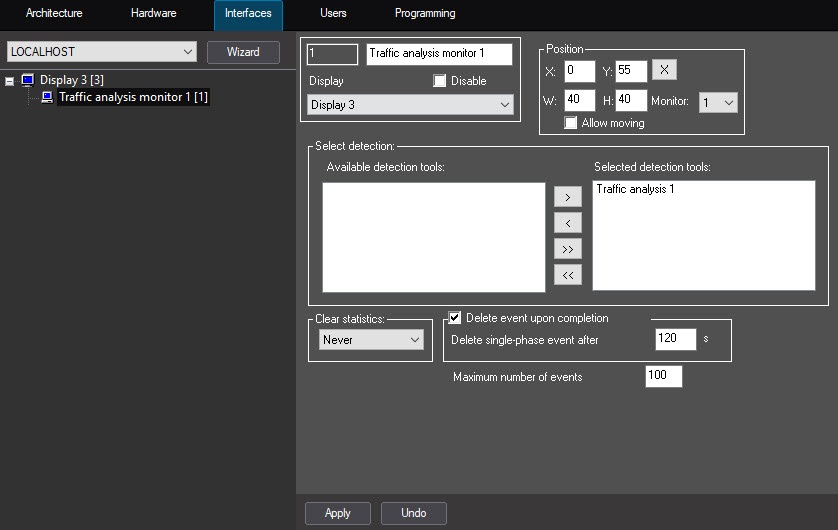
- Use the navigation buttons to move the required detectors from the Available detection tools list to the Selected detection tools list.
- If necessary, change the periodicity of the statistics clearing by selecting it from the Clear statistics drop-down list:
- Never (default)—Statistics aren't cleared.
- Each day—Statistics are cleared daily at 00:00 local time.
- Each week—Statistics are cleared weekly at 00:00 local time.
- Each month—Statistics are cleared monthly at 00:00 local time.
- The Delete event upon completion checkbox is set by default, and a two-phase event is deleted from the Events tab of the Traffic analysis monitor interface object when its final event occurs. When the checkbox is clear, the event is deleted from the tab only after the limit in the Maximum number of events field is exceeded.
- If you set the Delete event upon completion checkbox, the Delete single-phase event after _ s field becomes available for editing. The default value is 120.
- In the Maximum number of events field (the default value is 100), specify the upper limit at which events are deleted from the Events tab unless the Delete event upon completion checkbox is set.
- Click the Apply button to save the settings.
Configuration of the Traffic analysis monitor window is complete.