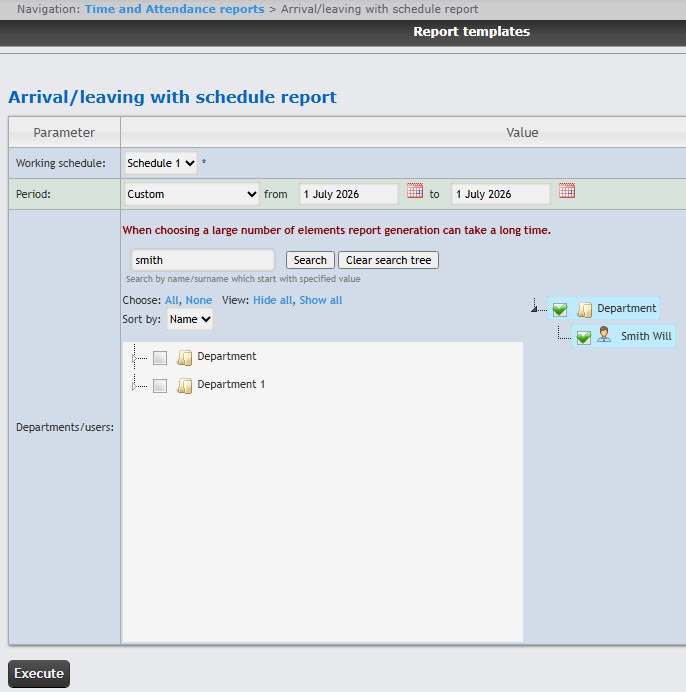
The Arrival/leaving with schedule report contains the time of employee arrival to work and leaving from work, as well as the number of hours worked and the deviations from the user's schedule for the specified department or user for each day of the specified time period.
You can use templates when you create a report. To add a new template, click Report templates → New template and fill in the Name and Description fields. The template will use the selected parameters of the current report. Templates work the same way as templates in the scheduler and can be used interchangeably. When you create a response using a template, click Report templates at the top of the page and select the required template from the list of saved templates (the required template is highlighted). As a result, the parameters of the current report are updated according to the selected template. |
To create the Arrival/leaving with schedule report, select this report from the list of the Time and Attendance reports (see Select the type of the Time and Attendance report) and edit the parameters in the form that opens.
Example of an arrival/leaving with schedule report:
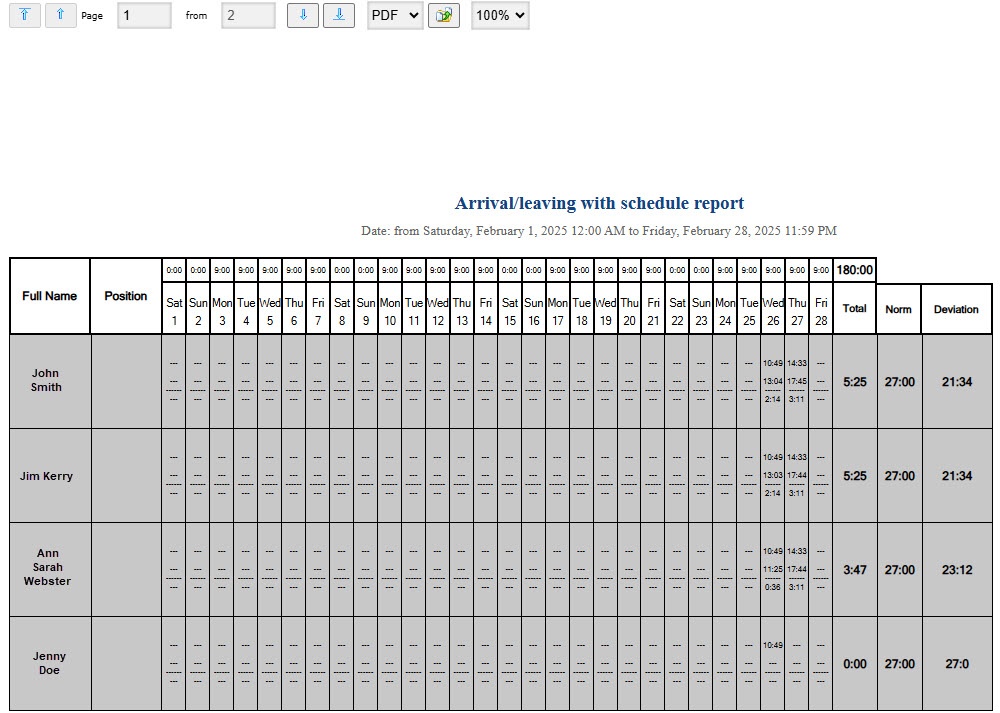
Fields of the report are described in the table.
Rows in which the deviation is more than 4 hours are marked in gray.
| Field name | Description |
|---|---|
| Full Name | Employee's full name |
| Position | Employee's position |
| Day of the week and date* | The time of the work schedule is set in the Access Manager module, in the Time and Attendance subsystem, on the Periods tab, then on the Schemes and Schedules tabs (see Working with the Time and Attendance subsystem). Time of the first entry. Time of the last exit. Number of hours and minutes between the first entry and last exit of the day |
| Total | The hours worked by an employee during the reporting period. The time is calculated as the sum of the hours worked for each day of the reporting period, which is equal to the difference between the employee's first entry and last exit |
| Norm | Number of working hours according to internal labor regulations |
| Deviation | Calculated as the difference between the values in the Total column and Norm column. If an employee worked less than the norm, the deviation is negative |
*This is not a field name.
To save the report to a file, select the format and click the Save button. You can save the report in the following formats:
The report is also saved in the specified folder (see User profile page) and sent to email (see Set up user email).
The Arrival/leaving with schedule report is created.