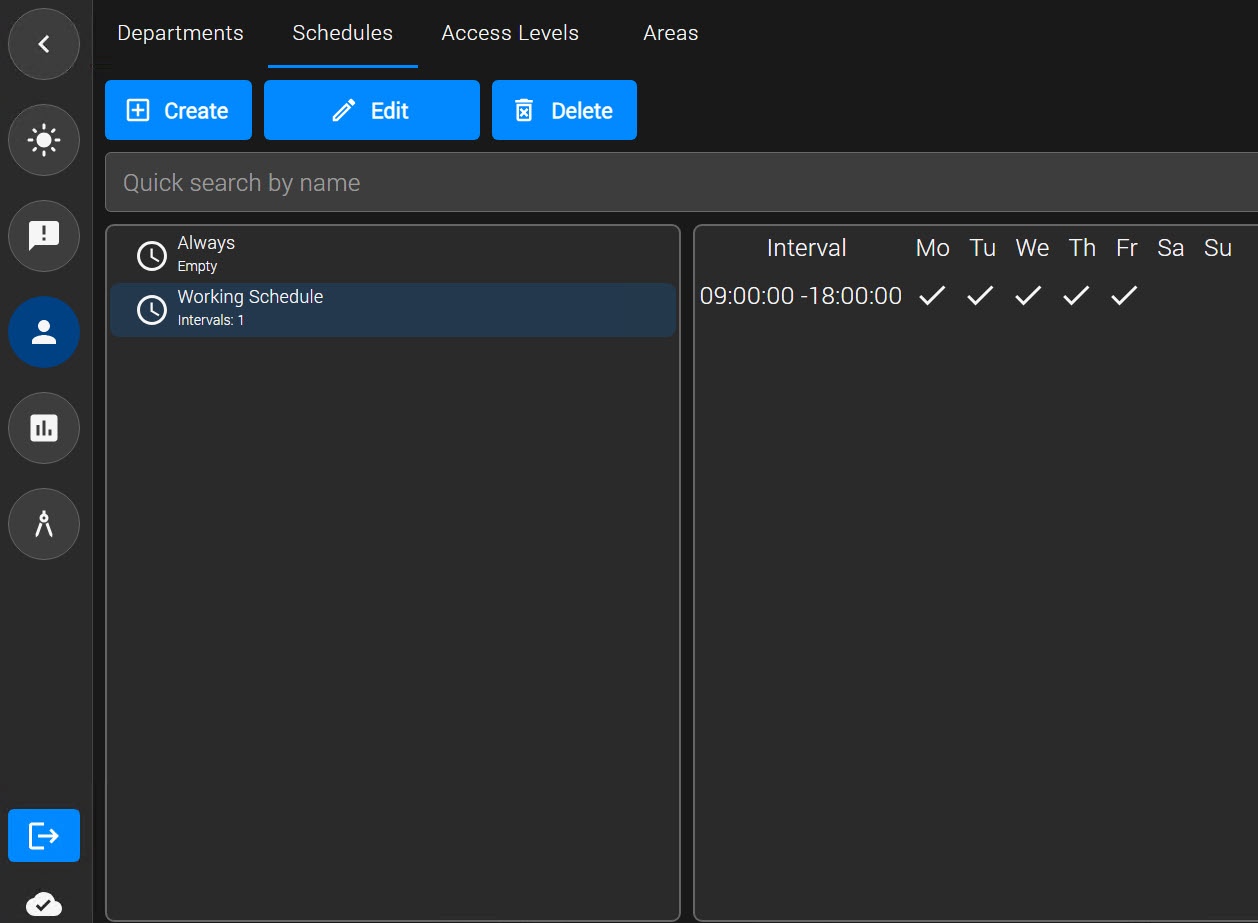
The Access Manager module allows you to create, edit, copy, view, and delete schedules. A schedule is used as a work schedule. In the Access Manager module, you can set a week interval within a schedule, that is, an interval for specific days of the week.
To create a schedule:
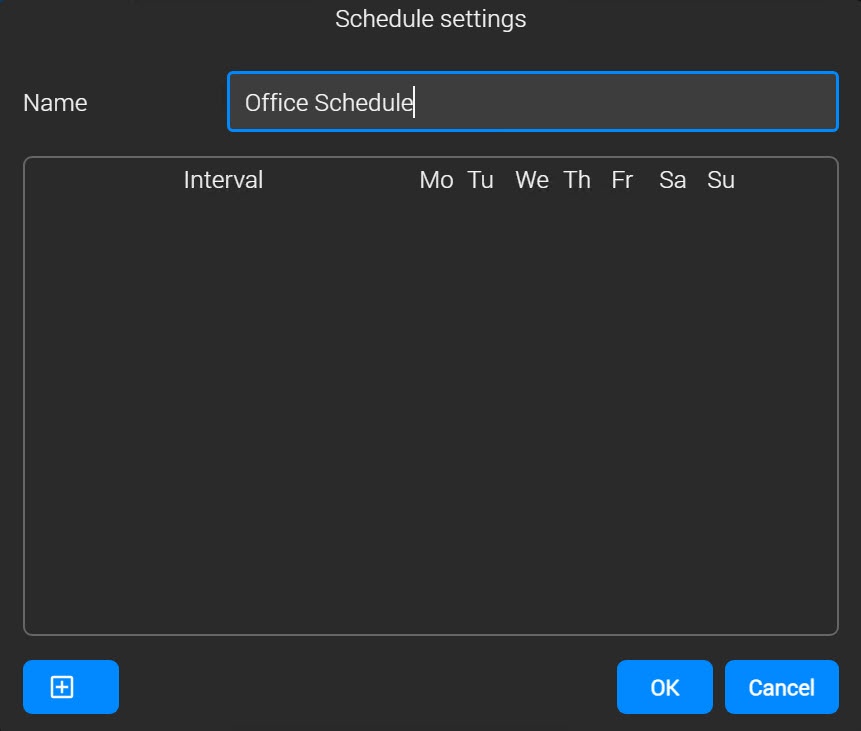
 button at the bottom of the Schedule settings window. A new interval is created, and the interval settings panel is displayed.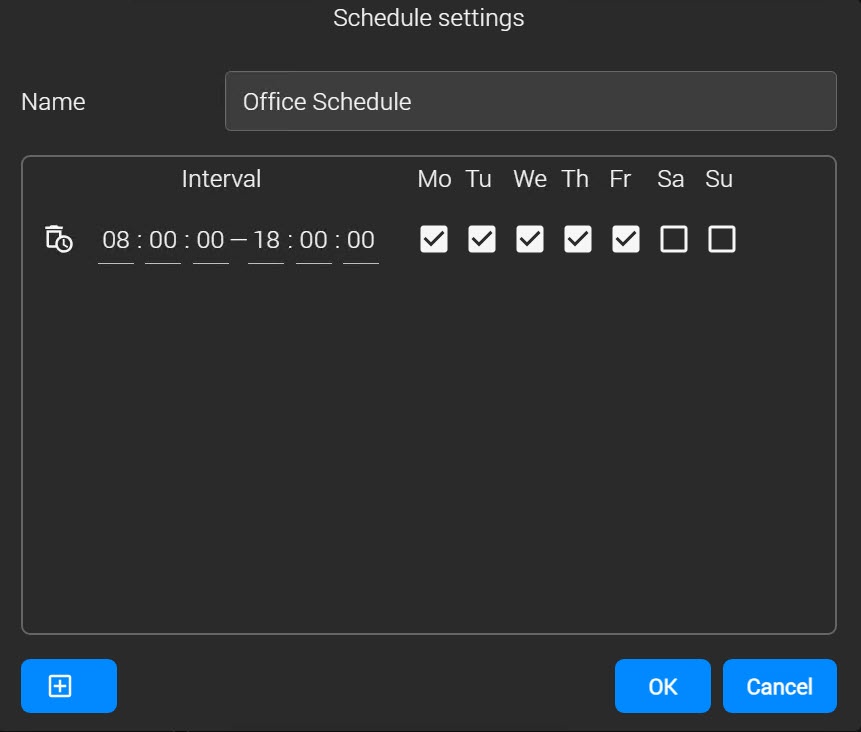
 button next to the required interval. button.
A schedule is created. The created schedule is displayed in the list of schedules.
In the schedule edit mode, you can:
To edit a schedule, double-click the required schedule in the list on the Schedules tab, or select the required schedule from the list and click the Edit button. The Schedule settings window opens. You can work with this window in the same way as when you create a schedule (see Create a schedule).
The Always schedule is non-editable. |
In the Access Manager module, you can search for a schedule by name. To search for a schedule:
The search for a schedule is complete. The search results table displays schedules that match the specified search criteria. The search is case-insensitive.
To delete a schedule:
The selected schedule is deleted.