General information
The Reports tab is used to generate reports on employee passages, employee presence in areas, and employee locations for a selected period.
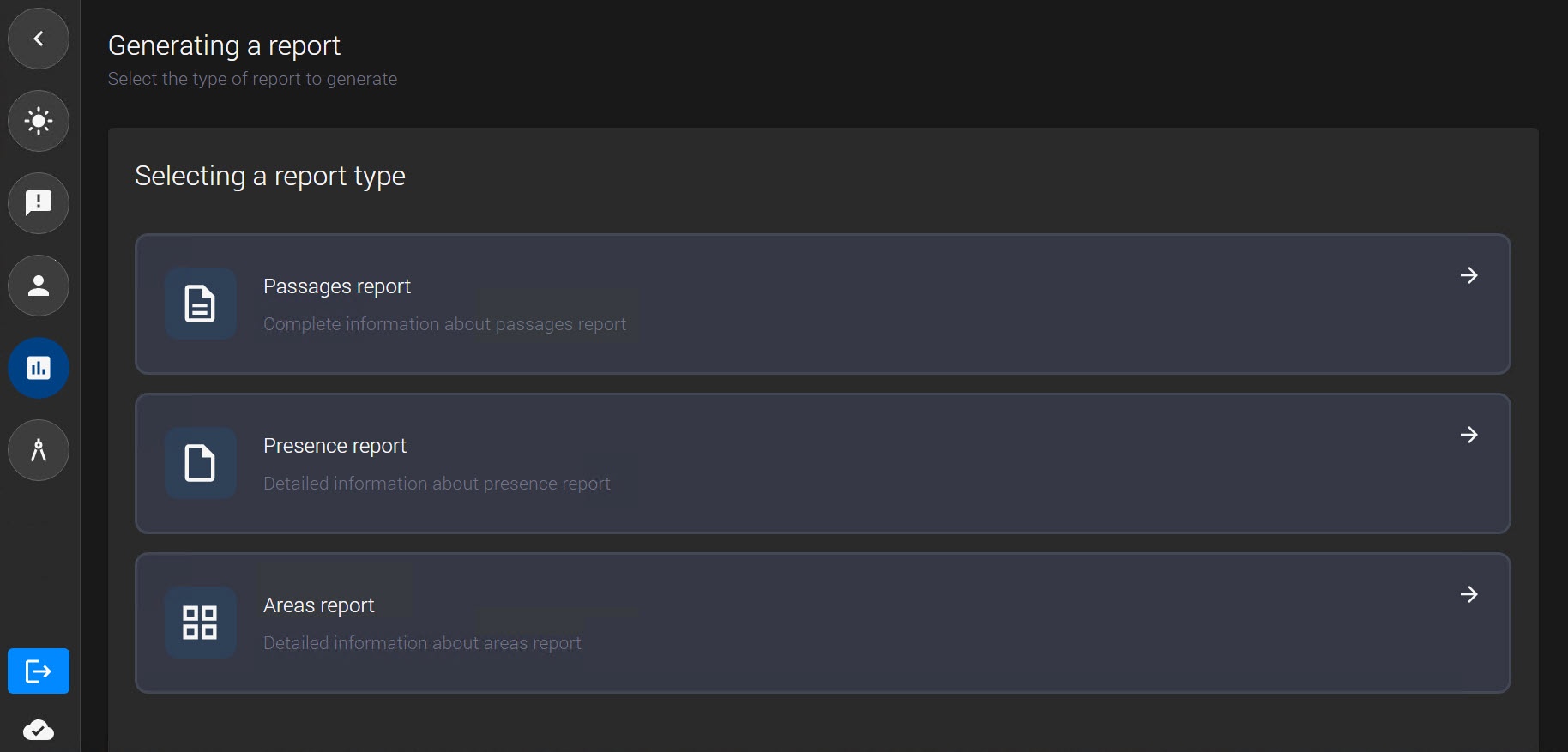
The following types of reports are available on this tab:
- Passages report generates a list of employee passages for a selected period.
- Presence report calculates the time employees spent in a selected area.
- Areas report generates a list of employees who were in a selected area during a specified period.
Passages report
Passages report is used to view employee passages for a selected period.
To create the report:
- Click the
 button in the side menu of the Access Manager.
 - In the Generating a report window that opens, select Passages report.
- In the Report parameters area, enter the period for report generation:
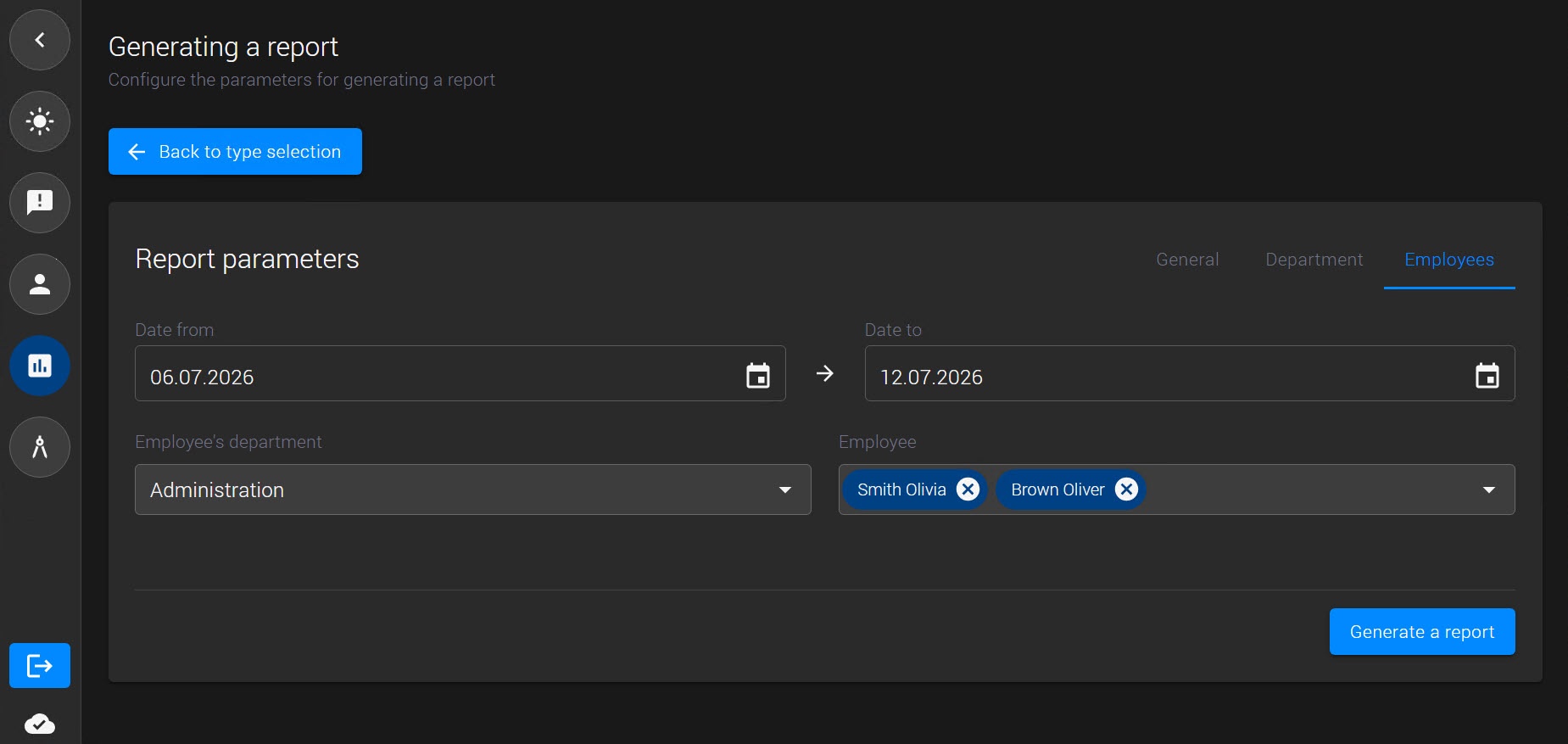
- Date from is the beginning of the period.
- Date to is the end of the period.
- Select the mode of report generation:
- General—the report is generated for all employees.
- Department—the report is generated for employees of the selected department.
- Employees—the report is generated for one or more selected employees.
- If you select the Department mode, specify the employee's department.
- If you select the Employees mode, specify the employee's department and select one or more employees.
- Click the Generate a report button.
After the report is generated, a table with passage data is displayed. Employee, department, entry area, exit area, date and time of passage are specified for each entry.
To return to the settings of the current report, use the Back to parameters button. To select a different type of report, use the Back to type selection button.
You can save the report in PDF or Excel format. To do this, click the Export to PDF button or click the button next to it to expand the list and select Export to Excel.
Presence report
Presence report calculates the time employees spent in a selected area for a specified period.
To create the report:
- Click the button in the side menu of the Access Manager.
- In the Generating a report window that opens, select Presence report.
- In the Report parameters area, enter the period for report generation:
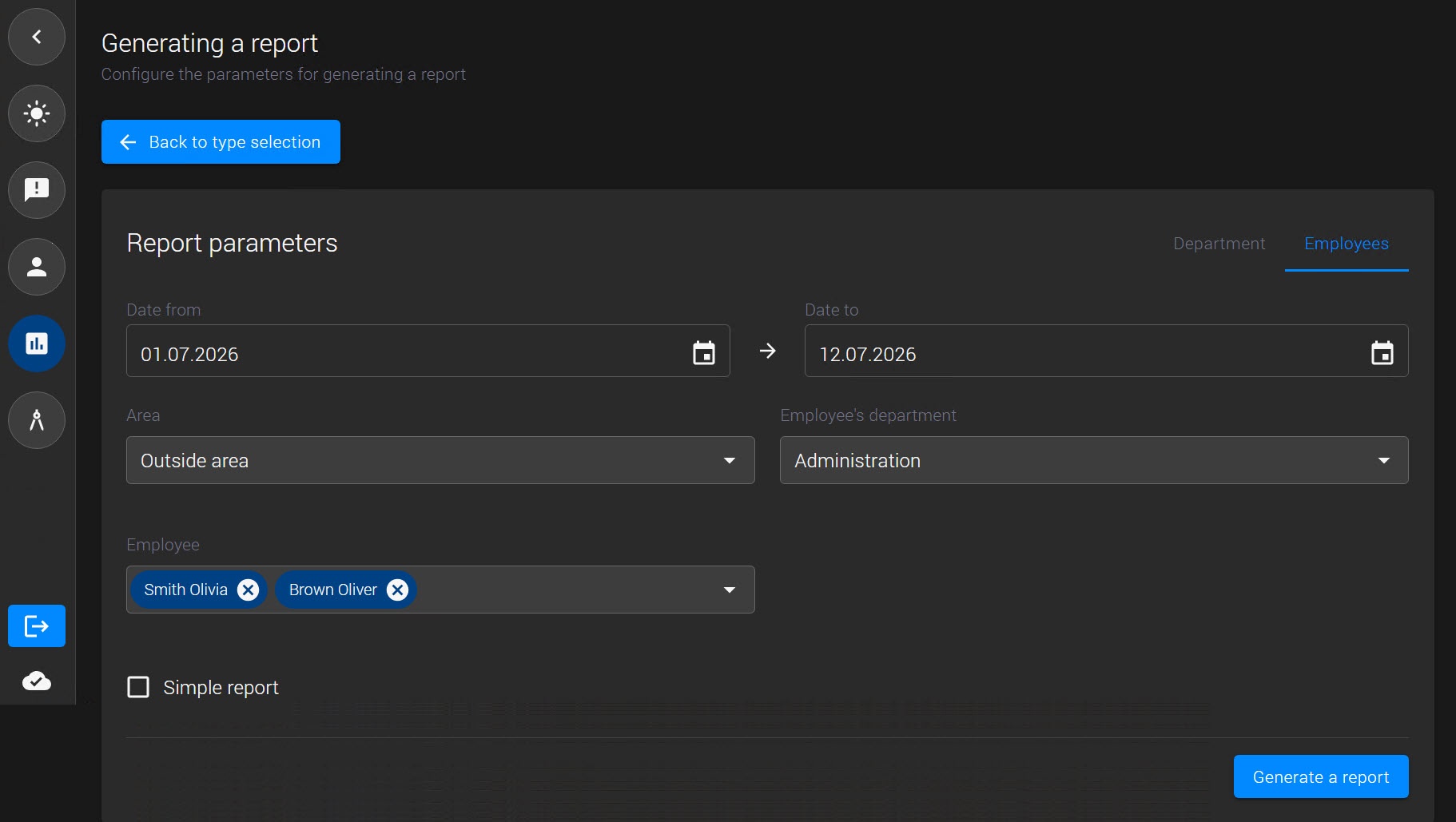
- Date from is the beginning of the period.
- Date to is the end of the period.
- In the Area field, select the area for which you want to calculate the time of presence.
- Select the mode of report generation:
- Department—the report is generated for employees of the selected department.
- Employees—the report is generated for one or more selected employees.
- If you select the Department mode, specify the employee's department.
- If you select the Employees mode, specify the employee's department and select one or more employees.
- If necessary, set the Simple report checkbox to calculate presence time based on the first entry and last exit of the day. Intermediate entries during the day are not included in the calculation.
- Click the Generate a report button.
After the report is generated, a table with data on employee presence in the selected area is displayed. The report includes the employee's full name, department, area, date, entry time, exit time, and calculated duration of stay. If multiple records are found for an employee, the data is grouped. The total duration of stay is displayed for each group.
To return to the settings of the current report, use the Back to parameters button. To select a different type of report, use the Back to type selection button.
You can save the report in PDF or Excel format. To do this, click the Export to PDF button or click the button next to it to expand the list and select Export to Excel.
Areas report
Areas report generates a list of employees who were in a selected area during a specified period.
To create the report:
- Click the button in the side menu of the Access Manager.
- In the Generating a report window that opens, select Areas report.
- In the Report parameters area, enter the period for report generation:
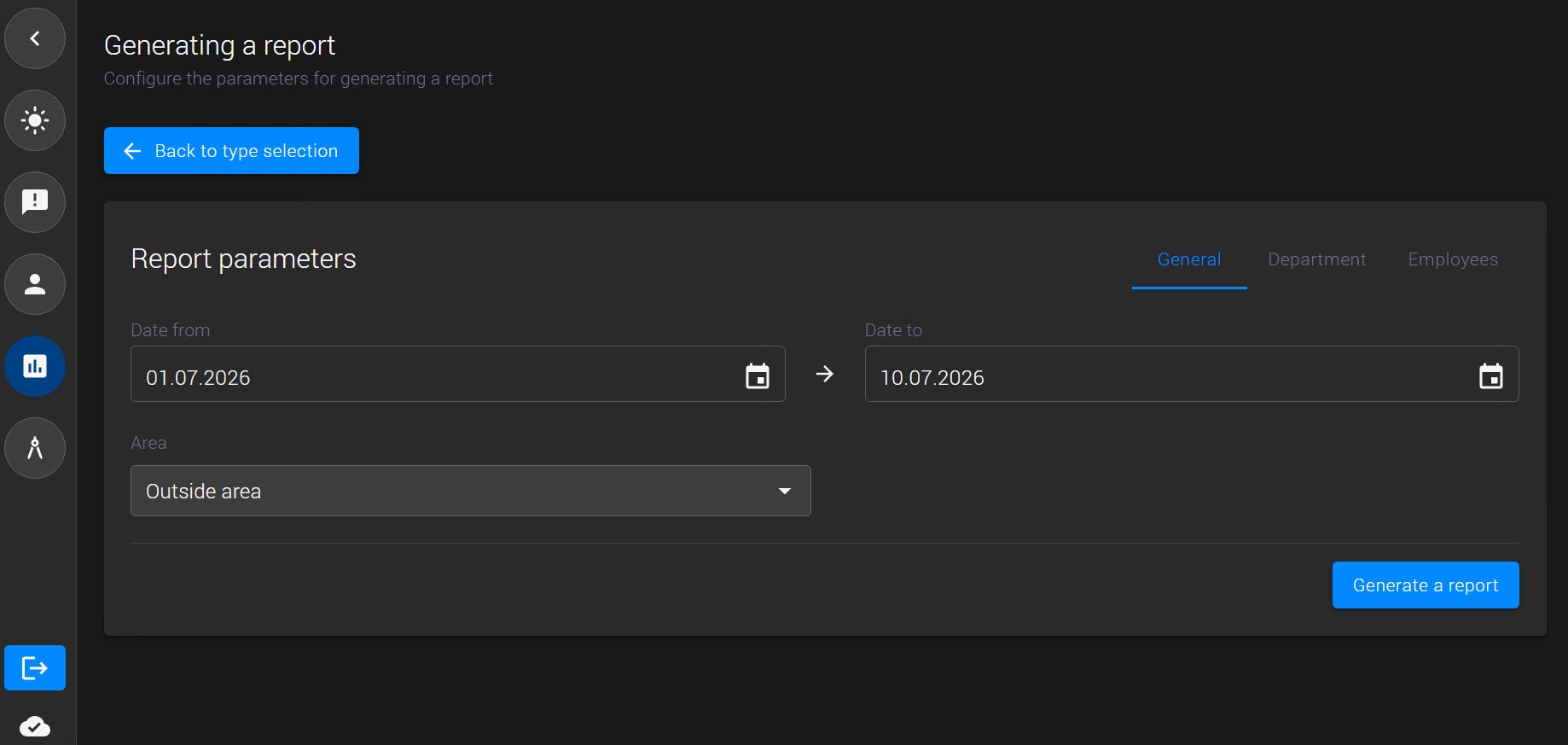
- Date from is the beginning of the period.
- Date to is the end of the period.
- In the Area field, select the area for which you want to generate the report.
- Select the mode of report generation:
- General—the report is generated for all employees.
- Department—the report is generated for employees of the selected department.
- Employees—the report is generated for one or more selected employees.
- If you select the Department mode, specify the employee's department.
- If you select the Employees mode, specify the employee's department and select one or more employees.
- Click the Generate a report button.
After the report is generated, a table with a list of employees who were present in the selected area is displayed. The report includes the employee's full name, department, area, and the date/time they were present in the area.
To return to the settings of the current report, use the Back to parameters button. To select a different type of report, use the Back to type selection button.
You can save the report in PDF or Excel format. To do this, click the Export to PDF button or click the button next to it to expand the list and select Export to Excel.