The Queue length in time interval report provides the information on the queue length in time interval. The data can be presented in the form of a chart or a table.
The Queue length in time interval report is a part of the Queue length detection module, it is necessary to create and configure the corresponding object in DetectorPack PSIM (see Configuring the Queue length detection module). |
You can use templates when you create a report. To add a new template, click Report templates → New template and fill in the Name and Description fields. The template will use the selected parameters of the current report. Templates work the same way as templates in the scheduler and can be used interchangeably. When you create a response using a template, click Report templates at the top of the page and select the required template from the list of saved templates (the required template is highlighted). As a result, the parameters of the current report are updated according to the selected template. |
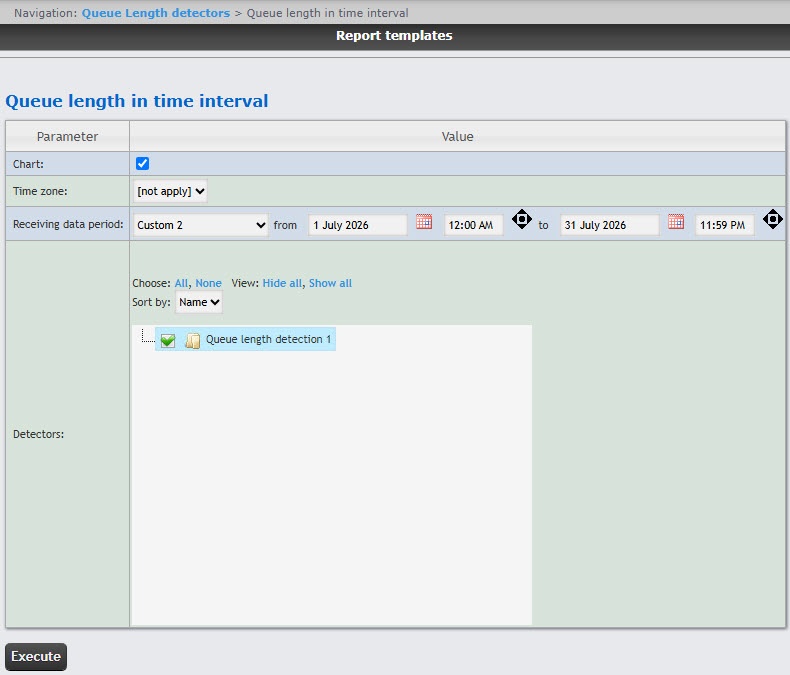
To create the Queue length in time interval report, do the following:

From the Time zone drop-down list, select the time zone for which the report should be created.
You can select time zones created in Axxon PSIM that have only one time period and don't have any nested time periods. You cannot select days of the week. For detailed information about creation and using time zones, see Creating and using time schedules. |
button near the corresponding field to use the Calendar tool. If the Custom 2 period is selected, enter additionally the start and end time of the period for which the report should be created using the
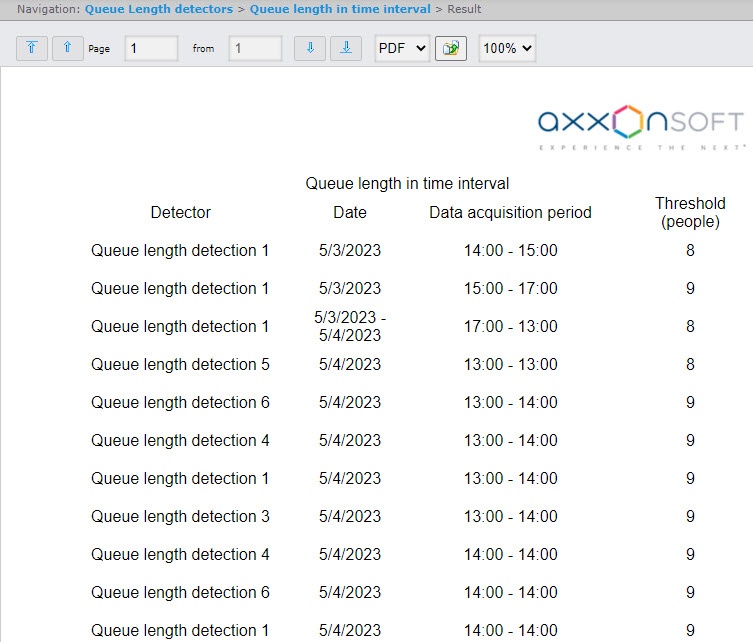
button.Example of the report in the form of a table:

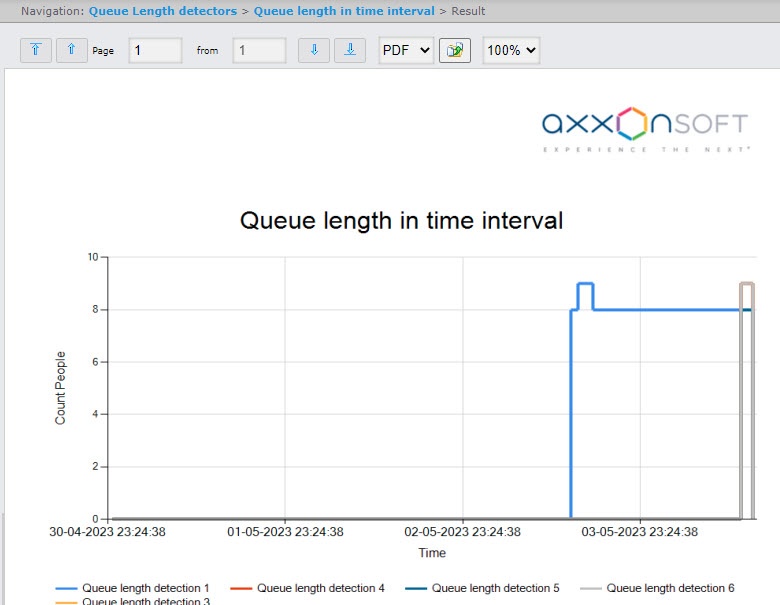
Example of the report in the form of a chart: