Before you create the replications report, you must create and configure the POS Replicator object in Axxon PSIM beforehand (see Configuring the POS Replicator system object). |
You can use templates when you create a report. To add a new template, click Report templates → New template and fill in the Name and Description fields. The template will use the selected parameters of the current report. Templates work the same way as templates in the scheduler and can be used interchangeably. When you create a response using a template, click Report templates at the top of the page and select the required template from the list of saved templates (the required template is highlighted). As a result, the parameters of the current report are updated according to the selected template. |
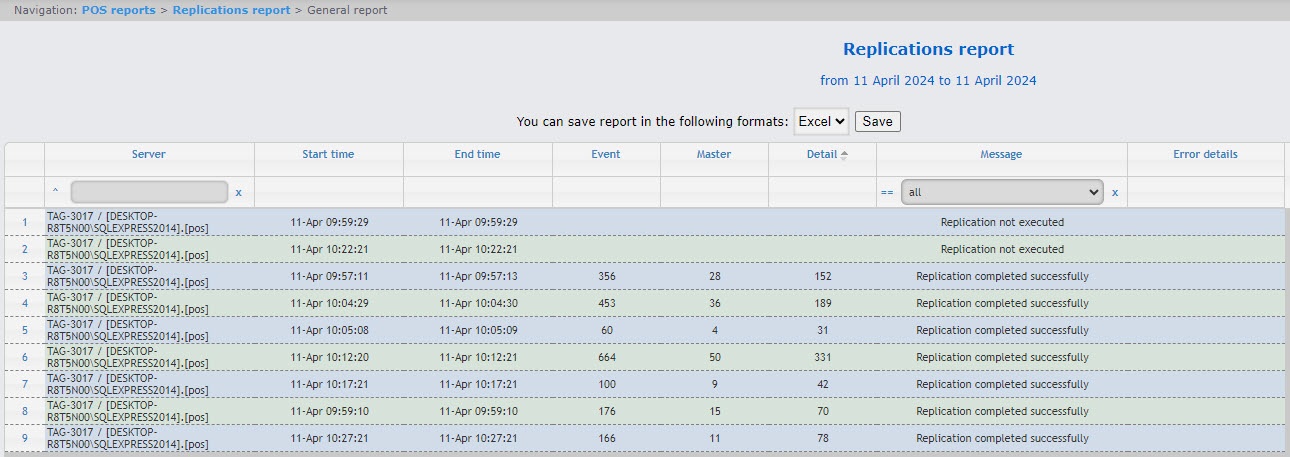
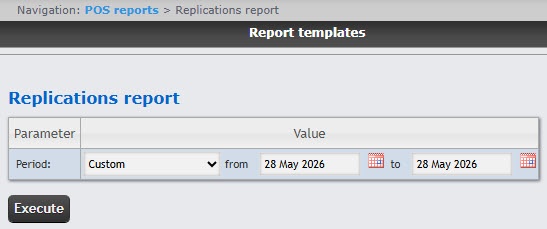
This report shows the data of which server is synchronized and for what period. To create the replications report:
Example of a replication report: