
Go to documentation repository


A report by operator actions includes information on assigning events with a status, escalation, and missing events.
Note
You can also generate a report by events (see Create a report by events logged using the operator protocol).
You can create a report by operator actions in the Search in events archive tab of the operator protocol window.
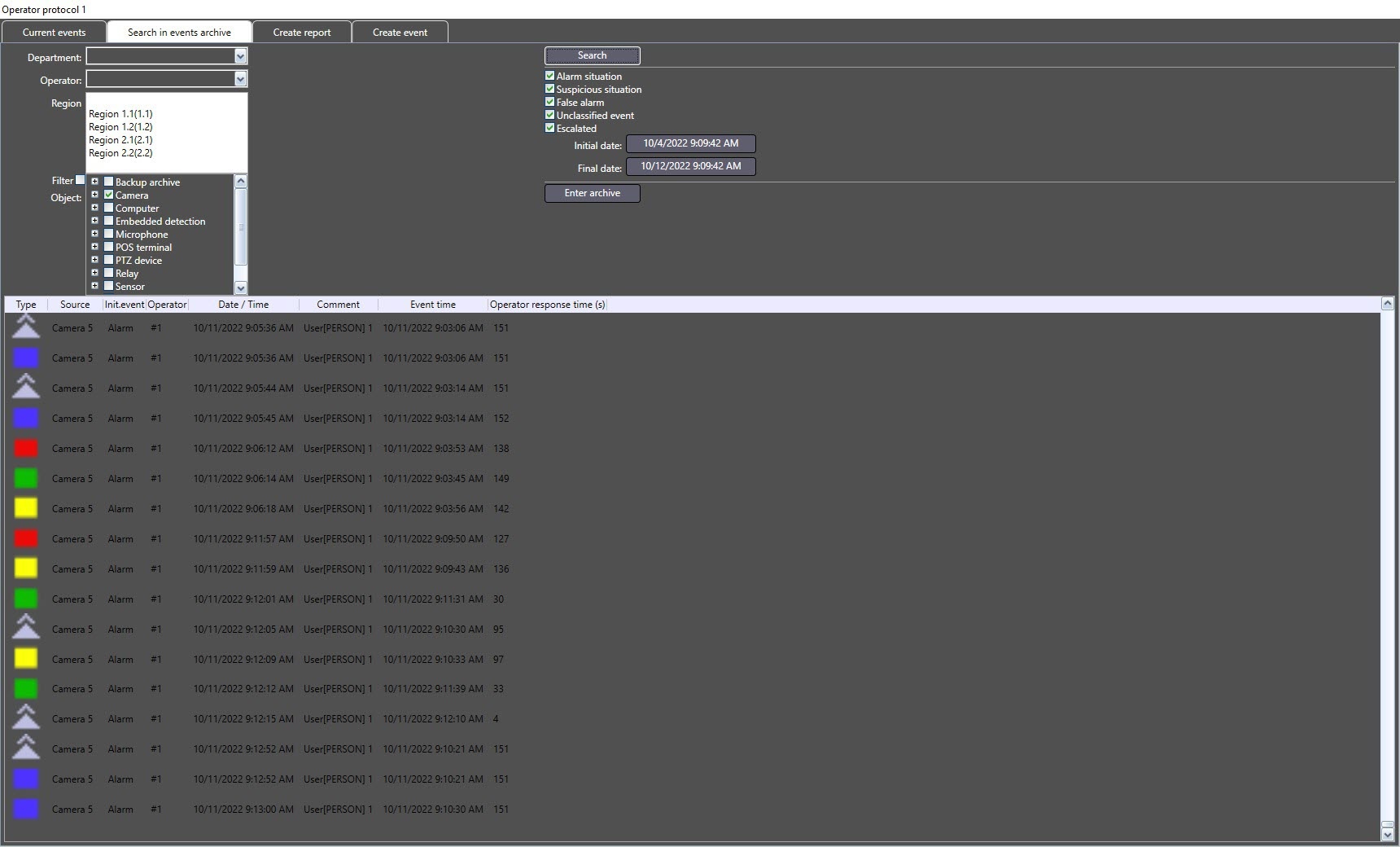
To create a report by operator actions, do the following:
- In the Department drop-down list, select the department to which the operator belongs. If you leave the field blank, all operators are available for selection.
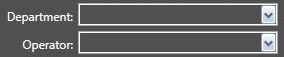
- In the Operator drop-down list, select the operator who processed the required events. If you don't select any value in the list, the search is performed across all operators.
- In the Region drop-down list, select one or several Region objects to which belong the objects from which the events were received. To select several objects, press the Ctrl key and left-click the required regions.
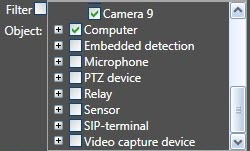
In the Object list, select the object by which you want to search for events. If you want to display in the list only the objects added to the operator protocols, set the Filter checkbox.
Attention!
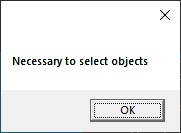
If you don't select any object, the report cannot be created, and the corresponding message is displayed:
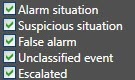
- Select the types of events to search for by setting the checkboxes next to the names corresponding to the required types. Checkbox names can differ depending on the settings of the button names (see Configuring the interface of the Operator protocol).
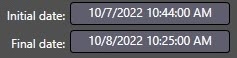
Set the time period of the search by specifying the initial and final dates using the Initial date and Final date buttons.
To start the search, click the Search button.
The operator actions corresponding to the search criteria will be displayed in the protocol table.
In order to view or export the video recording of the event, in the protocol table, go to the event whose video you want to view and click the Enter archive button.
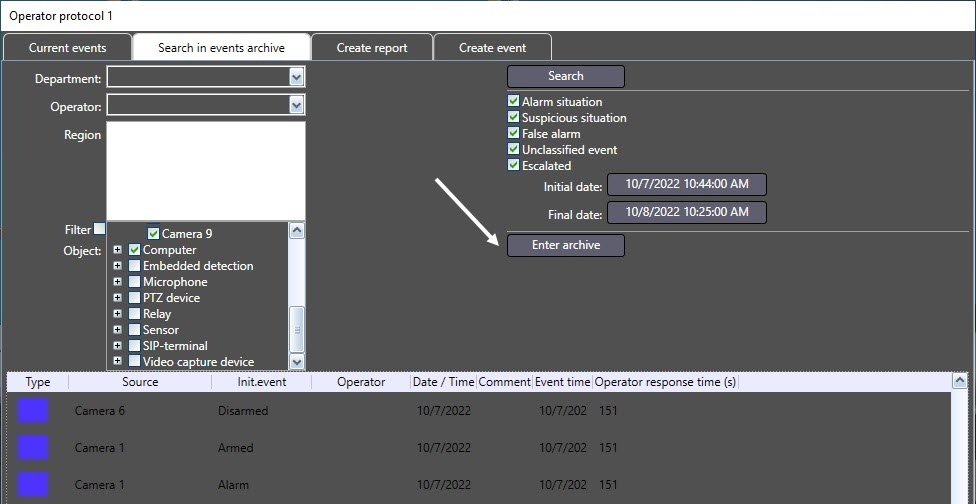
The archive of videos opens in a separate window, and the current position of playback is set at the position corresponding to the beginning of the event video. The interface of the window is similar to the interface of the video surveillance monitor.
Note
You can open the archive in the video surveillance monitor instead of the separate window depending on the settings of the Operator protocol object.
To reopen an event, you must select it by right-clicking the context menu and selecting the Reopen the event item. After that, this event appears in the Current events tab and becomes available for editing.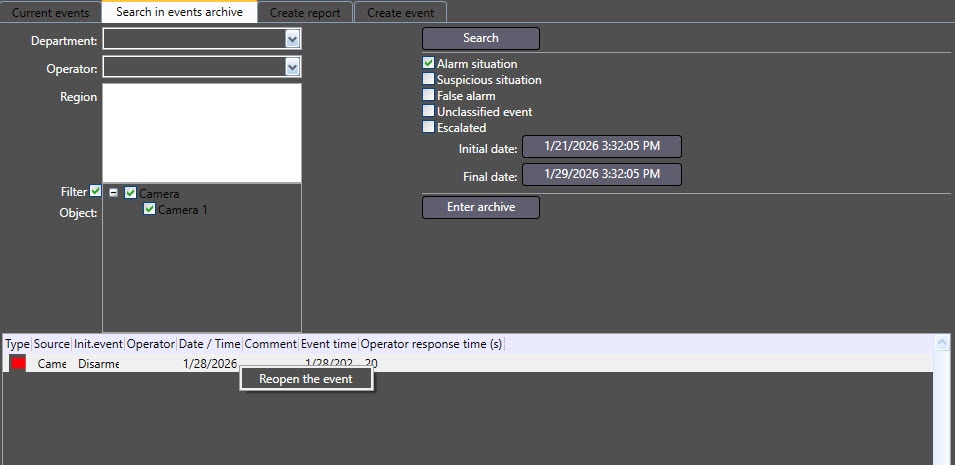
Overview
Content Tools