
Go to documentation repository
Previous page Next page
You can configure the Sweethearting at checkout detection program module on the settings panel of the Sweethearting at checkout detection object created on the basis of the Camera object on the Hardware tab of the System settings window.
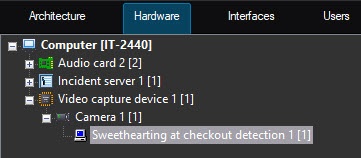
To configure the Sweethearting at checkout detection program module, do the following:
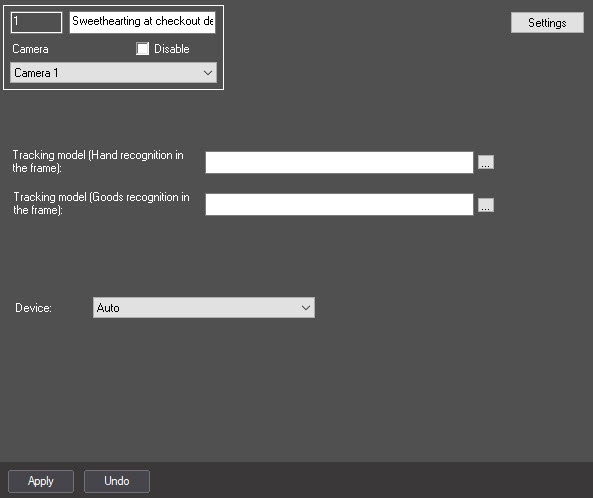
 button to the right of the Tracking model (Hand recognition in the frame) and Tracking model (Goods recognition in the frame) fields, and in the standard Windows Explorer window that opens, specify the file of the corresponding neural network.
Attention!
Note
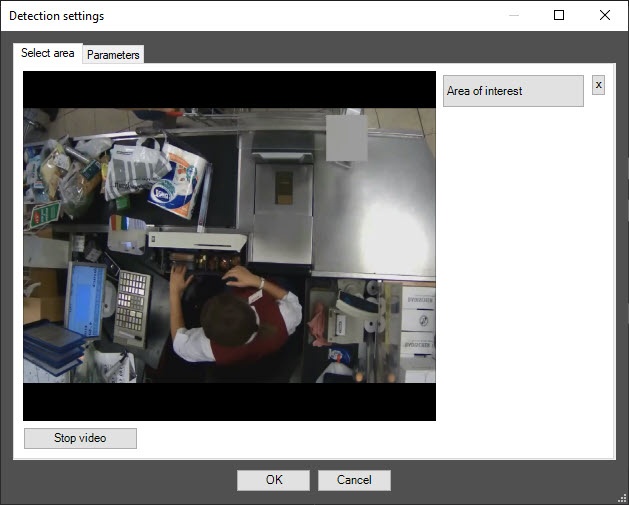
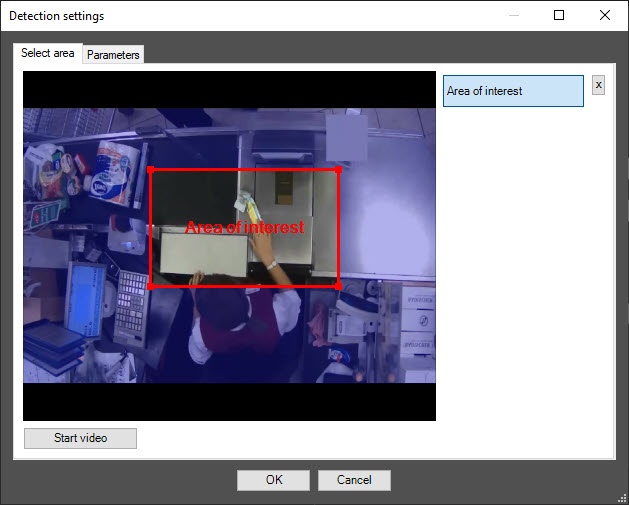
 button to the right of the Area of interest button.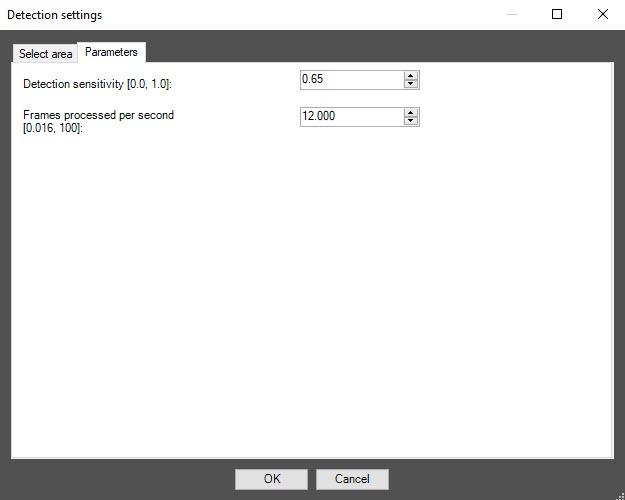
In the Detection sensitivity [0.0, 1.0] field, specify the detection sensitivity in the range from 0.0 to 1.0. The default value is 0.65.
Note
The detection sensitivity value is selected experimentally. The lower the sensitivity, the greater the probability of false positives. The higher the sensitivity, the less chance of false alarms, however, some useful tracks can be skipped.
Click the OK button to save the changes and return to the settings panel of the Sweethearting at checkout detection object.
Note
To return to the settings panel of the Sweethearting at checkout detection object without saving the changes, click the Cancel button.
Configuring the Sweethearting at checkout detection module is complete.

