Configuration of the VI abandoned objects street detection module includes general settings and configuration setup: determining the configuration parameters and detector features.
General settings of the detector
- Go to the settings panel of the VI abandoned objects street detection object that is created on the basis of the Camera object on the Hardware tab of the System settings window.
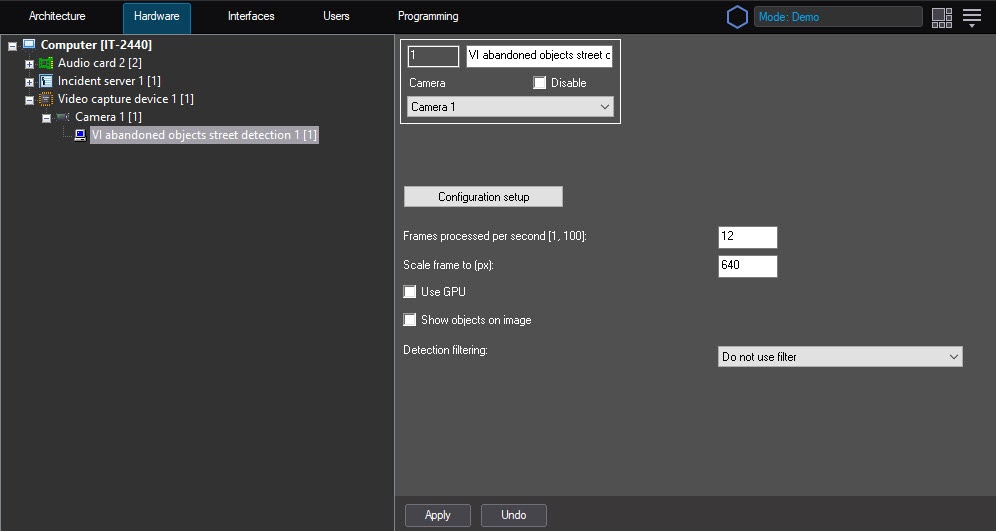
- In the Frames processed per second [1, 100] field, specify the number of frames in the range from 1 to 100 that the detector processes per second. The default value is 12 (recommended). You can specify only a positive integer. If you enter a number outside the range from 1 to 100, it is automatically changed to the nearest border value. If you leave the field blank, it automatically returns to the default value when you save the settings.
- In the Scale frame to (px) field, specify in the range from 480 to 1920 the width of the frame in pixels after scaling. The height of the frame is calculated automatically as the value specified in the setting, divided by 1.77777(7). The default value is 640, that is, the frame size after scaling is 640x360. The setting doesn't affect the resolution of the video stream and is used to reduce the load on the CPU, it is displayed in the logs and in the debug window.
- Set the Use GPU checkbox to use the NVIDIA GPU when you work with the neural network.
- Set the Show objects on image checkbox to outline the detection zone with a red border on the Video surveillance monitor when an object detection event is received.
- From the Detection filtering drop-down list, select the filter that you want to use: Object filter, Object counting filter, Do not use filter (default). You can configure filters on the Postprocessing tab of the Detection settings window.
- Click the Configuration setup button. The detector settings window opens.
The Select area tab
- In the Detection settings window, on the Select area tab, click the Stop video button to pause video playback.
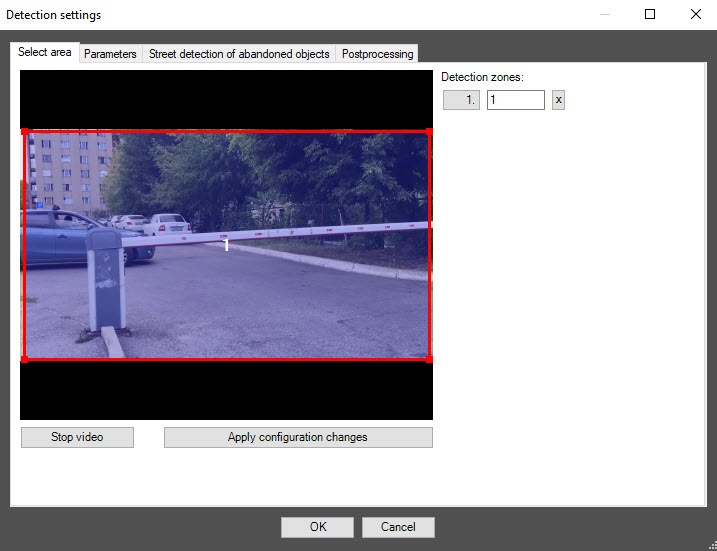
- By default, one detection zone is outlined with a red border. You can add more zones with the mouse, as well as change the borders of a zone by clicking its number in the list on the right and highlighting it in blue color.
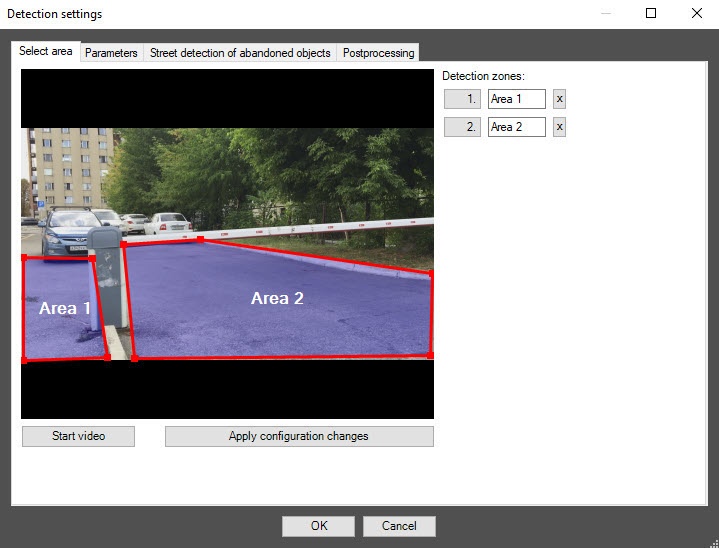
- To rename a detection zone, enter a new name in the field to the right of its number. The new name appears in the zone caption on the video image.
- To save all changes, click the Apply configuration changes button.
- To start video playback, click the Start video button.
The Parameters tab
- Go to the Parameters tab of the detector settings window. The tab displays the parameters of the used configuration. If you don't want to change the configuration, skip steps 2 and 3 and go to the next tab.
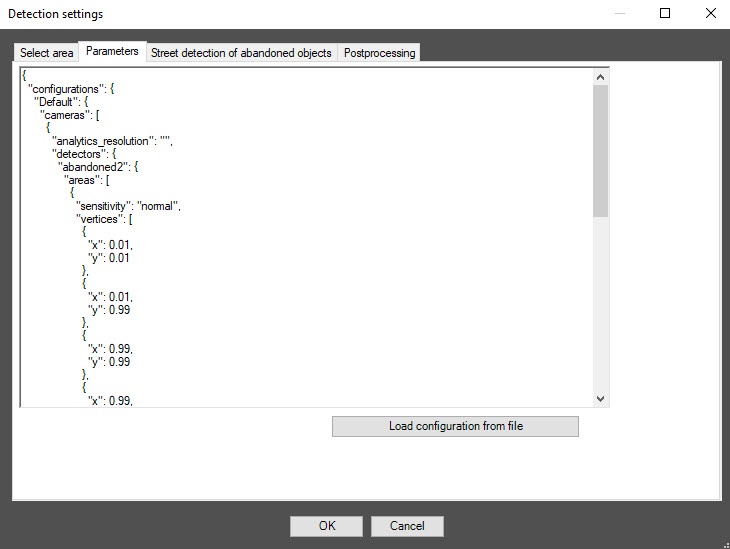
- To use your configuration, click the Load configuration from file button.
- In the standard Windows search window that opens, specify the path to the prepared configuration file in JSON format.
The Street detection of abandoned objects tab
- Go to the Street detection of abandoned objects tab.
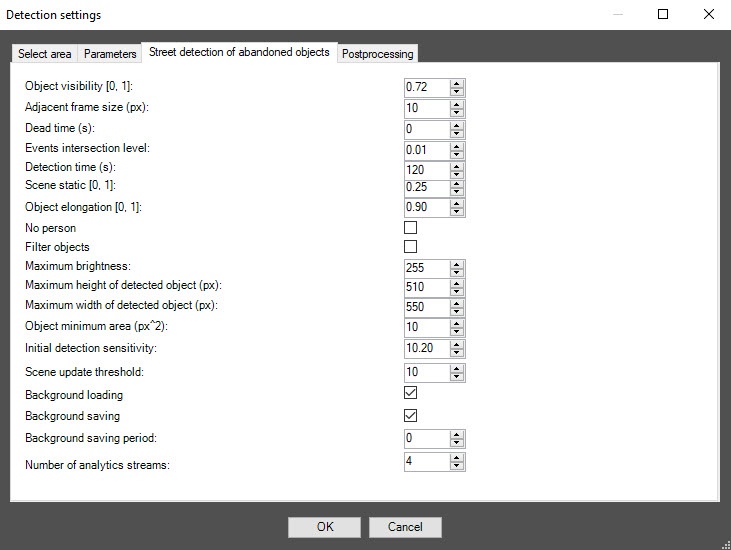
- In the Object visibility [0, 1] field, specify in fractions the sensitivity of the detector to detect barely visible objects merging with the background in the range from 0 to 1. The higher the value of the parameter, the less noticeable an object can be detected. The recommended value (default) is 0.72.
- In the Adjacent frame size (px) field, specify in pixels the maximum distance between the objects, the frames of which are merged. The default value is 10.
- In the Dead time (s) field, specify the time interval in seconds during which the occurrence of a repeated event is blocked. An event is considered repeated if its event intersection level is equal to or greater than the value specified in step 5. The default value is 0.
- In the Events intersection level field, in the range from 0 to 1, specify the level representing the way the repeated events are filtered. An event is considered repeated if the ratio of the intersection area to the area of the conjunction of two events is greater than or equal to the value specified in this parameter. The default value is 0.01. This parameter value is used in the Dead time parameter.
- In the Detection time (s) field, specify the time interval in seconds after which an object is considered abandoned. The default value is 120.
- In the Scene static [0, 1] field, specify in fractions the level of scene statics in the range from 0 to 1. The higher the value of the parameter, the less the scene dynamics are taken into account. The default value is 0.25.
- In the Object elongation [0, 1] field, specify in fractions the level of object elongation in the range from 0 to 1. Objects with a greater level of elongation don't trigger the detector. The default value is 0.90.
- Set the No person checkbox so that objects near people are ignored. By default, the checkbox is clear, which means that objects near people are also detected.
- Set the Filter objects checkbox to enable the neural network filter of objects. By default, the checkbox is clear, which means that the neural network filter is disabled.
- In the Maximum brightness field, specify in the range from 0 to 255 the maximum allowable brightness of an object that you want to detect. The default value is 255.
- In the Maximum height of detected object (px) field, specify in pixels in the range from 0 to 2160 the maximum allowable height of an object that you want to detect. Larger objects don't trigger the detector. The default value is 510.
- In the Maximum width of detected object (px) field, specify in pixels in the range from 0 to 4096 the maximum width of an object that you want to detect. Larger objects don't trigger the detector. The default value is 550.
- In the Object minimum area (pxˆ2) field, specify in pixels raised to the second power the minimum area of an object that you want to detect. Smaller objects don't trigger the detector. The default value is 10.
- In the Initial detection sensitivity field, specify as a percentage the minimum value to distinguish an object from the background. If this parameter is lower than the threshold value for an object, the detector doesn't trigger. The default value is 10.20.
- In the Scene update threshold field, specify as a percentage the minimum value to update the background if the number of changes in the frame exceeds it. The default value is 10.
- Clear the Background loading checkbox to disable the loading of the video background. By default, the checkbox is set. After restarting, the detector loads the previously saved background, not to retrain the network model.
- Clear the Background saving checkbox so that the background isn't saved. By default, the checkbox is set, which means that the background of the video is saved regularly with the periodicity specified in the Background saving period field. When you shut down the detector, the previously accumulated background is saved to a file for subsequent loading at startup.
- In the Background saving period field, specify the time period in seconds for which the background of the video is saved. The default value is 0.
- In the Number of analytics streams field, specify the number of video streams that are used for the operation of the neural network analytics. The default value is 4.
The Postprocessing tab
You can use this tab to configure object filters or object counting filters according to the option selected from the Detection filtering drop-down list in the basic settings of the detector.
Object filter
- To enable the object filter, select Object filter from the Detection filtering drop-down list in the basic settings of the detector.
- Go to the Postprocessing tab.
- From the Object filter list on the left, select one or more objects. If these objects are detected in the frame, the detector events are filtered. The events aren't displayed in the event viewer and on the screen.
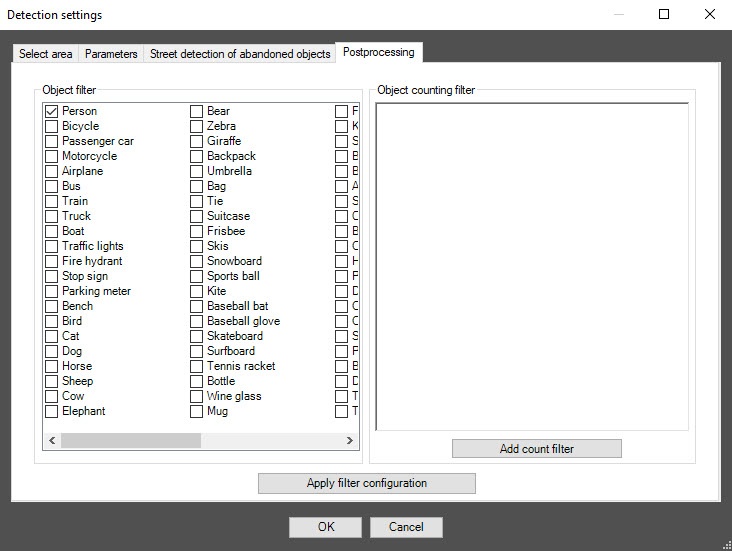
- To apply the filter, click the Apply filter configuration button.
Object counting filter
- To enable the object counting filter, select Object counting filter from the Detection filtering drop-down list in the basic settings of the detector.
- Go to the Postprocessing tab.
- Click the Add count filter button. In the section on the right, select one or more object counting filters.
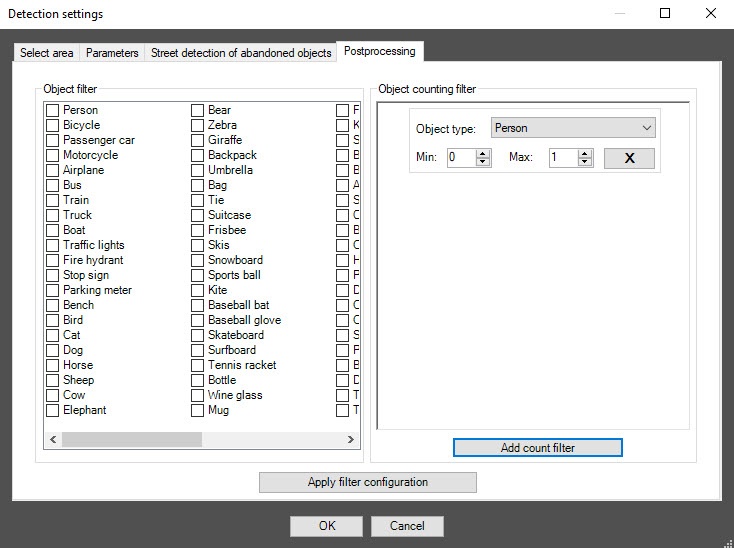
- In the Min and Max fields, set the lower and upper threshold values for each object counting filter. If the number of objects of a given type in the detection area is within this range, the detector generates an event that is also displayed in the event viewer and on the screen. If the number of objects is greater or less than the set range, or there are no objects at all, then all events are filtered out and aren't displayed in the event viewer or on the screen.
- To apply the filter, click the Apply filter configuration button.
Click the OK button to save all settings of the detector. The Detection settings window closes, and you return to the detector settings panel.
To save all changes, click the Apply button on the settings panel of the VI abandoned objects street detection object.
Configuring the VI abandoned objects street detection module is complete.

 button to the right of the zone name.
