
Go to documentation repository

Documentation for Monitoring PSIM 2.0 (english)
Previous page Next page

The settings panel of the Monitoring interface object is given on the figure.
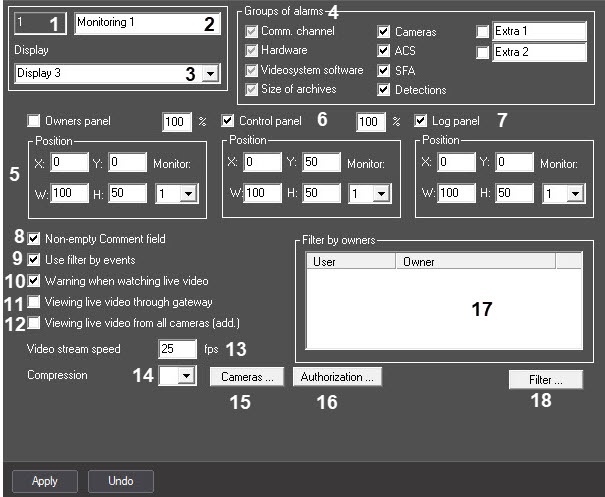
Description of the Monitoring object settings panel elements is given in table.
# | Name | Method for setting the parameter value | Description | Type | Default value | Value range |
|---|---|---|---|---|---|---|
1 | The Identifier field* | Automatically | Displays the identification number of the Monitoring object in the system | Sequence of numbers | NA | >=0 |
2 | The Name field* | Enter the value in the field | Sets the name of the Monitoring object in the system | Latin alphabet, Cyrillic, and service characters | Monitoring | A line containing a sequence of any characters (letters, digits, service characters except > and < characters), case-insensitive. Number of characters—from 1 to 60 |
3 | The Display drop-down list | Select the value from the field | Sets the name of the Display parent object for the given Monitoring object | Names of the Display objects registered in the system | Name of the Display parent object | Depends on the number of the Display objects registered in the system |
| 4 | The Groups of alarms group | Set the checkbox | Sets the groups of alarms that must be displayed on the control panel | Boolean type | All checkboxes except for Extra 1 and Extra 2 are set | If you set the checkbox next to the group of alarms, then if an alarm from the corresponding group occurs, it is displayed on the control panel |
| 5 | The Owners panel group | |||||
| The Owners panel checkbox | Set the checkbox | Displays the owners panel | Boolean type | Set | Set—the owners panel is displayed Clear—the owners panel is hidden | |
| The X field | Enter the value in the field | Sets the coordinate of the upper left angle of the owners panel on the X axis | % of the screen width | 0 | From 0 to 100. If there is more than one monitor in the system, you can use coordinates outside this range, but we don't recommend using coordinates less than -200 | |
| The Y field | Enter the value in the field | Sets the coordinate of the upper left angle of the owners panel on the Y axis | % of the screen height | 50 | From 0 to 100. If there is more than one monitor in the system, you can use coordinates outside this range, but we don't recommend using coordinates less than -200 | |
| The W field | Enter the value in the field | Sets the horizontal size of the owners panel | % of the screen width | 100 | From 0 to 100. If there is more than one monitor in the system, you can use coordinates outside this range, but we don't recommend using coordinates less than -200 | |
| The H field | Enter the value in the field | Sets the vertical size of the owners panel | % of the screen height | 50 | From 0 to 100. If there is more than one monitor in the system, you can use coordinates outside this range, but we don't recommend using coordinates less than -200 | |
| The % field | Enter the value in the field | Sets the scaling of objects on the owners panel | Percent | 100 | From 100% to 500%. If the scaling parameter exceeds 110%, then the high-resolution icons are displayed on the object, and the Courier New font is used for the text in the object title; otherwise, MS Sans Serif | |
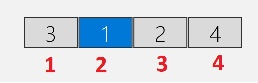
| The Monitor drop-down list | Select the value from the list | Sets the number of the physical monitor for which coordinates are specified. Monitors are numbered in physical order from left to right, from top to bottom. Thus, number 1 corresponds to the top-left monitor, regardless of which monitor is the primary or first in the OS numbering. In the figure, the monitor numbers in the OS are highlighted in gray, and the monitor numbers in Axxon PSIM are highlighted in red:
Attention! We recommend using the same resolution for all monitors in the system. Different resolutions are allowed only if each row of logical monitors is aligned to some sort of boundary (for example, to the top) | Sequence of numbers | 1 | From 1 to 16 | |
6 | The Control panel group | |||||
The Control panel checkbox | Set the checkbox | Displays the control panel | Boolean type | Set | Set—the control panel is displayed | |
The X field | Enter the value in the field | Sets the coordinate of the upper left angle of the control panel on the X axis | % of the screen width | 0 | From 0 to 100. If there is more than one monitor in the system, you can use coordinates outside this range, but we don't recommend using coordinates less than -200 | |
The Y field | Enter the value in the field | Sets the coordinate of the upper left angle of the control panel on the Y axis | % of the screen height | 50 | From 0 to 100. If there is more than one monitor in the system, you can use coordinates outside this range, but we don't recommend using coordinates less than -200 | |
The W field | Enter the value in the field | Sets the horizontal size of the control panel | % of the screen width | 100 | From 0 to 100. If there is more than one monitor in the system, you can use coordinates outside this range, but we don't recommend using coordinates less than -200 | |
The H field | Enter the value in the field | Sets the vertical size of the control panel | % of the screen height | 50 | From 0 to 100. If there is more than one monitor in the system, you can use coordinates outside this range, but we don't recommend using coordinates less than -200 | |
| The % field | Enter the value in the field | Sets the scaling of objects on the control panel | Percent | 100 | From 100% to 500%. If the scaling parameter exceeds 110%, then the high-resolution icons are displayed on the object, and the Courier New font is used for the text in the object title; otherwise, MS Sans Serif | |
| The Monitor drop-down list | Select the value from the list | Sets the number of the physical monitor for which coordinates are specified. Monitors are numbered in physical order from left to right, from top to bottom. Thus, number 1 corresponds to the top-left monitor, regardless of which monitor is the primary or first in the OS numbering. In the figure, the monitor numbers in the OS are highlighted in gray, and the monitor numbers in Axxon PSIM are highlighted in red:
Attention! We recommend using the same resolution for all monitors in the system. Different resolutions are allowed only if each row of logical monitors is aligned to some sort of boundary (for example, to the top) | Sequence of numbers | 1 | From 1 to 16 | |
7 | The Log panel group | |||||
The Log panel checkbox | Set the checkbox | Displays the log panel | Boolean type | Set | Set—the log panel is displayed | |
The X field | Enter the value in the field | Sets the coordinate of the upper left angle of the log panel on the X axis | % of the screen width | 0 | From 0 to 100. If there is more than one monitor in the system, you can use coordinates outside this range, but we don't recommend using coordinates less than -200 | |
The Y field | Enter the value in the field | Sets the coordinate of the upper left angle of the log panel on the Y axis | % of the screen height | 0 | From 0 to 100. If there is more than one monitor in the system, you can use coordinates outside this range, but we don't recommend using coordinates less than -200 | |
The W field | Enter the value in the field | Sets the horizontal size of the log panel | % of the screen width | 100 | From 0 to 100. If there is more than one monitor in the system, you can use coordinates outside this range, but we don't recommend using coordinates less than -200 | |
The H field | Enter the value in the field | Sets the vertical size of the control panel | % of the screen width | 50 | From 0 to 100. If there is more than one monitor in the system, you can use coordinates outside this range, but we don't recommend using coordinates less than -200 | |
| The Monitor drop-down list | Select the value from the list | Sets the number of the physical monitor for which coordinates are specified. Monitors are numbered in physical order from left to right, from top to bottom. Thus, number 1 corresponds to the top-left monitor, regardless of which monitor is the primary or first in the OS numbering. In the figure, the monitor numbers in the OS are highlighted in gray, and the monitor numbers in Axxon PSIM are highlighted in red:
Attention! We recommend using the same resolution for all monitors in the system. Different resolutions are allowed only if each row of logical monitors is aligned to some sort of boundary (for example, to the top) | Sequence of numbers | 1 | From 1 to 16 | |
8 | The Non-empty Comment field checkbox | Set the checkbox | Sets if you want the operator to comment on an alarm or its actions when accepting this alarm | Boolean type | Set | Set—you must fill in the Comment field when accepting an alarm |
| 9 | The Use filter by events checkbox | Set the checkbox | Sets if you want to filter objects by the Alarm and Failure events as well as by the Connected and Disconnected states | Boolean type | Set | Set—filter is enabled Clear—filter is disabled |
10 | The Warning when watching live video checkbox | Set the checkbox | Sets if you want to display the warning about the possible critical load on the data transmission channel when viewing live video | Boolean type | Set | Set—if you try to view live video, the warning is displayed |
| 11 | The Viewing live video through gateway checkbox | Set the checkbox | Sets if the Agents of Control and Additional workplaces modules are in different subnetworks, the Monitoring PSIM components aren't combined into the common distributed system in the Axxon PSIM object tree, and the Data gateway object is used for the live video transmission to the Additional workplaces modules | Boolean type | Clear | Set—live video is transmitted via the data gateway Clear—live video is transmitted directly from the Agent of control module |
| 12 | The Viewing live video from all cameras (add.) checkbox | Set the checkbox | Sets if you want to add the All cameras of Partition of Control item to the Video image playback menu item, which allows displaying all cameras of the selected partition of control | Boolean type | Clear | Set—the All cameras of Partition of Control item is displayed in the Video image playback menu item Clear—the All cameras of Partition of Control item is hidden |
13 | The Video stream speed field | Enter the value in the field | Sets the number of frames per second of the video image when you view live video or video from the archive.
| Frames per second | 25 | Depends on the camera features |
| 14 | The Compression drop-down list | Select the value from the list | Sets the live video compression level | Possible compression levels | No | 0-5 |
| 15 | The Cameras... button | Click the button | Opens a window for configuring cameras prohibited for viewing by users | NA | NA | NA |
| 16 | The Authorization... button | Click the button | Opens a window for configuring the username and password to view live video and video from the archive | NA | NA | NA |
| 17 | The Filter by owners table | Using the Filter... button | Displays the selected pairs of users and owners | NA | NA | NA |
| 18 | The Filter... button | Click the button | Opens a window for configuring the correspondence of owners to users | NA | NA | NA |
*Name of the element isn't displayed in the settings panel of the given object
Overview
Content Tools