
Go to documentation repository

Documentation for Axxon PSIM 2.0. Documentation for other versions of Axxon PSIM is available too.
Previous page Next page

You can export a video with audio using the playback control panel. You can export the main archive of the server, the backup archive, the videogate archive, and the edge storage archive depending on the playback mode selected (see Modes of working with archives).
Select Export in the function menu of the surveillance window and then select Save record to AVI.
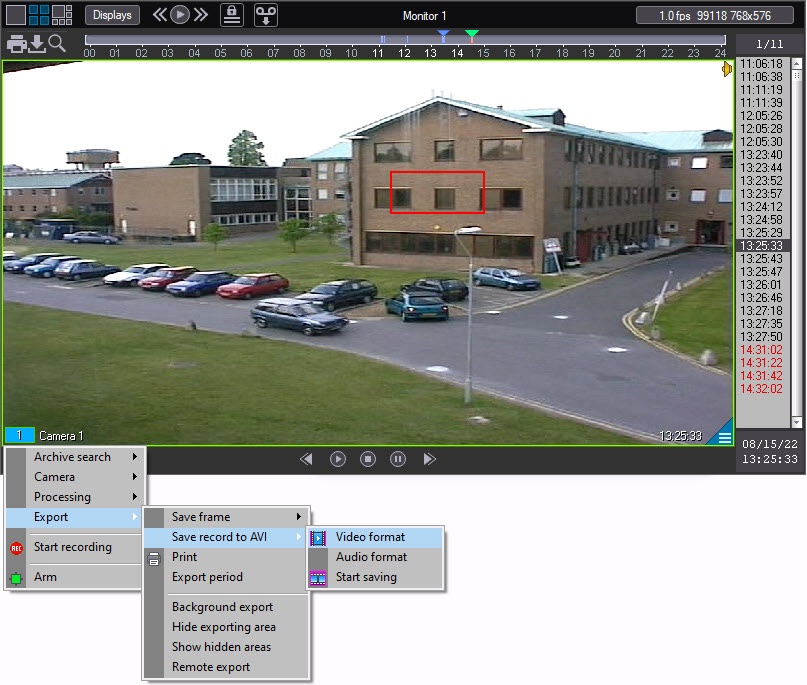
In the menu that opens, you can configure the parameters of the video and audio that you want to save.
You can select the compression quality in the standard Windows dialog window.
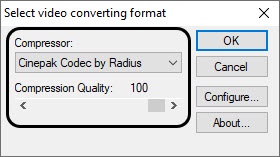
Select the codec in the window and, if available, the compression quality.
Note
Settings of video compression can be ignored if export of the archive period in original format was performed earlier (see Export an archive period).
You can also select the compression quality of the synchro audio in the standard Windows dialog window.
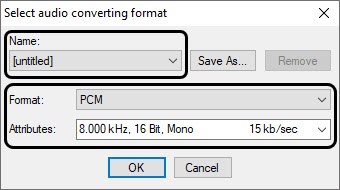
In the dialog window, select the audio format and a set of audio quality parameters or a predefined settings profile.
As soon as you select the parameters, the video can be exported to the file when you select Start saving. If you want to export a video starting from some other frame, not the first one, then play the video up to the required moment before you start saving.
The Playback button is highlighted in the process of saving, and the indicator of playback position counts down the frame currently being processed.
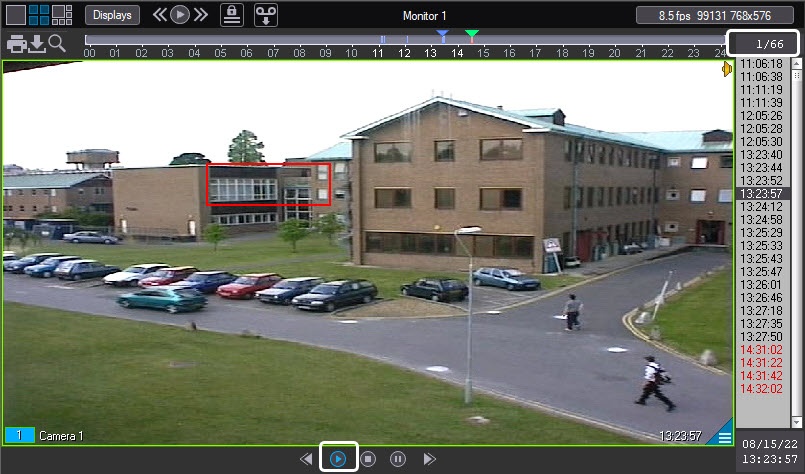
Click the  button after the start of saving for a quick export. This button doubles the speed of video export. Maximum available speedup is 8 times.
Attention!
If you export a speeded video, audio isn't exported. If audio is required, then you must export without speedup.
Note
When you speed up the video export, only the key frames are played back. Hence, only the key frames are saved to the file during the export.
To stop the export, click  or
or  . In this case, only the part of the video before the moment you click one of these buttons is exported.
As soon as the video saving process is complete, the Playback button is no longer highlighted.
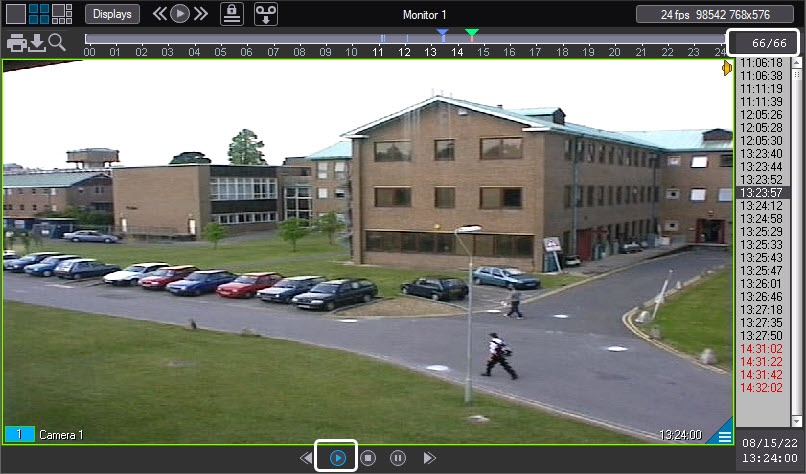
The file containing the saved video with audio is saved to the C:\Users\%current user name%\Documents\Axxon PSIM\export\ directory. The file name is generated as follows: <camera number> (<date> <time>). For instance, 02 (03-10-07 16'28'06).avi (the file extension depends on video compression settings). You can change the path to the video recording folder using the ExportDir registry key located in the HKLM\SOFTWARE\AxxonSoft\PSIM\Video\AviExport section (see Registry keys reference guide).
Note
If captions are added to the video (see Configuration of caption display), they are present in the exported video. You can set the caption size on the settings panel of the Captioner object. The size can change during export if the video resolution is reduced. To enable adaptive caption size, use the ExportFontAdaptive registry key (see Registry keys reference guide).
Note
If you use AVI format, the resulting file cannot exceed 2 GB.
Overview
Content Tools