
Go to documentation repository
Documentation for Axxon One 2.0 version. Documentation for Axxon One 3.0 version is also available.

The advanced archive navigation panel is displayed in the lower part of the surveillance window in the archive or archive search modes. 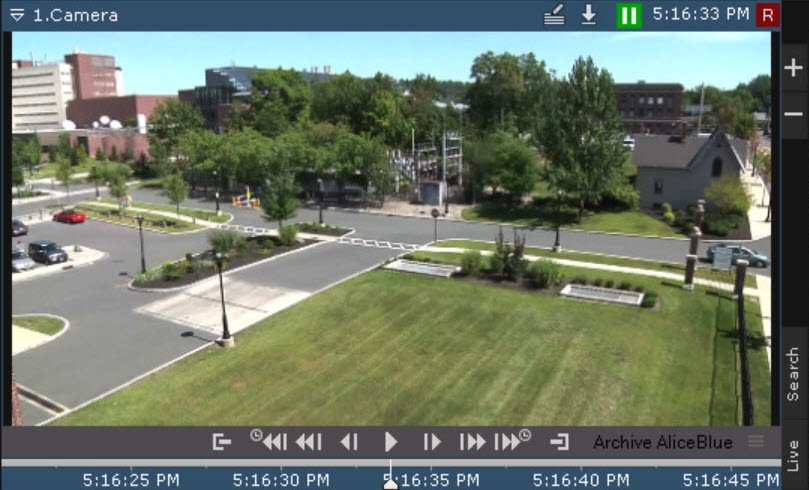
When you select a surveillance window in the live mode, the advanced archive navigation panel isn't displayed fully—only the timeline and the archive selection button are displayed.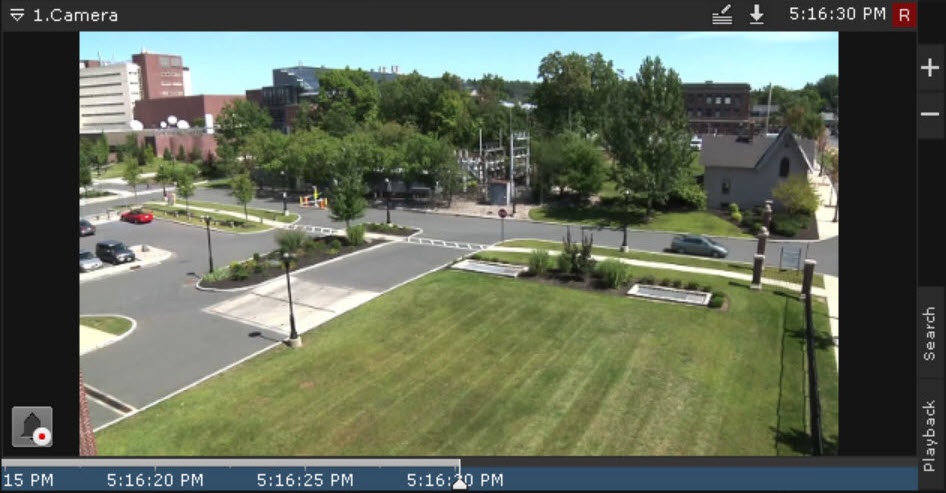
Note
If the camera isn't bound to the archive, the advanced archive navigation panel isn't displayed.
In the live mode, when you click the timeline, you go to the archive mode.
The advanced archive navigation panel includes the following components:
- Timeline with indicators of the presence of records—tracks.
- Playback control buttons.
Archive selection button.
- Tabs for compressed and standard archive playback modes.
Tracks are marked in different colors depending on the archive status:
Condition | Track color |
Archive absent (1) | Black |
Archive present (2) | White |
Archive present, input or detector activated (no alarm) (3) | Blue |
Archive present, alarm active (4) | Red |
Additionally, the timeline on the advanced archive navigation panel contains markers of archive breaks in the form of alternating red-orange diagonal stripes . A mark is displayed if the archive is missing for over 40% of the currently visible part of the timeline.
Depending on the duration of the archive break, marks can have different thicknesses:
- —break is less than one hour.
 —break is from 1 to 24 hours.
 —break is more than 24 hours.
The duration of the missing archive is indicated near the mark.
The date of the first recording in the archive is displayed near the left edge of the archive stripe.
The playback control buttons on the advanced navigation panel are the same as the buttons on the playback panel (see The Playback Panel). The advanced archive navigation panel also has the buttons to jump forward and back by N seconds:  and
and  .
.
N is a step value, 30 seconds by default. If you press Ctrl + once, you increase the jump step by 30 seconds. If you press Ctrl + once, you cut the jump step by 30 seconds. The maximum step value is 300 seconds.
You can also use the mouse to change the step value:
- Hover the mouse cursor over the or button.
- To increase the step value, scroll the wheel up. To decrease the step value, scroll the wheel down.
Note
The archive period to the left of the marker  means that the camera was not bound to the archive (see Configuring recording to an archive).
The advanced archive navigation panel is used to position the archive at a specific time, control playback, and switch to compressed archive playback mode.
The advanced archive navigation panel works completely in sync with the playback panel (see The Playback Panel) and the timeline (see The Timeline):
- The playback mode selected on the advanced navigation panel is displayed on the playback panel.
- The playback speed that is set on the playback panel is used as the playback speed when playback is started on the advanced navigation panel, and vice versa.
- Any movement through the main timeline is duplicated onto the timeline of the advanced navigation panel.
Overview
Content Tools