
Go to documentation repository

Documentation for Axxon PSIM 2.0. Documentation for other versions of Axxon PSIM is available too.
Previous page Next page

If the total number of cameras displayed on the video surveillance monitor exceeds the allowed number for the selected layout, you can scroll through surveillance windows.
To scroll through surveillance windows, you can use the  ,
,  and
and  buttons located on the toolbar.
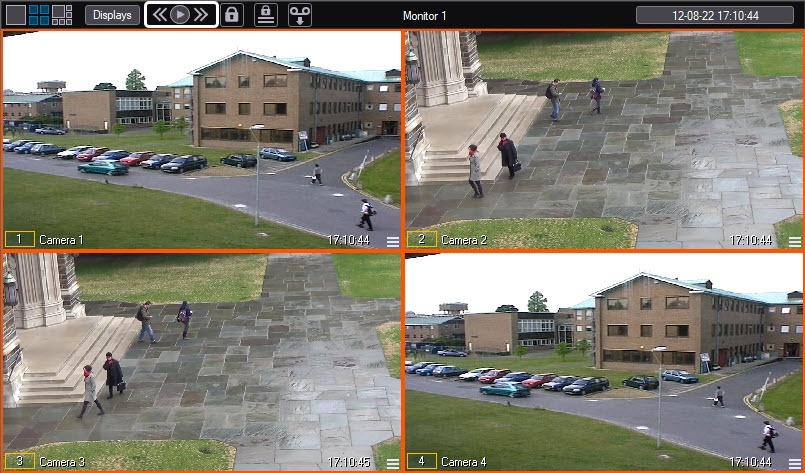
The first two buttons are used to scroll forward and backward one screen at a time, respectively. The button is used to enable/disable automatic scrolling of surveillance windows at a specified interval.
When you enable the automatic scrolling mode, the appearance of the button changes to  .
.
When the automatic scrolling is enabled, the button for opening the camera menu and the button for opening the archive with the left mouse button become inactive. In this case, the button for opening the archive with the right mouse button can be used.
Note
You can change the standard way of scrolling so that when you click the scroll buttons, the layouts created in the video surveillance monitor are scrolled. To do this, set the CycleByLayouts registry key to 1 on the computer where the video surveillance monitor is displayed (see Registry keys reference guide). Note that if the CycleByLayout=1 key is set, the settings of the quad splitter are ignored (see Set the parameters of the Monitor interface window).
Overview
Content Tools