
Go to documentation repository
Previous page Next page
The identified vehicle protocol is displayed in the Online monitor window.
To access the protocol, go to the Cars tab (1) that displays the identified vehicle protocol. The identified vehicle protocol is a table that contains the information about identified vehicles (2).
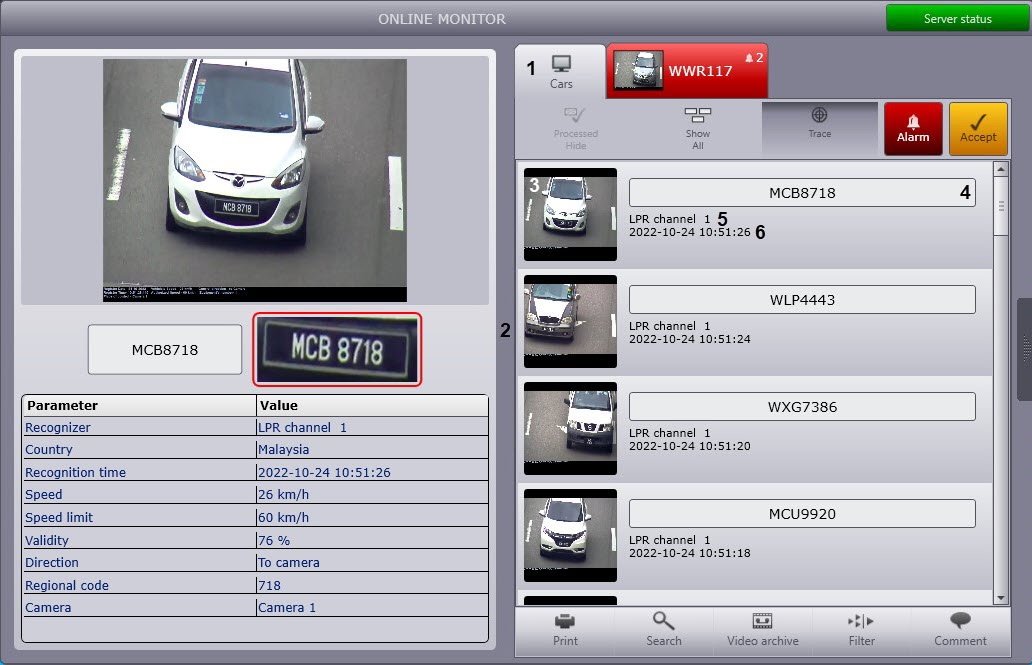
For every vehicle (event), the following data is displayed:
License plate of the identified vehicle (4).
Note
Vehicle speed.
Note
Vehicle speed is displayed only if the Speed traps server module is connected.
For alarms, the information about the reasons for alarms is also displayed (see Alarms operation). The alarms that are not processed by the operator are highlighted in red, and processed alarms are highlighted in yellow (see Alarm processing).
Note
Any alarm event is duplicated: first, an event message with a recognized license plate is received without an alarm, then the same message is received with an alarm. You can hide the processed events (see Hiding the processed events in the protocol).
To view the detailed information about the event, do the following:
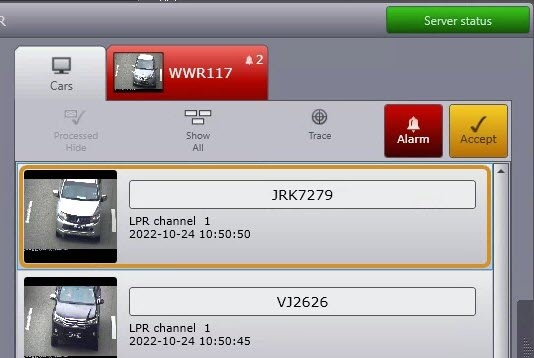
Viewing the detailed data about the event is complete.

