
Go to documentation repository

Documentation for Axxon PSIM 2.0. Documentation for other versions of Axxon PSIM is available too.
Previous page Next page

To access the archive playback mode, click the  icon in the bottom right corner of the surveillance window of the web server monitor or the
  icon on the toolbar of the video surveillance monitor of the web browser. The archive playback control panel is displayed.
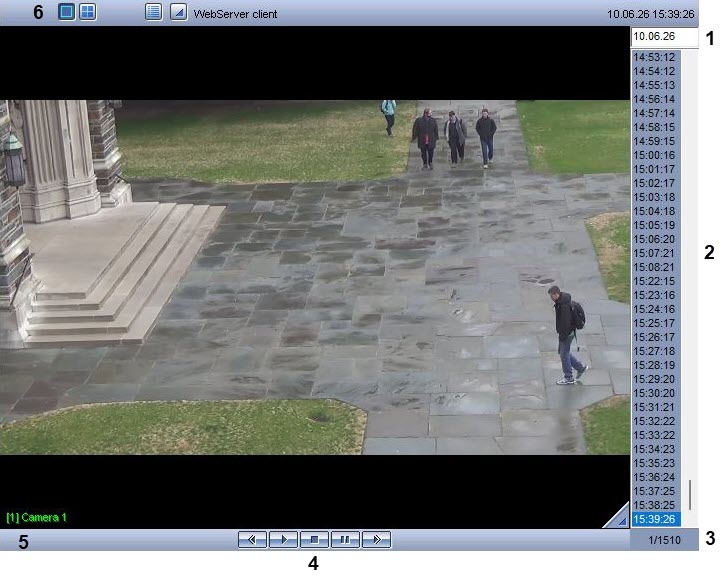
Elements of the playback control panel are described in the table.
Element image | Description | Comments |
|---|---|---|
1 | Recording date filter | Editable field used to filter the displayed recordings by date |
2 | List of recording segments | Lists recording segments made on the date indicated on the recording date filter |
3 | Indicator of playback position | Shows the current playback position in the frame relative to the selected recording segment |
4 | Playback control panel | Controls video playback |
5 | Camera indicator | Indicates the camera status and used to display the function menu of the surveillance window |
6 | Exit archive playback mode | Exits the archive playback mode and returns to video surveillance |
An algorithm for navigating through the archive can be as follows:
- Select the camera, the archive of which you want to access, using the function menu of the surveillance window.
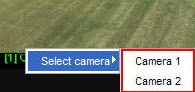
- Select the day during which the required archive was recorded, specifying the appropriate date in the recordings date filter.
- Select the video segment based on the timestamp from the list of recording segments.
- Playback the selected segment using the control panel.

The  button starts the playback of the selected recording segment; the
  button stops the playback.
The  and
and  buttons are used to rewind and fast forward the recording segments in the playback mode, as well as to scroll through frames in the pause mode. If you stop the recording playback using the
  button, then the
  button is used to go to the beginning of the recording, and the button is used to go to the end of the recording. To go to the pause mode, click the
  button. To resume the playback, click the
  button.
Overview
Content Tools