
Go to documentation repository

Documentation for Monitoring PSIM 2.0 (english)
Previous page Next page

To create a report, click the System failures  button.
In the settings window that opens:
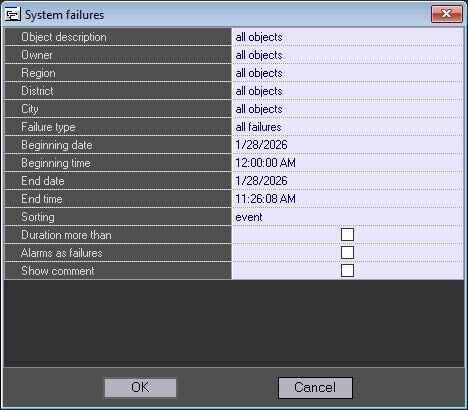
- From the Object description drop-down list, select one of three modes of creating a report:
- Report on all the system objects.

- Report on one system object.
- Report on several system objects.

- Report on all the system objects.
- Select the required values from the Owner drop-down list. This information is set on the control settings panel (for more details, see the Editing regulatory and reference information page), as well as depends on the configured filter by owners in the Monitoring reports interface object (for more details, see Configuration of the Monitoring reports object). If you select a specific object (see step 1), then this parameter is hidden in the settings window.
- From the Region, District, and City drop-down lists, select those regions, districts, and cities where the objects are placed. This information is set on the control settings panel (for more details, see the Editing regulatory and reference information page). If you select a specific object (see step 1), then this parameter is hidden in the settings window.
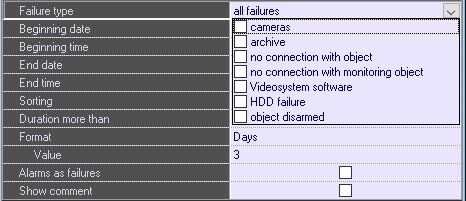
- From the Failure type drop-down list, select the options by which a report is created. You can also create a report on all failures that occurred within the set period.
- Set the values of the Beginning date, Beginning time, End date, and End time fields to specify the time range of failure occurrences by which a report is created.
- From the Sorting drop-down list, select one of two modes:
- event—sorting by failures (cameras, archives, and so on).
- time—sorting by the event beginning time.

- Set the Duration more than checkbox so that a report displays only failures with the duration more than the set value. By default, the checkbox is cleared, that is, all failures within the set time interval get to report.
- If you set the Duration more than checkbox, the following fields are displayed:
- Format—from the drop-down list, select the units to measure the failure duration: Days, Hours, Minutes, Seconds.
- Value—enter the failure duration.

- If you want to create a report on alarms in the same way as on failures, that is, to specify the beginning of the alarm, its end, and its duration, then set the Alarms as failures checkbox (for more details, see Alarms as system failures report).
- Set the Show comment checkbox to display failure reports in the comment (see Processing alarms).
- Click the OK button.
As a result, a report about system failures is created.
Example of a report on all failures (the Duration more than checkbox isn't set):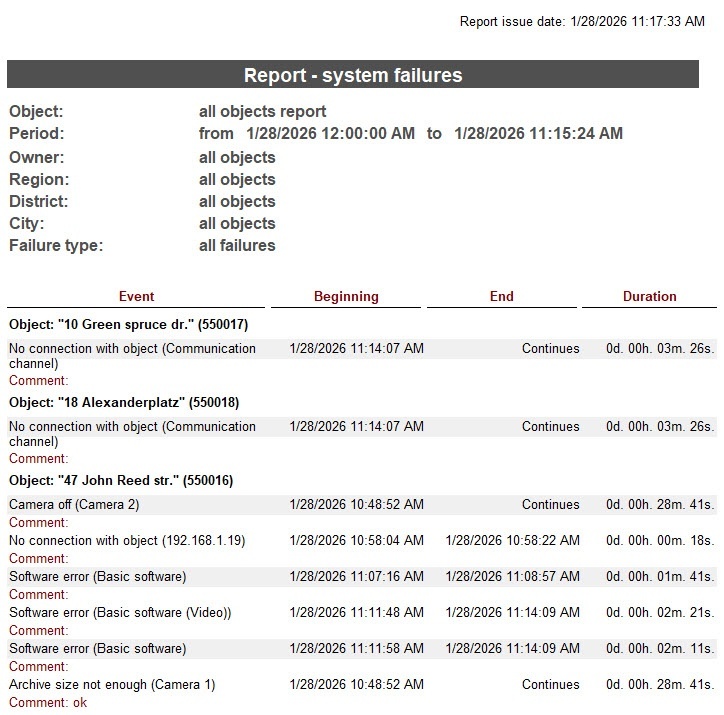
Example of a report on failures with the duration greater than the Duration more than 10 minutes set value:
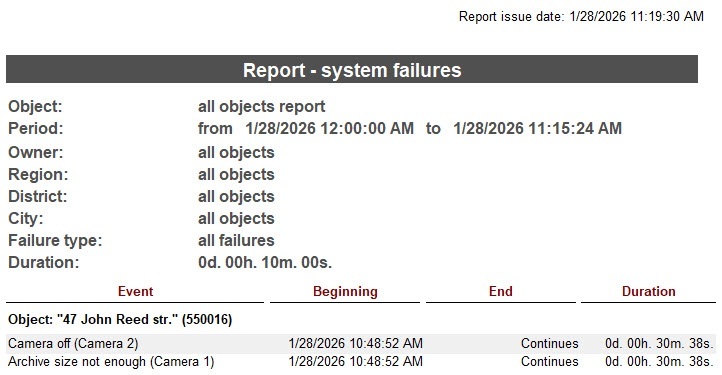
The new Duration field appears in the common data at the top of the page.
Creating a report about system failures is complete.
Overview
Content Tools