
Go to documentation repository


On the page:
Installing the utility
The GPU Cache Generator utility is used to pre-create a cache of neural networks that are used in the operation of detectors.
To install the utility:
- Download the utility file from the AxxonSoft official website.
- Run the downloaded file.
- In the setup window that opens, click the Next button.
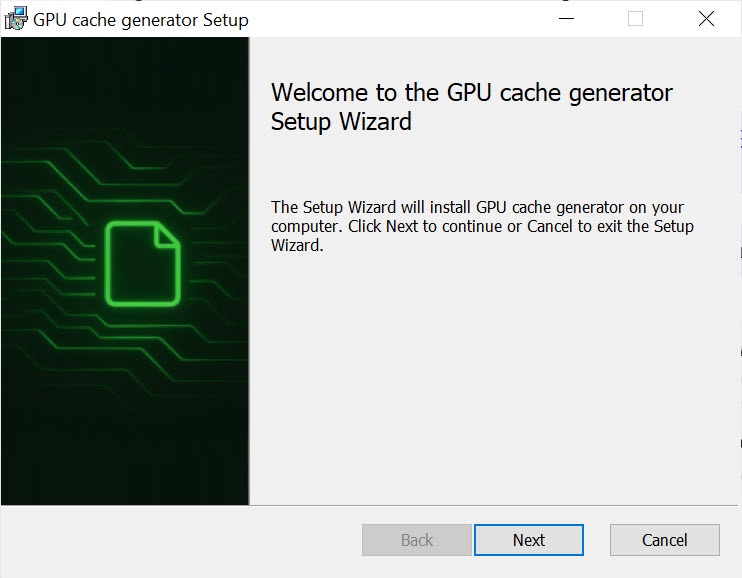
- Click the Install button.
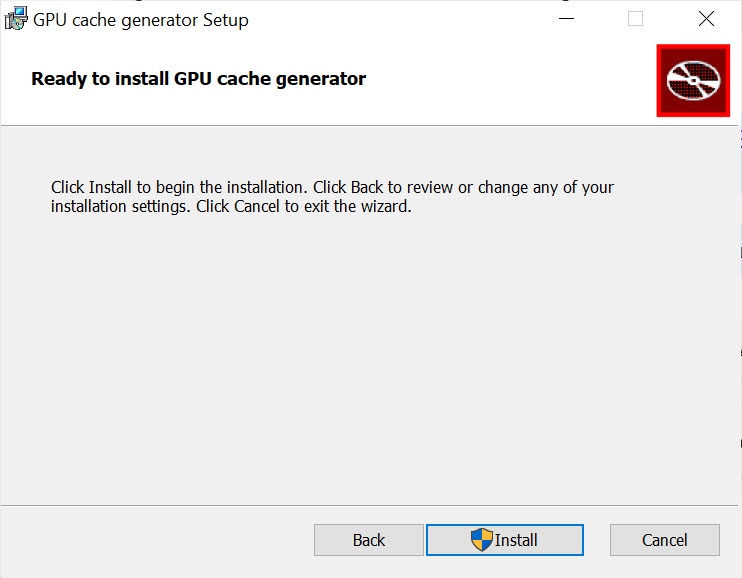
- Confirm installation as administrator.
- Wait for the installation process to complete.
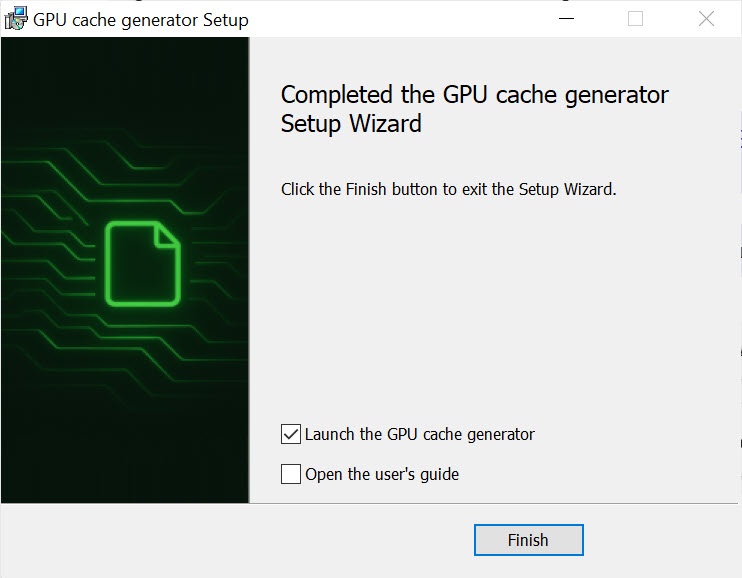
After installation, a new window opens with a message about the completion of the utility installation.
- Click the Finish button to confirm completion of the installation.
Note
By default, the utility window opens after installation is complete. If you don’t want to launch the utility after installation is complete, clear the Launch the GPU cache generator checkbox.

The utility installation is complete.
Utility interface
When you launch the utility, a window opens asking you to stop the VMS server and other services that use GPU resources. This is required to correctly create an optimal cache. If you don’t stop the VMS server and related services, the utility can continue to work, but in this case the caching result can be less effective.

To view the main interface of the utility, click the Yes, I have closed all applications that use GPU button.
As a result, the main window of the utility is displayed. It is divided into two areas:
The left part displays a list of available detectors.
The right part displays a general list of neural networks for which you can generate a cache.

When you select a specific detector, all neural networks associated with the selected detector are automatically displayed on the right side. And when you select a specific neural network, the corresponding detector is automatically selected on the left side.
The table shows the match between detectors and neural networks:
| Detector | Neural models |
|---|---|
Barcode detection | GeneralNM barcodes |
Equipment detector (PPE) |
|
Fire detector | Fire scanned v1 |
Meta detector |
|
Neurocounter or Stopped object detector |
|
Neurotracker |
|
Pose detector |
|
Person-based privacy masking | General human pose estimation |
Privacy masking detector | Privacy masking origin |
Smoke detector | Smoke scanned v1 |
Water level detector | Water level rule net origin |
Custom neural networks | Allows you to generate a cache of a custom neural network, provided that the neural network can be run on a GPU |
Generating a cache
To generate a cache:
In the right part of the main window of the utility, set the checkboxes next to the neural networks for which you want to create a cache.
Click the
 button in the lower right part of the window to go to the cache generation settings.
In the window that opens, set the checkbox next to the video card for which the cache is created.
Attention!
Cache generation is only supported for NVIDIA graphics cards, as TensorRT technology doesn’t support other graphics cards.
- Configure the parameters of cache generation specified in the table:
Parameter Value Description Enable int8 calibration 
Attention!
This parameter is available only for neural networks with a corresponding *.info file.
By default, the checkbox is clear. To enable the Int8 quantization mode for a neural network, set the checkbox. Neural networks for which the quantization mode is available are included in the neural analytics package along with the *.info file of the same name
Enable verbose logging mode By default, the checkbox is clear. To enable logging of the process of initialization and cache generation, set the checkbox. Enabling the parameter provides detailed information about the cache generation process but increases the volume of logs and can slow down the generation process
Note
- Logs are saved in the directory C:\Users\<username>\.gpuCacheGenerator\logs.
- Previous logs are automatically deleted each time you run the utility.
The cache will be saved AXXONGPU Specify the directory of cache storage
Note
- If you don’t specify the GPU_CACHE_DIR system variable, by default, the cache is saved in the directory: C:\Users\<user_name>\.gpuCacheGenerator\ (see Appendix 9. Creating system variable).
- If you specify the GPU_CACHE_DIR system variable, the cache is saved at the path specified in it.
- When you select a cache directory via the utility, the value of the GPU_CACHE_DIR system variable is updated to the selected path.
Click the
button in the lower right part of the window to proceed to generating a cache for all selected neural networks.Note
- If you select several neural networks, they are processed one after another.
- The current progress status is displayed for each neural network.
Wait for the generation process to complete. If the cache is successfully generated, the created files are available for use by detectors.
Cache generation is complete.
Attention!
When regenerating the cache for a specific neural network, the system tries to use the existing cache. If the cache is missing or corrupted, a new file is created.
Overview
Content Tools