
Go to documentation repository

Documentation for Axxon PSIM 2.0. Documentation for other versions of Axxon PSIM is available too.
Previous page Next page

Here is a short list of actions that you must perform in order to configure the joystick buttons. For detailed information on how to use the Windows OS registry, see Appendix 2. Relevant information on using Windows operating system.
To assign commands to the joystick buttons using the Windows OS registry:
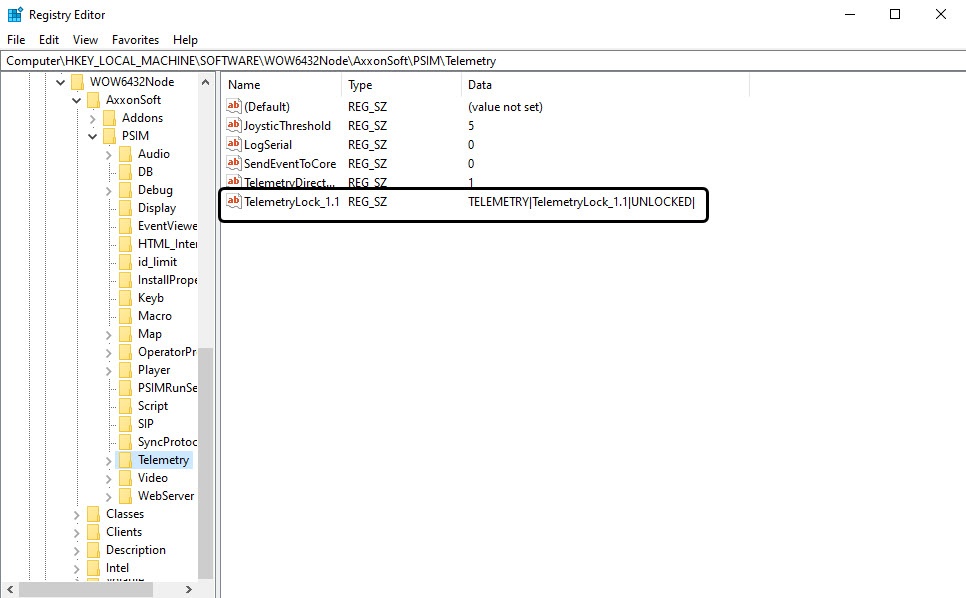
- Open the Telemetry folder of the HKEY_LOCAL_MACHINE\SOFTWARE\AxxonSoft\PSIM registry branch (HKEY_LOCAL_MACHINE\SOFTWARE\Wow6432Node\AxxonSoft\PSIM for a 32-bit system).
- Add a string parameter to the Telemetry folder.
Assign the name to the string parameter, identical to the number of the joystick button in the Windows OS.
Note
To determine the numbers of the joystick buttons in the Windows OS, use the Game devices application.
- Assign the value to the string parameter, identical to the name of the command executed by the PTZ device in Axxon PSIM (you must enter the value in uppercase letters). Available commands in Axxon PSIM are listed in the table below:
Symbol | Command |
AUTOFOCUS_ON | Activate the autofocusing option |
AUTOPAN_END_P | Set the autopan endpoint |
AUTOPAN_START | Start the autopan |
AUTOPAN_START_P | Set the autopan start point |
AUTOPAN_STOP | Stop the autopan |
CLEAR_PRESET | Clear the selected preset |
D2OFF | Disable additional dynamic settings for Panasonic PTZ cameras used for improving an analog video signal |
D2ON | Enable additional dynamic settings for Panasonic PTZ cameras used for improving an analog video signal |
DOWN | Rotate the camera lens down |
FOCUS_IN | Zoom in on the image |
FOCUS_OUT | Zoom out on the image |
FOCUS_STOP | Stop the zoom in/zoom out |
GO_PRESET.N | Rotate the video camera to the position set in N preset |
HOME | Rotate the video camera to the initial (home) position |
IRIS_CLOSE | Close the iris diaphragm |
IRIS_OPEN | Open the iris diaphragm |
IRIS_STOP | Stop the iris diaphragm |
LEFT | Rotate the camera lens left |
LEFT_DOWN | Rotate the camera lens left and down |
LEFT_UP | Rotate the camera lens left and up |
PATROL_LEARN | Start the programming procedure of patrolling, which is performed by recording the behavior of the camera |
PATROL_PLAY | Start patrolling |
PATROL_STOP | Stop patrolling |
RIGHT | Rotate the camera lens right |
RIGHT_DOWN | Rotate the camera lens right and down |
RIGHT_UP | Rotate the camera lens right and up |
SET_PRESET | Save the current position of the video camera in the selected preset |
STOP | Stop the camera lens rotation |
UP | Rotate the camera lens up |
Repeat steps 2–4 for each joystick button to which you want to assign a command.
Joystick buttons are now configured.
Overview
Content Tools