
Go to documentation repository
Previous page Next page
To select the columns displayed in the detailed POS report:

 button in the lower left part of the event list. As a result, the Select columns window opens.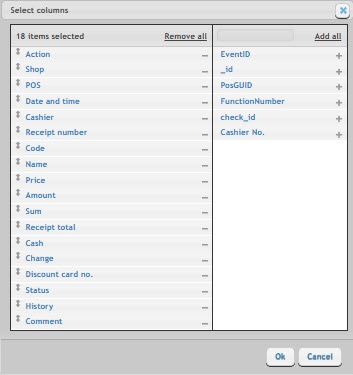
 icon next to the name of the corresponding column in this field.
To change the order of the columns, drag the column name up and down to the required position.
The inactive (not displayed) columns are displayed in the right area.
To add a column, click the  icon next to the name of the corresponding column in this area.
To add all columns, click Add all.
To save changes, click the Ok button.
The selection of columns in detailed reports is complete.

