
Go to documentation repository

Documentation for Axxon PSIM 2.0. Documentation for other versions of Axxon PSIM is available too.
Previous page Next page

On the page:
Start
Before you start working with the software, we recommend checking the functionality of all system components: connections, cameras, microphones, and so on.
Note
If you don't specify the path to the psim.sec key file during installation, you must move the psim.sec file to the root directory of the Axxon PSIM software package. If the key file is missing, the software starts in demo mode.
You can start the software:
- Automatically. The software starts automatically as the operating system starts.
- Manually. You can start the software from the Start menu:
Start → All Apps → Axxon PSIM.
To start the server configuration, select Axxon PSIM. To start the client configuration, select Client workstation.
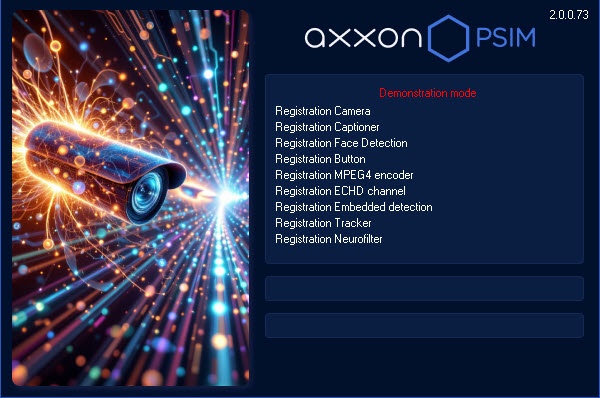
A dialog window with information messages about the start of Axxon PSIM opens.
Note
A list of objects with exceeded license key limits is displayed in the Axxon PSIM startup window, as well as in the core_server64.log file.
If there is no license key and Axxon PSIM is started in the demo mode, the message Demonstration mode is displayed in the startup window.
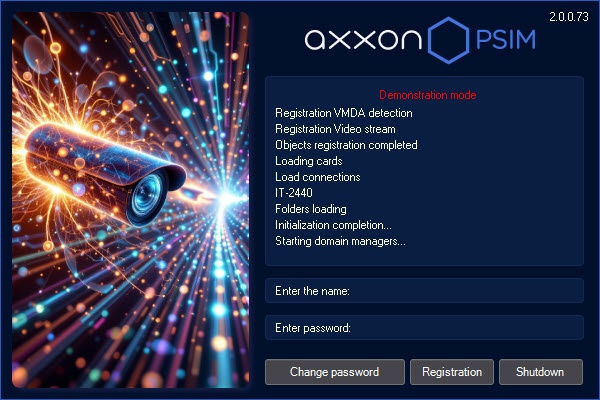
If user rights are restricted, you must enter a password upon startup. After you enter a password, click the Registration button.
Note
The number of attempts to enter the password is limited. If you enter an incorrect password three times, you will be able to log in again in 60 seconds.
Login and password are not required when you use Windows account information. To start Axxon PSIM, click the Registration button. The Login and Password fields must be empty.
Note
There are three types of user rights in Axxon PSIM: administration, management, and monitoring.
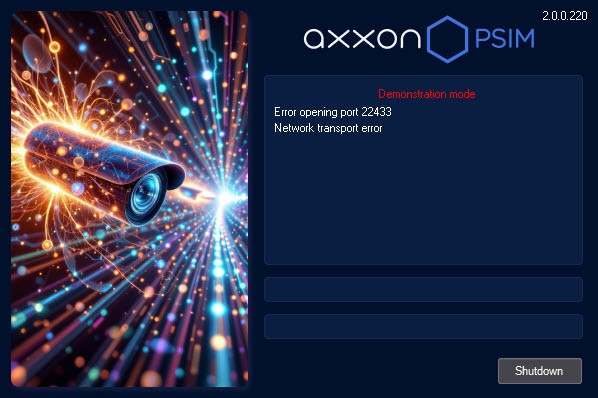
If any port is busy when you start Axxon PSIM, the system displays a notification with the port number, and the Shutdown button also appears.
Authorization by the four-eye rule
If the four-eye rule is configured in the system, then when a user logs in, confirmation from another user—the supervisor—is required. After you click the Registration button, you are prompted to enter the supervisor login and password. After you enter the supervisor password, click the Registration button again.
Password change at login
The password change can be required if Axxon PSIM is configured accordingly. It can occur at the first user login to the system or after the current password time-out. In this case, after you click the Registration button, you are prompted to enter and confirm a new password.
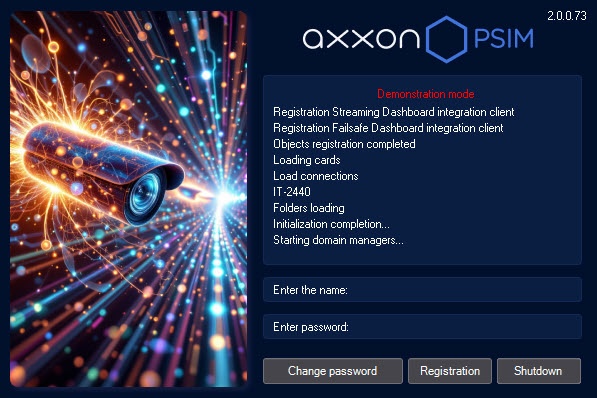
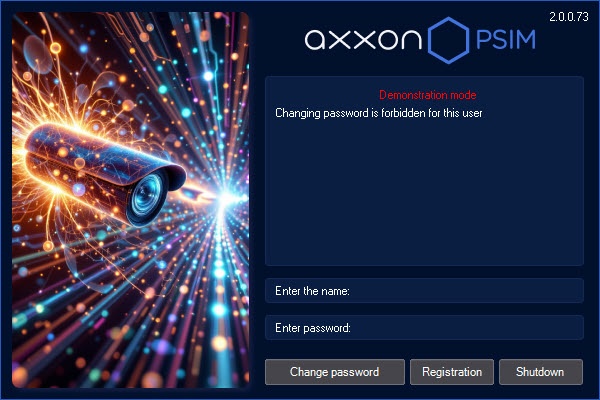
The password also can be changed by user request if Axxon PSIM is configured accordingly. In this case, click the Change password button and then enter and confirm the new password.
Note
If the user is forbidden to change the password by request, the corresponding message is displayed: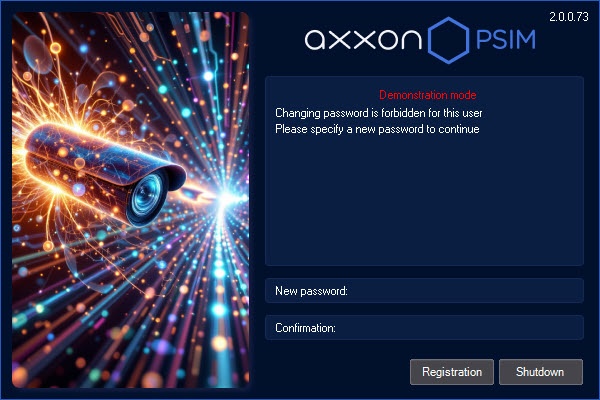
Attention!
The new password must not match the old one.
To start Axxon PSIM after you enter the new password, click the Registration button.
Shutdown
To shut down Axxon PSIM, do the following:
- Move the cursor to the top right corner of the window, and then the main control panel appears.
- Click the
 icon on the main control panel.
 - Choose the Log Off (User Name) option in the menu.
Note
The Log off (User Name) item is also available from the menu that opens when you left-click the  icon in the Windows system tray or press the F8 key.
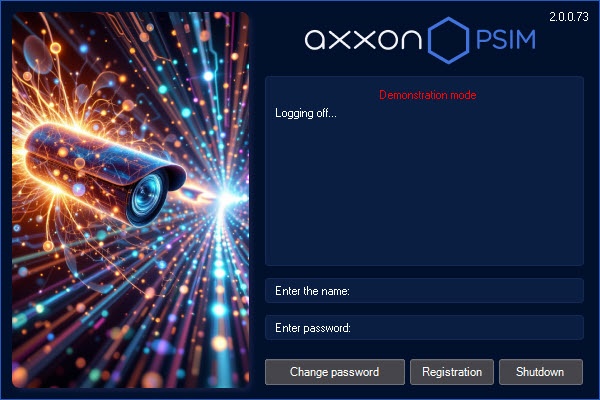
The process of shutting down the software starts. The system can be configured to request the password again. After you enter the password, click the Shutdown button.
Note
When you shut down Axxon PSIM in the remote client configuration in a way that differs from the one described above, particularly when you restart the computer without shutting down Axxon PSIM, the parameters of the interface windows can be unsaved. For example, the information about saved layouts in the video surveillance monitor can be lost.
Note
In some configurations, Axxon PSIM shutdown (logging off) can be forbidden. Then the Log Off (User Name) option isn't displayed in the menu.
Overview
Content Tools