
Go to documentation repository

Documentation for Axxon PSIM 2.0. Documentation for other versions of Axxon PSIM is available too.
Previous page Next page

On the page:
Axxon PSIM allows sending text messages, images, and geolocation to the messenger chat on any event from any object registered in the objects tree. After configuration, the message sending is initiated by a macro or the Axxon PSIM script.
Before you start configuring the message sending from Axxon PSIM, you must create a bot and the group chat with this bot in the messenger. In Telegram, you can use the pre-created and configured @Axxon PSIMNotificationsBot. For the distribution package and the user guide for Telegram messenger, see the telegram.org official website.
Configuration of message sending from Axxon PSIM
To configure the message sending, do the following:
- Create the Messenger bot object (1) on the basis of the Computer object on the Hardware tab of the System settings dialog window.
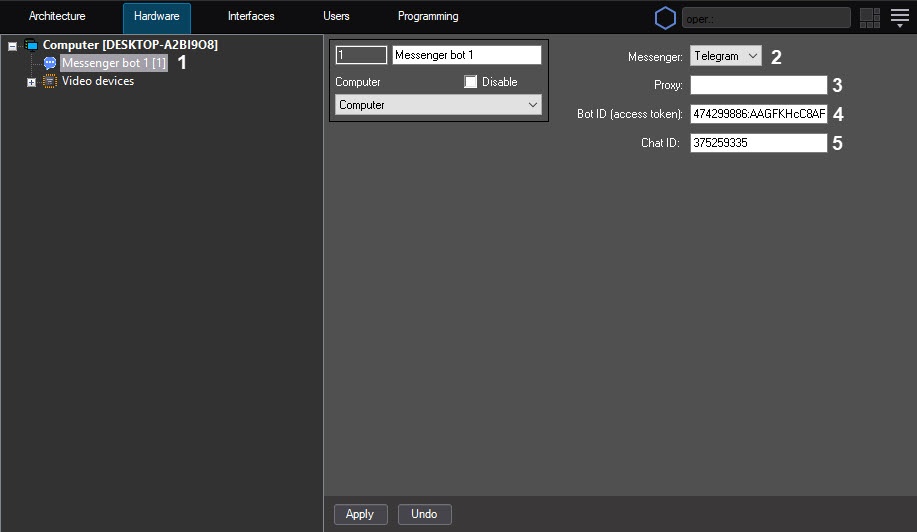
- From the Messenger drop-down list (2), select Telegram.
- If you need to use the Proxy server to send messages, enter the Proxy server address in the Proxy field (3).
In the Bot ID (access token) field (4), enter the identification number of the Telegram bot.
Note
The identification number is provided when you create a bot.
@Axxon PSIMNotificationsBot bot identifier is: 474299886:AAGFKHcC8ARX9ziXgTlvKnwNhxnwlDhmD3M
In the Chat ID field (5), enter the chat identifier.
Note
To find out the chat identifier, you can add the @RawDataBot bot to the chat. When you add it, the bot sends a message to the chat containing the result of executing the getUpdates function. Find ChatId in that message. Then you can remove the @RawDataBot bot from the chat.
- Click the Apply button.
Configuration of the message sending to Telegram is complete.
Examples of macros for sending a message to a messenger
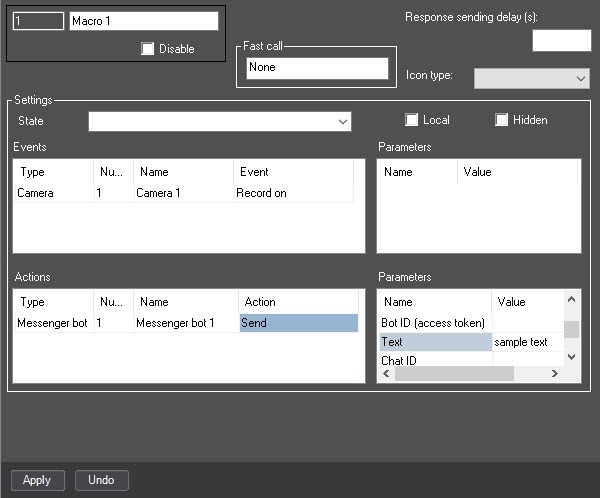
Macro to send a text message:
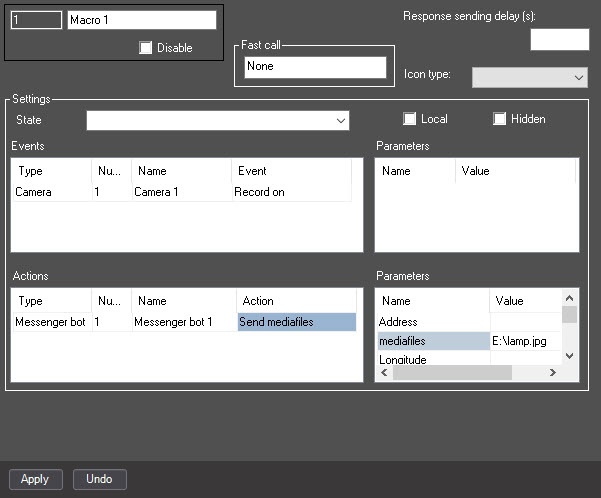
Macro to send media files:
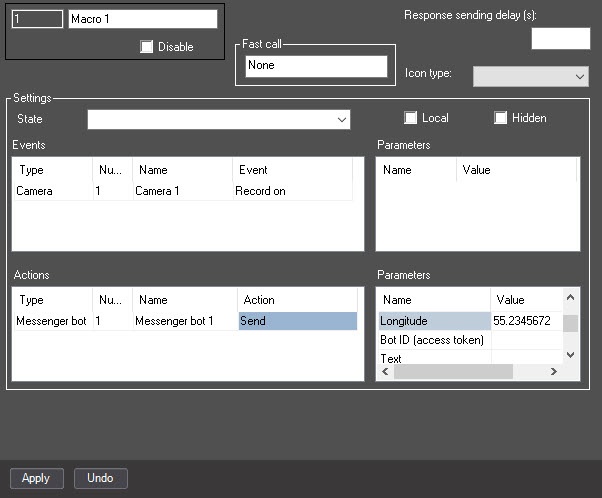
Macro to send geolocation:
See also examples of commands in TELEGRAM Messenger bot.
Overview
Content Tools