
Go to documentation repository

Documentation for Axxon PSIM 2.0. Documentation for other versions of Axxon PSIM is available too.
Previous page Next page

To start the System settings window, do the following:
Display the main control panel on the screen of the standard computer. To do this, move the mouse pointer to the upper right corner of the screen or press the F8 key.

Note
By default, the main control panel is displayed on the main monitor. Also, you can specify the number of the monitor for displaying the main control panel using the cur_monitor registry key (see Registry keys reference guide).
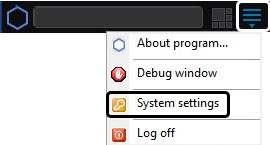
- Click the Run button and select System settings.
Note
The System settings item is also available in the menu that appears when you left-click the  icon in the Windows notification area (system tray).
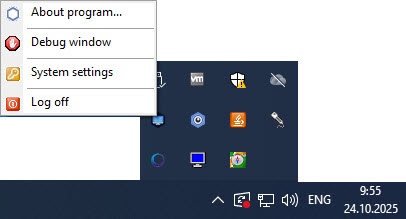
As a result, the System settings window is displayed on the monitor screen.

Note
The interface description of the Axxon PSIM main control panel is given in Appendix 1. Interface.
If the System settings window doesn't fit the screen, use one of the following methods to solve this problem:
- Set the font size to 96 pixels per inch (the screen scale is 100%). To perform this operation, go to the Control panel → Appearance and personalization → Settings of screen resolution.
- If the first method doesn’t solve the problem, use the settings_height and settings_width registry keys and specify the height and width of the System settings window in pixels (see the Registry keys reference guide).
If captions are displayed incorrectly in the interface due to the absence of the required font in the system, you must install the font located in the Redist\Font folder that is included in the Axxon PSIM installation package kit. The way to install fonts in Windows OS up to version 7 is described on the Microsoft support website: https://support.microsoft.com/en-us/help/314960/how-to-install-or-remove-a-font-in-windows.
On Windows 8, Windows 8.1, and Windows 10, fonts are installed in the following way:
- In the Start menu, select Run.
- Enter the following command:
%windir%\fonts - Click the OK button.
- Copy or move font files to the opened folder.
Attention!
When you change the screen resolution, you must restart Axxon PSIM for the correct display of windows.
Overview
Content Tools