
Go to documentation repository

Documentation for Monitoring PSIM 2.0 (english)
Previous page Next page

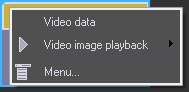
To view all received video data, select the Video data menu item in the object context menu.
Note
If you select the appropriate Monitoring PSIM settings (see the section Administrator's Guide: Configuring reaction to snapshots and videos), the video data can be opened automatically as soon as you receive it.
If you attach too many videos to alarms, there can be difficulties with opening the Video data window. You speed up the process of its opening by using the ClearVideoDataPeriod parameter of the HKEY_LOCAL_MACHINE\SOFTWARE\Wow6432Node\BitSoft\VHOST\VHostService registry key that determines the number of hours from the appearance until the deletion of the video data from the Video data window (see Vertical solutions, for information on how to work with the registry, see Working with Windows OS registry).
The Video data window opens. This window displays the information about the video data. Also, in this window, you can cancel the data loading if it isn't complete by using the Cancel loading button.
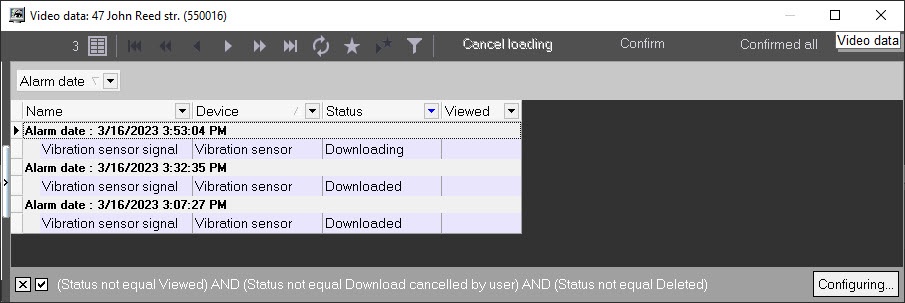
If you want to make the forced information update in the Video data window, click the  button.
To open the loaded video data, right-click the row corresponding to the required video data and select the View menu item. If the data loading isn't complete or it is deleted from the disk, this menu item is inactive.
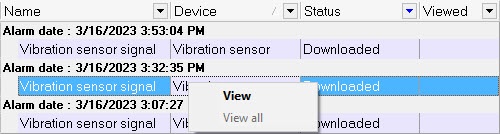 When you select the View menu item, a video is opened with the <Axxon PSIM installation directory>\Vhost\SYSTEM\JPEGViewer.exe program, and a video clip is opened with the Axxon Player utility. The video data status changes to Data viewed, and the Viewed column displays the time of the video data viewing.
If you fail to export the video data from the video archive, then the Status column displays the Archive export error message.

To cancel the data loading with the Downloading or Archive export error statuses, click the Cancel loading button. After that, the status of such video data changes to Download cancelled by user and it is no longer displayed in the list if the default filter is set (see Setting video data list filter).
To mark all objects' video data as viewed, click the Confirm button. To mark all video data of all objects as viewed, click the Confirmed all button. The dialog window for confirming the video data viewing of one or several objects is displayed. Click the OK button to confirm.

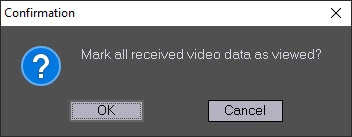
As a result, the object title is no longer displayed in yellow on the control panel. The status of all video data changes in the way specified below, and they are no longer displayed in the list if the default filter is set (see Setting video data list filter):
- From Downloaded to Viewed;
- From Archive export error to Download cancelled by user.
Overview
Content Tools