
Go to documentation repository

Documentation for Axxon PSIM 2.0. Documentation for other versions of Axxon PSIM is available too.
Previous page Next page

The Tag&Track feature allows the PTZ camera to follow an object based on the trajectories obtained by the usual camera using the Tracker object. To use this feature, you must first create and configure the following objects in Axxon PSIM:
- The PTZ camera (see Configuring PTZ IP cameras).
- The usual (stationary) camera with a tracker (see Configuring IP devices and Create and configure the Tracker object).
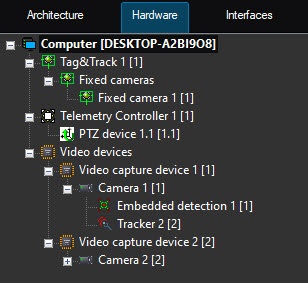
To configure the Tag&Track feature:
Create the Tag&Track object on the basis of the Computer object.
- Create the Fixed camera object on the basis of the Tag&Track object.
From the PTZ drop-down list (1), select the PTZ device object linked with the corresponding PTZ camera that is used for object tracking.
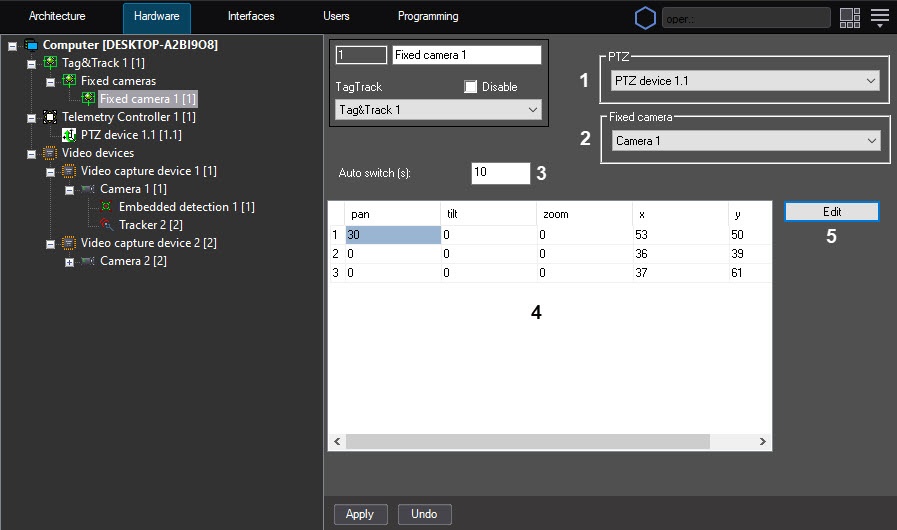
- From the Fixed camera drop-down list (2), select the Camera object.
- In the Auto switch (s) field (3), enter the time period in seconds after which you want to automatically switch to the next object in the automatic Tag&Track mode.
Select a line in the table (4). To select a line, left-click any cell in the line.
Note
You can sort lines by one of the specified parameters. To do this, click the name of the corresponding column.
Click the Edit button (5). The Settings window opens.
If you don't select a line in the table, the Settings window doesn't open, and the message "String not selected" is displayed.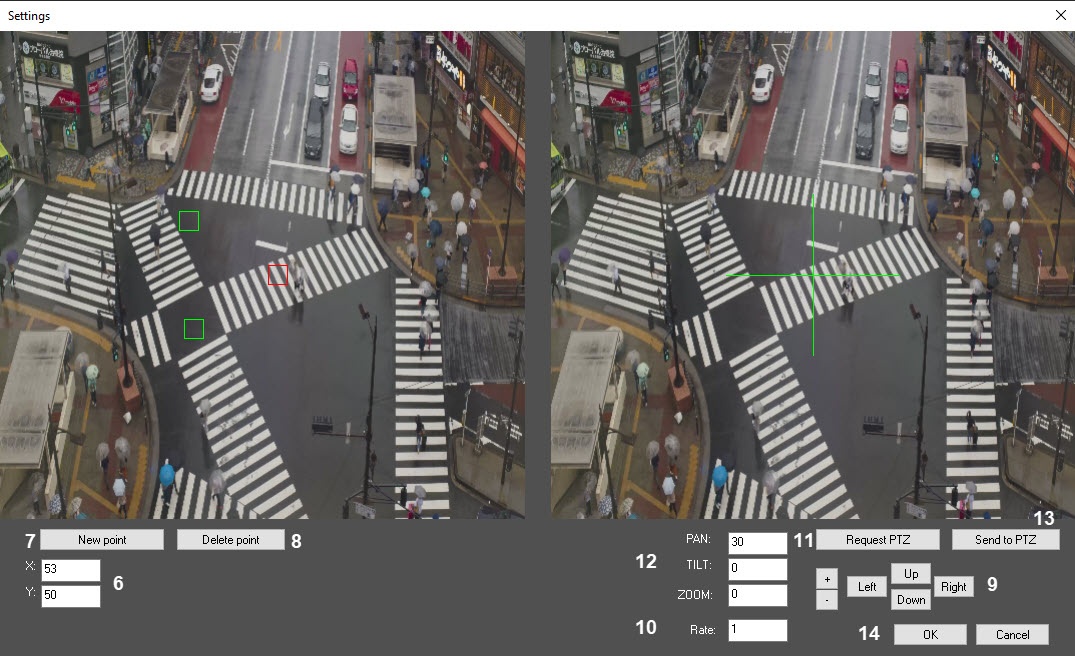
Note
- For calibration, you can use the video with a low resolution, so the display quality in the Settings window can differ from the original video from a camera.
- In this window, you can display a video in the separate window and increase the size of this window to the required one. To do this, right-click the video while holding down the Shift key on the keyboard. You can perform the same operations with video in the separate window as in the Settings window.
- Click the required point on the image from the stationary camera (on the left). As a result, the coordinates of this point are specified in the X and Y fields (6). The point on the image is outlined with a red square.
- If you need to place an additional point on the image from a stationary camera:
- Click the New point button (7). The point is automatically placed in the center of the image.
- Use the mouse to move the point to the required location.
- If you want to delete a point from an image from a stationary camera:
- Select the point using the mouse.
- Click the Delete point button (8).
- Rotate the PTZ camera (on the right) so that the cross that is in the center points at the same point as selected on the stationary camera. Use the Up, Down, Left, Right buttons to control a camera and the + and - buttons to zoom in and out (9).
- In the Rate field (10), set the moving speed of the PTZ camera lens. Possible values are from 1 to 10. The default value is 1.
- Click the Request PTZ button (11).
- The PAN, TILT, ZOOM fields (12) are filled in with the corresponding coordinates of the PTZ camera.
- If check is required, click the Send to PTZ button (13). As a result, a camera is positioned to the obtained coordinates.
- Click the OK button (14). The specified coordinates are displayed in the table on the Tag&Track object settings panel.
- Repeat steps 6–16 at least five times for different points on the video. We recommend setting as many points as possible.
Click the Apply button.
Note
When you set too few points, or in some other cases when points aren't set properly and the algorithm cannot process them, the "Invalid calibration" message is displayed when you click the Apply button.
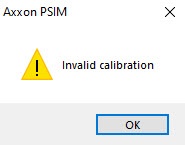
In this case, click the OK button and add or edit the points.
Attention!
The following recommendations will help to configure the feature better:
Place the panoramic and the PTZ cameras close to each other. If they are far from each other, they can interpret the scene differently, causing the algorithm to occasionally perform incorrectly.
- The points specified in the calibration setting must not be on the same line for both the panoramic and the PTZ camera. We recommend setting the points for both cameras so that they evenly cover the entire frame.
- The recommended number of points that must be set is 4–10. If you add more points, the algorithm is adjusted more precisely. However, it can increase the chance of entering the wrongly configured point into the calibration algorithm, which leads to the common deterioration of the operation quality.
Configuration of the Tag&Track feature is complete.
Overview
Content Tools