
Go to documentation repository

Documentation for Axxon PSIM 2.0. Documentation for other versions of Axxon PSIM is available too.
Previous page Next page

To add and configure the Audio card object in Axxon PSIM, do the following:
- Go to the Hardware tab in the System settings dialog window (1).
- Select Create object -> Audio card in the context menu of the Computer object (2).
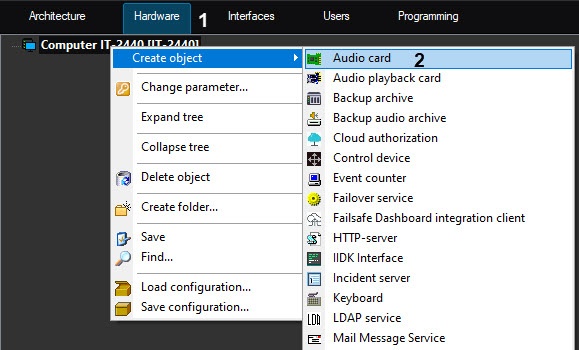
As a result, the main object settings panel opens.
Note
Main settings are set automatically. If necessary, you can change an ID, the object name, and the parent object.
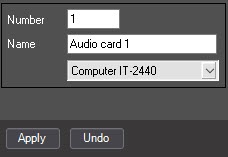
- To create the object, click the Apply button.
- Select the created Audio card object in the object tree (1).
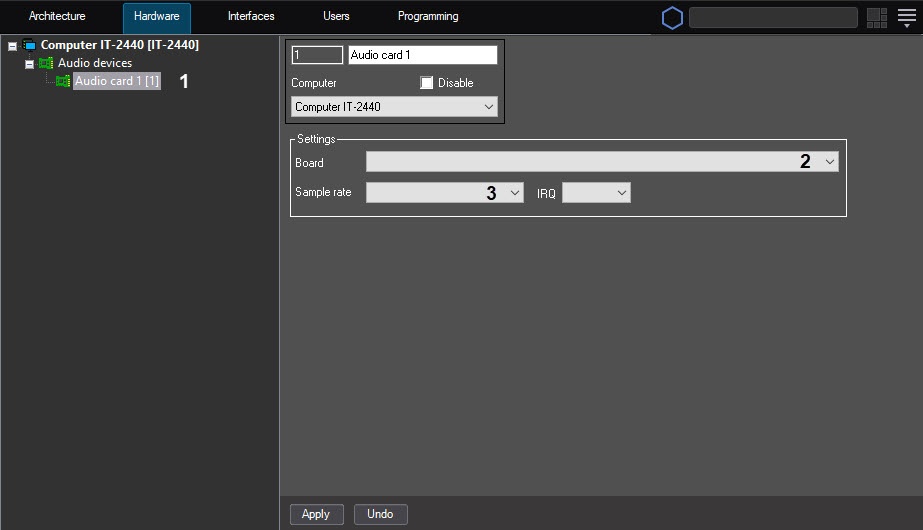
- Configure the created object.
In the Board list (2), specify the type and the PCI channel of the card. Between the Audio card objects, the PCI channels are allocated in the end-to-end order starting from 0.
From the Sample rate list, select the audio sample rate (3).
Attention!
If the audio signal is received from the IP device, then the value selected from the Digitization drop-down list is ignored. In this case, the digitization rate is set on the settings panel of the Microphone object in the driver parameters (see Configuring audio acquisition from IP devices).
Note
The sample rate for the SC510N4 (FX HD4—SA 7160PCI) card specified in the Sample rate list must be the same as the sample rate with which the audio signal is digitized by a camera. If the rate values aren't the same, then slow or fast playback of the audio signal is possible.
Click the Apply button to save the changes.
Configuring the Audio card object is complete.
Attention!
To configure one physical video capture card, you may have to create several Audio card objects (see Features of audio subsystem configuration section).
Overview
Content Tools