
Documentation for POS Intellect 5.5. Documentation for other versions of Intellect is available too.
Previous page Next page

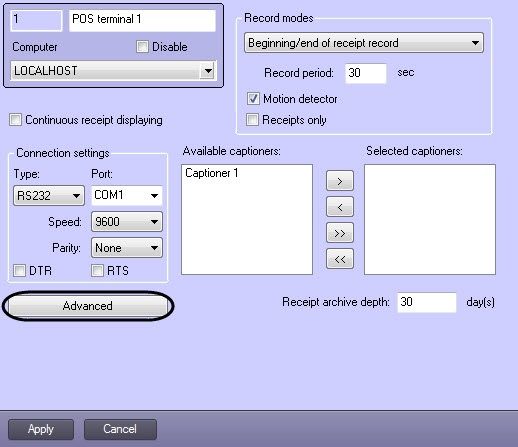
To start using a POS terminal, select its type and set up the connection. To select the type of POS terminal and set the connection parameters, do the following:
- Click the Advanced button.
In the dialog box that opens, select the POS terminal in the Supported POS terminals drop-down list and click OK.
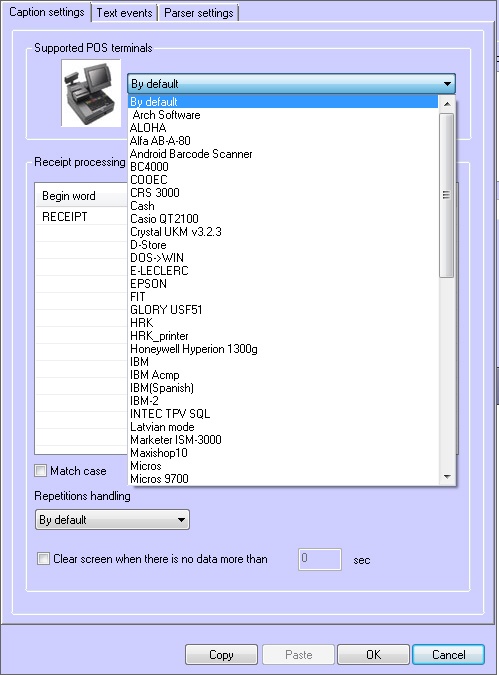
Note
Parser xml_titles.txt configuration is needed when choosing the XML protocol from the Supported POS terminals drop-down list (see Parser types, and Description of XML protocol packages for interaction with POS Intellect system).
Specify the parameters in the Connection settings group (1).
Note
If a Serial-USB (Serial-Ethernet) adapter is used to connect the POS terminal, select RS232 in the Type field (see the Auxiliary communication devices section).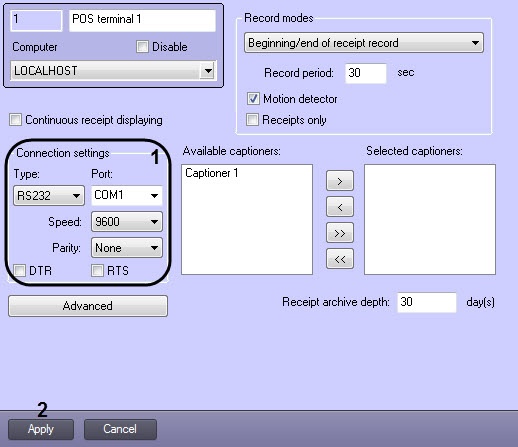
Note
To test the connection, use the HyperTerminal utility included in Windows (see the Testing the connection between the POS-server and the POS-terminal section).- Click the Apply button (2).
The type of POS terminal and its connection parameters are now set.
Attention!
Attention!
If POS terminal failure occurred while connecting it to the POS Intellect, disable the COM port control by setting the SetFlowControlNone parameter to 0 in the Windows registry (for more details, refer to the Registry keys reference guide).
Note