
Go to documentation repository


To assign a user Own access level, do the following:
- Go to user editing (see Going to user editing).
- Right-click the access levels list.
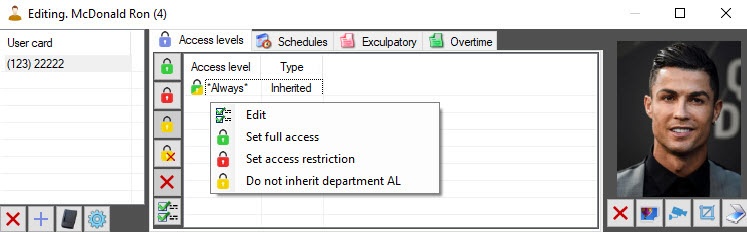
- In the function menu that opens:
Select Edit to assign the Own access level to a user. The Search access level window opens. In this window, select one or several access levels (see Working with the Search access level window).
Attention!
If Always or Never access levels are inherited, then the added Own access levels are ignored.
- To assign the Always access level to a user, select the Set full access item.
To assign the Never access level to a user, select the Set access restriction item.
Note
If Always or Never access level is assigned to a user, then all other access levels are deleted.
- If you disable the department access level inheritance by selecting the Do not inherit department AL item, the user is also assigned the Own access level (see Configuring the department access level inheritance)
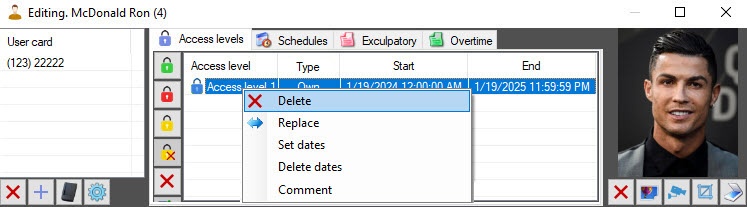
- To delete the Own access level, right-click the required access level and select Delete.
Note
If a user has only one Own access level, then when it is deleted, the department access level inheritance is enabled.
- To replace one access level (Own) with another, right-click the corresponding access level and select Replace. The Search access level window opens. In this window, select one or several access levels (see Working with the Search access level window).
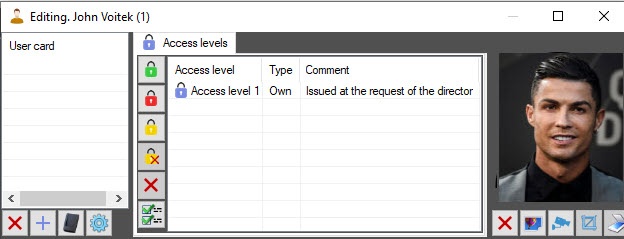
- To add a comment to the Own access level, right-click the corresponding access level and select Comment. Enter the comment in the form that opens, and click the OK button. This comment is displayed in the table of user access levels.
Note
You can add a comment to the Own access level only that isn't inherited from a department and isn't the Always or Never system access level.
Assigning the Own access level to a user is complete.
Note
You can perform all the actions described above using the corresponding buttons (see Specifying user parameters).
Overview
Content Tools