
Go to documentation repository

Documentation for Axxon PSIM 2.0. Documentation for other versions of Axxon PSIM is available too.
Previous page Next page

As a rule, IP devices allow processing one or more video signals depending on the type of device used.
Note
Axxon PSIM doesn't support the operation with IP devices over the https protocol. For more details about using transport protocols, see Change the transport protocol used by IP device.
Each IP device used for the video input is registered in Axxon PSIM by creating and configuring the Video capture device object. The Video capture device objects are created on the Hardware tab on the basis of the Computer object.
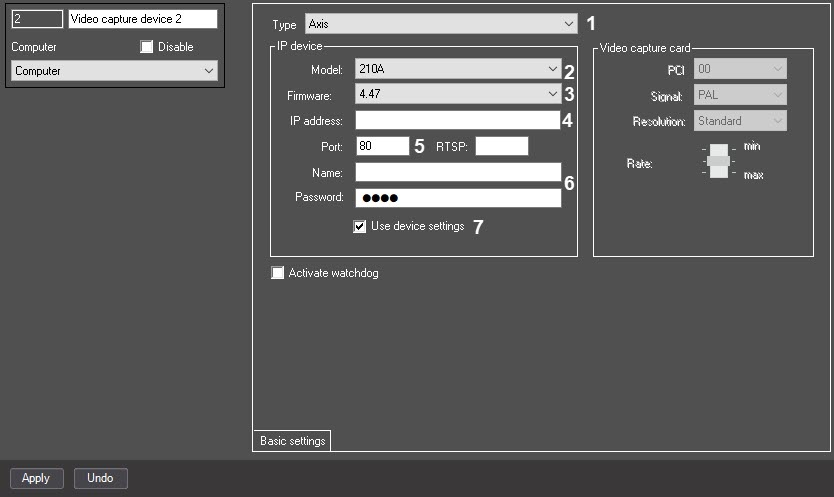
When you create the Video capture device, you must set the following parameters for each IP device:
- From the Type drop-down list (1), select the IP device vendor.
If you want to detect the model and firmware of the connected IP device automatically, go to step 3. The Model and Firmware fields are filled in automatically after you apply the connection settings.
To set the model and firmware manually, do the following:From the Model drop-down list (2), select the IP device model.
Note
If the required model isn't in the list, it isn't integrated. Consider connecting IP device via one of the standard protocols.
- From the Firmware drop-down list (3), select the firmware number on the device.
- In the IP address field (4), enter the network address assigned to the IP device. For information on how to assign IP addresses, refer to Assigning network addresses to IP devices.
In the Port field (5), specify the (TCP/IP) port number used for video transmission.
Note
In some cases you might also specify the RTSP port—see Features of configuring ONVIF or Hikvision IP devices behind NAT.
- To log in to the Web server of the IP device, enter the corresponding data in the Name and Password fields (6).
If you want to use the settings specified using the Web server or another software of the IP device, set the Use device settings checkbox (7). In this case, the crossing settings applied on the settings panel of the Camera object in Axxon PSIM are ignored.
Note
If the camera settings specified using the IP device software aren't applied in Axxon PSIM or are applied partially, we recommend clearing the Use device settings checkbox and configuring a camera on the settings panel of the Camera object.
- Click the Apply button.
After you log into Axxon PSIM, you must assign the values to the Channel number parameters of the Camera object corresponding to the numbers of the camera connection channels to the IP device.
Note
When you configure the IP camera, set the 1 value for the Channel number parameter. Otherwise, the IP camera doesn't operate.
Overview
Content Tools