
Go to documentation repository


To create the MS SQL database backup copy, use the idb.exe utility. To create the backup copy, do the following:
- Run the idb.exe utility (see Running and shutting down the utility).
Select the Basic data MS SQL database from the Select data source dropdown list.
Note
Select the vertical solution database to create a backup copy of the vertical solution database. For example, for Face PSIM, the data source is Face.
- If it is not required to include the event viewer in the backup copy of the database, set the Clear protocols checkbox. This checkbox is not available if the vertical solution database is selected.
- Click the Create backup copy (MS SQL) button.
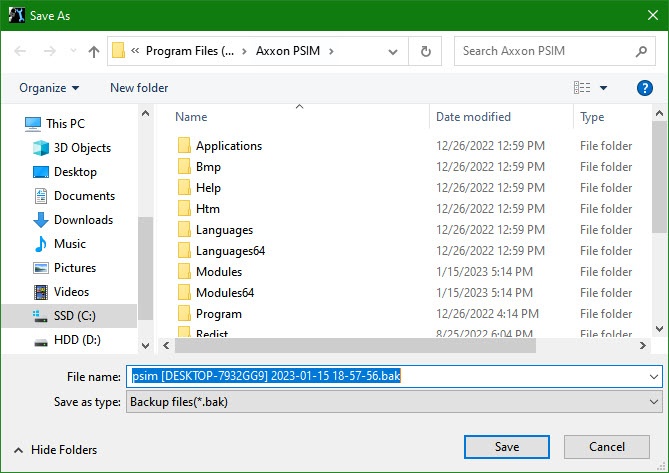
As a result, the Save as dialog window appears. Select the address and type in the name of saved backup copy.
Note
If Axxon PSIM and the database server are on different computers connected via the network, then when you create the backup copy of the MS SQL database, the created copy is saved by default on the computer where the database server is installed. To save the created copy on the computer where Axxon PSIM is installed, do the following:
- Create the folder available through the network on the computer where Axxon PSIM is installed. Provide access to the created folder from the computer where the database server is installed.
- Specify the path to the created folder in the Save as window.
- As a result, the process of backup copy creation starts. Information on this process is given in the Protocol information table.
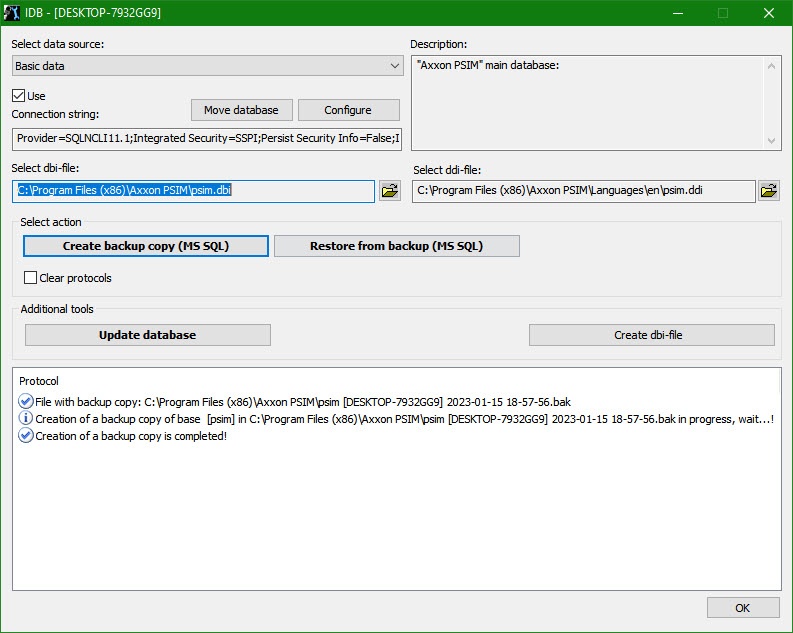
The backup copy is created when the Creation of a backup copy is completed! message appears in the Protocol table.
Note
You can also create a backup copy (MS SQL) using a macro.- Click the OK button to shut down the operation. The window closes automatically.
The MS SQL database backup copy is created.
By default the database backup copy is created at C:\Documents and Settings\<user name>\My documents\AxxonSoft\Axxon PSIM\Data\psim.sql.bak. In case you cannot change the folder for storing the database backup copy during the backup copy creation, do the following:
- Call the Run function (Start → Run). In the window that opens, enter regedit.
- Click the OK button. As a result, the Registry Editor window opens.
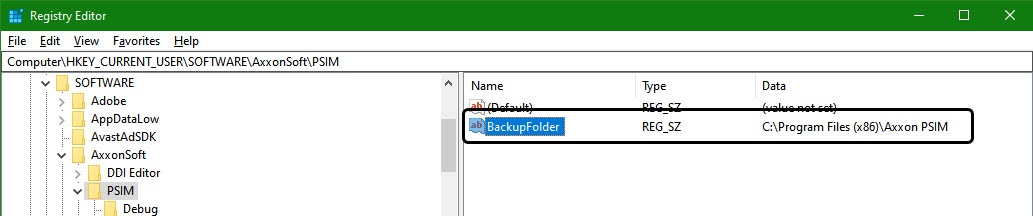
- Create the string parameter with the BackupFolder name in the HKLM\SOFTWARE\AxxonSoft\PSIM registry branch (see Adding string parameters to the registry).
- Set the value of the BackupFolder parameter: enter the address of the folder for storing the database backup copy (for example, C:\Documents and Settings\AVP\Desctop\Backup).
If you want to store the database copy on the network disk, you must specify the UNC path to the network folder to which the access for storing in the \\ServerName\ShareName format is open. Take into account that all network resources that require the additional authentication must be connected using the same username as for running the SQL Server service. To find out and/or change the user that runs the SQL Server service, do one of the following:- Using the SQL Server Configuration Manager utility.
- Run Start → Control panel → Administrative tools → Services, right-click the SQL Server service and select Properties in the feature menu. In the opened SQL Server service properties window, go to the Log On tab.
- As a result, the string parameter of the key with the specified value is created.
- Call the Run function (Start → Run). Enter the "C:\Program Files\Axxon PSIM\idb.exe" /backup key in the opened window.
- Click the OK button.
As a result, the psim.sq.l.bak database backup copy is created in the folder specified as the value of the BackupFolder parameter (C:\Documents and Settings\AVP\Desctop\Backup).
Overview
Content Tools