
Go to documentation repository


The NGP monitor interface object is used to view and manage video from Axxon One cameras.
Attention!
The following conditions must be met to work with the NGP monitor object:
- The Axxon One client is installed (see Preconfiguration of Axxon One).
- The path to the executable file of this client is specified in the NGP manager settings.
Create the NGP monitor object:
- Go to the Interfaces tab in the system settings.
- Right-click the Display object, and in the context menu that opens, select Create object → NGP monitor.
Note
You must select the Display object on which the NGP monitor will be displayed.
- The number and name are entered into the fields automatically. If necessary, you can change them.
- Click Apply.
As a result, the NGP monitor object is created, and its settings panel opens.
Configure the NGP monitor object:
- Select the created NGP monitor in the hardware tree, and in the Monitor drop-down list, select the monitor number in the operating system (computer's monitor) where the NGP monitor window will be displayed.
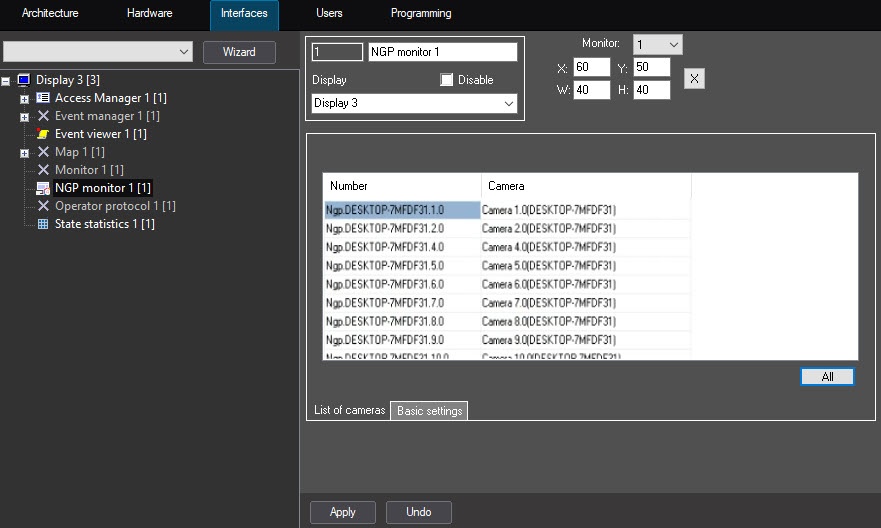
- If necessary, adjust the position of the NGP monitor window on the screen in one of the following ways:
- Set the coordinates and dimensions manually:
Field Description Value X Horizontal offset from the left border of the video image The coordinates of the upper left corner of the interface window, which are expressed as a percentage relative to the horizontal and vertical dimensions of the screen, respectively Y Vertical offset from the top border of the video image W Width of the interface window The dimensions of the interface window, which are expressed as a percentage relative to the horizontal and vertical dimensions of the screen, respectively H Height of the interface window - Use a test window:
- Click the X button.
- Position the Specify dimensions test window where the NGP monitor window must be displayed.
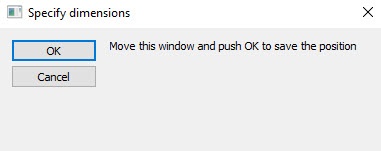
- Click the OK button. As a result, the values in the X, Y, W, and H fields are set according to the size and position of the test window.
- Set the coordinates and dimensions manually:
- In the table on the List of cameras tab, select Axxon One cameras for display in one of the following ways:
- Click the All button to select all available cameras, which will then appear in the table.
- Select individual cameras by selecting them sequentially from the drop-down lists by number or name.
Note
To move down a row in a table, use the down arrow key ↓ on your keyboard. To delete a row, click it and press Ctrl+Del.
- Go to the Basic settings tab and set the Main monitor checkbox if you want the NGP monitor object to display the control panel from Axxon One:
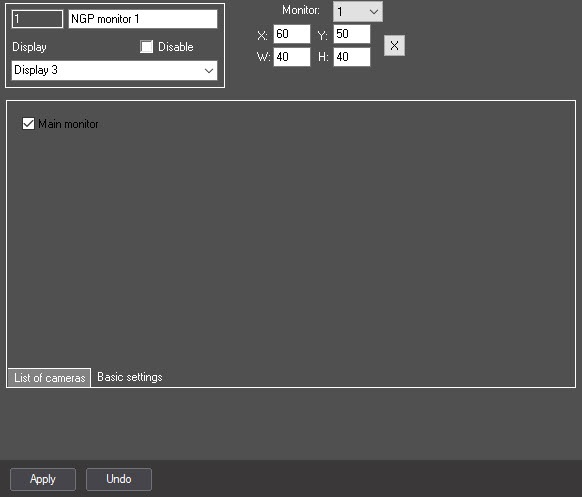
There can be only one Main monitor: if you set this checkbox for a certain NGP monitor object, this setting will be unavailable for other NGP monitor objects.Note
If you set the checkbox while the AxxonOne.exe process is already running (that is, the NGP monitor window is displayed), you will need to restart the AxxonOne.exe process for the changes to take effect. This can be done by restarting Axxon PSIM, for example.
- Click the Apply button.
As a result, the NGP monitor interface window is displayed on the selected monitor: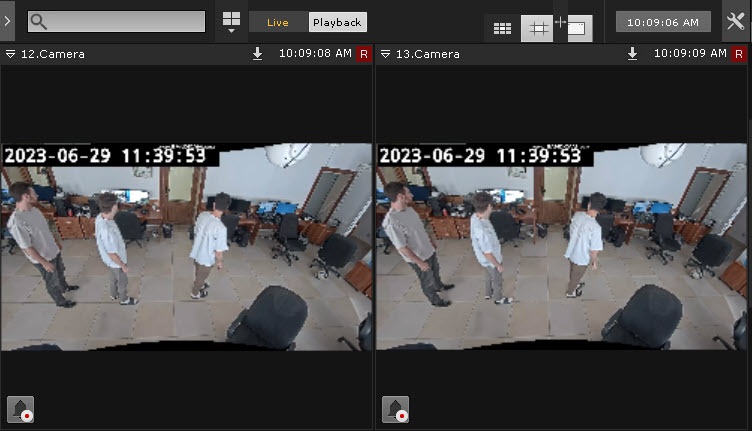
Attention!
If a warning about an outdated OpenGL version is displayed instead of the NGP monitor window, change the value in the Path field to gui_safe_mode.exe in the NGP manager settings.
Working with the NGP monitor window is similar to working with a video surveillance window in Axxon One. For more details, see Video surveillance.
Overview
Content Tools