
Go to documentation repository

Documentation for Axxon PSIM 2.0. Documentation for other versions of Axxon PSIM is available too.
Previous page Next page

On the page:
Attention!
After you prepare the required files before creating custom objects in Axxon PSIM, you must update the main database using The idb.exe utility for converting databases, selecting database templates and making backup copies of databases.
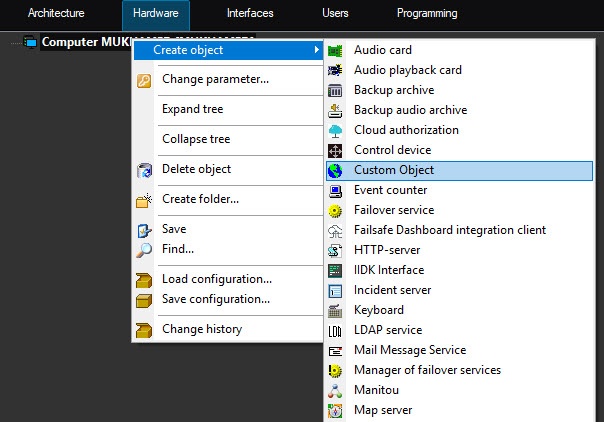
After you prepare the dbi, ddi, and xml files, you can create the object of the new type along with standard objects in the Axxon PSIM hardware tree.
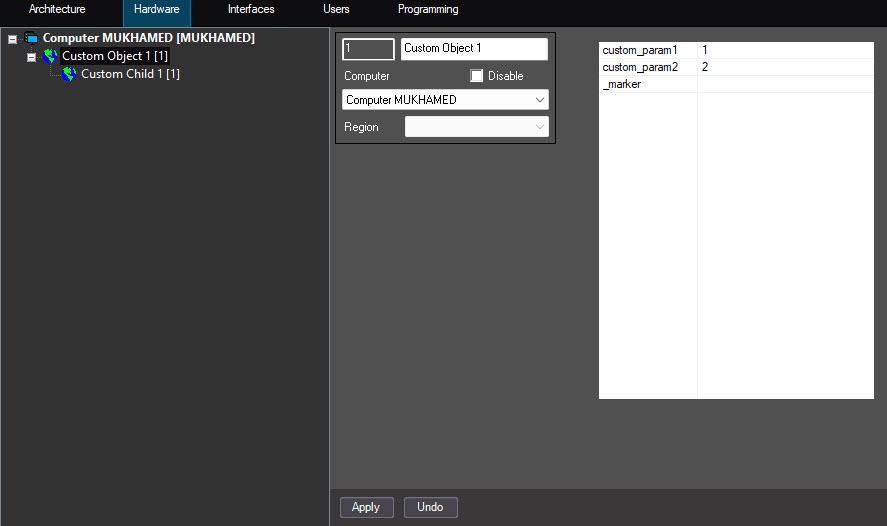
The settings panel of the created custom object displays the custom parameters. In the considered example, they are custom_param1 and custom_param2. You can set their values in the table.
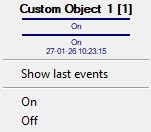
Displaying on the map
After you create an object in the hardware tree, you can place it on the map and perform the set reactions from the object context menu (see Configuring the interactive map for object state indication and controlling the objects).
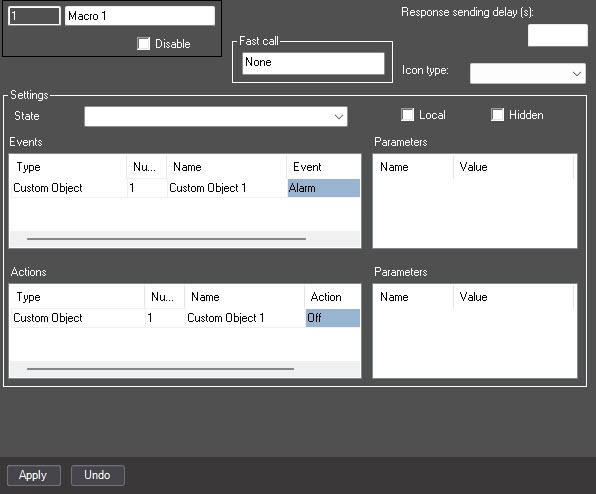
Using in macros
After you create the custom object in the hardware tree, you can also use it in macros.
Note
Reactions of custom objects are automatically converted into events. Thus, in the considered example, when you execute the ON reaction, the object switches to the corresponding state due to the set state transfer rules (see ddi file preparation), and the icon corresponding to the state is displayed on the map.
Example of the program in JScript to change the state of the custom object
Task. Using macro 1, change the state of the custom object with identifier 1 to ON and display the icon corresponding to this state on the map.
Solution. As in the considered example of the custom object, the state transfer rules are set, so when you send the ON event from the custom object, its state is automatically changed to ON, and the icon specified in the ddi file (see ddi file preparation) for this state is displayed on the map.
The script for sending the ON event looks like this:
if (Event.SourceType == "MACRO" && Event.SourceId == "1" && Event.Action == "RUN")

{

 var msgevent = CreateMsg();

 msgevent.SourceType = "CUSTOM";

 msgevent.SourceId = "1";

 msgevent.Action = "ON";

 NotifyEvent(msgevent);

}
Overview
Content Tools