
Go to documentation repository
Previous page Next page
You can configure the Fluid level detection module on the Fluid level detection object settings panel that is created on the basis of the Camera object on the Hardware tab of the System settings window.
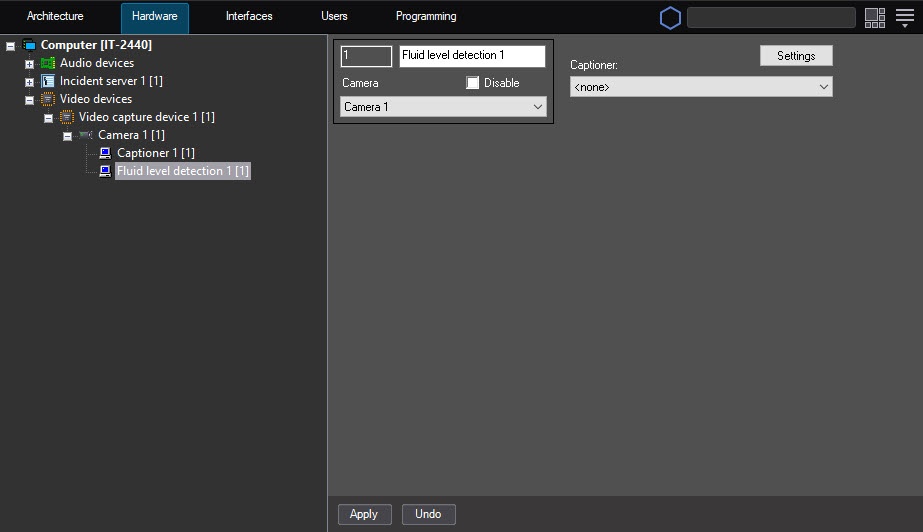
To configure the Fluid level detection module, do the following:
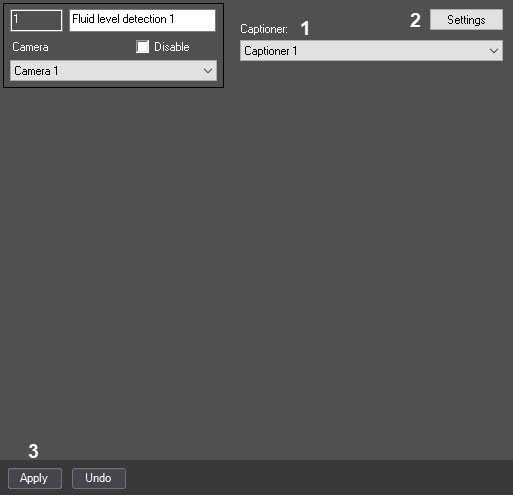
From the Captioner drop-down list (1), select the Captioner object created on the basis of the same Camera object as the Fluid level detection object. This captioner is used to overlay the fluid level value on the video image from a camera in the video surveillance monitor as captions.
Note
For more info on how to create and configure the Captioner and Monitor objects, refer to the Axxon PSIM software. Administrator's Guide. For more details on how to work with these objects, refer to the Axxon PSIM software. Operator's Guide (the most relevant versions of these documents are available in the AxxonSoft documentation repository).
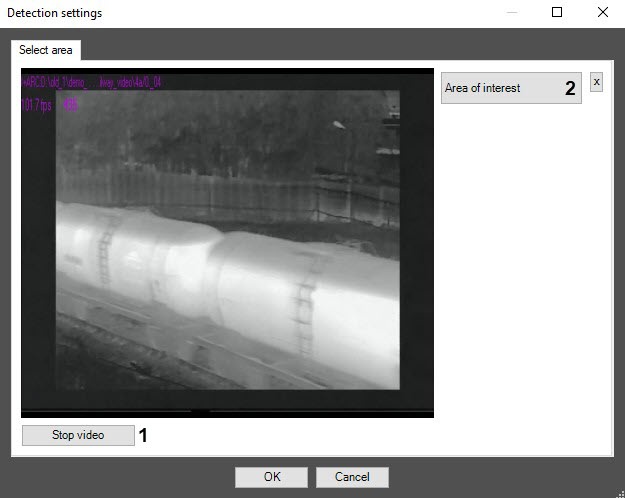
On the captured video frame (3), sequentially set the anchor points of the area whose situation you want to analyze using the left mouse button. You can add only one area. After you add an area, the remaining part of the video image is darkened.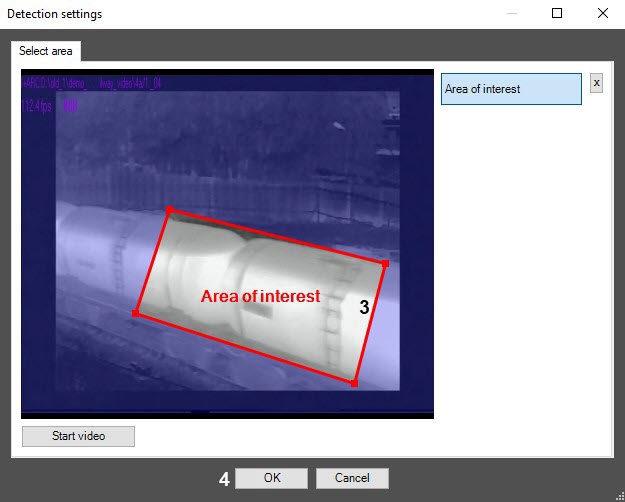
Note
To remove an area, click the  button.
Note
To use the asynchronous hardware decoder and reduce CPU load, set the Use decoder NGP (GPU+CPU) checkbox on the settings panel of the camera (see Enable asynchronous hardware decoder NGP (GPU+CPU)). Then click the Apply button on the settings panel of the detector. Video decoding is now performed using the GPU (for more information, see Asynchronous hardware decoder NGP).
Configuring the Fluid level detection module is complete.

