
Go to documentation repository

Documentation for Axxon PSIM 2.0. Documentation for other versions of Axxon PSIM is available too.
Previous page Next page

To configure the Mail Message Service object, do the following:
- Go to the Hardware tab of the System settings dialog window (1).
- Create the Mail Message Service object on the basis of the Computer object in the objects tree (2). The object is displayed in the objects tree, and the settings panel for this object is displayed on the right side of the System settings dialog window.
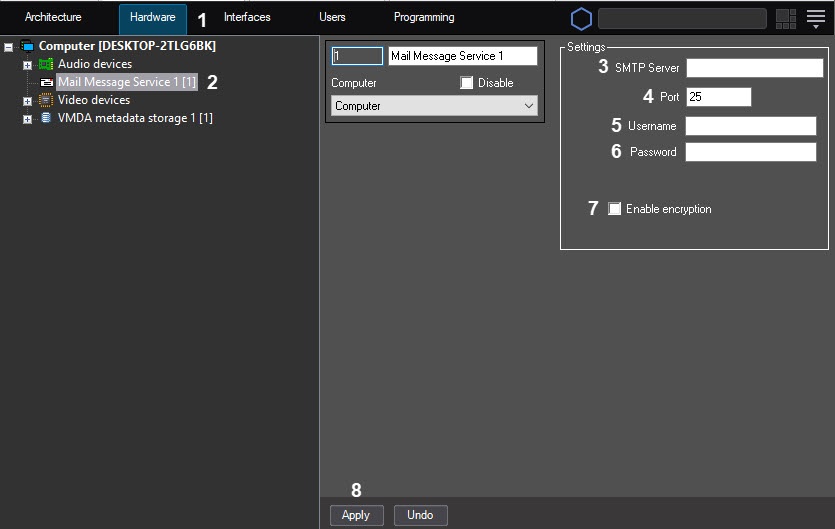
- Enter the URL address of the SMTP server (3).
- Enter the port number for sending mail messages (4).
- Specify the username for authorization on the SMTP server (5).
- Specify the password for authorization on the SMTP server (6).
- If you want to use the TLS encryption, set the corresponding checkbox (7).
- Click the Apply button to save the settings of the Mail Messages Service object (8).
The settings of the main mail servers are given in the table.
| Yandex | Yahoo! | Outlook | ||
|---|---|---|---|---|
| SMTP Server | smtp.yandex.ru | smtp.mail.yahoo.com | smtp-mail.outlook.com | smtp.gmail.com |
| Port | 587 | 587 | 587 | 587 |
| Username | username@yandex.ru | username@yahoo.com | username@outlook.com | username@gmail.com |
| Password | User account password or the separate password created for Axxon PSIM |
| User account password |
|
| Encryption | Yes | Yes | Yes | Yes |
Note
Each company sets a limit on the number of messages sent via the smtp protocol. For example, Google has a limit of about 100 messages per day. You can try to increase the number of messages sent by using the SendSync registry key (for details, see Registry keys reference guide).
Overview
Content Tools