
Go to documentation repository

Documentation for Axxon PSIM 2.0. Documentation for other versions of Axxon PSIM is available too.
Previous page Next page

To configure the connection to an external database in the dialog mode, do the following:
- Click Configure on the settings panel of the Incident server object.
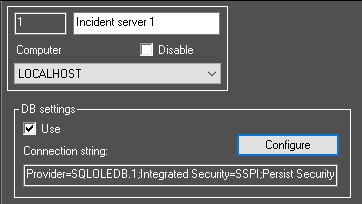
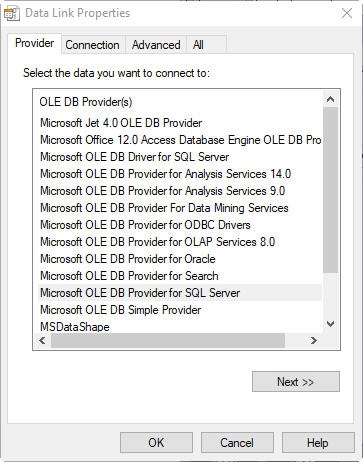
- As a result, the Data Link Properties dialog window opens. In that window, go to the Provider tab.
- From the OLE DB Provider(s) list, select Microsoft OLE DB Provider for SQL Server.
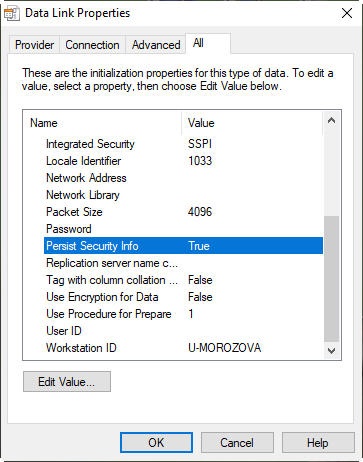
- Go to the All tab and set the True value in the Persist Security Info field. This is necessary to correctly save the user password:
- Go to the Connection tab:
- From the 1. Select or enter a server name drop-down list, select the server name (1).

- In the 2. Enter information to log on to the server item, set the switch to the Use a specific user name and password position, and enter the username and password to access the server in the corresponding fields (2).
- Set the Allow saving password checkbox (3).
- From the 3. Select the database on the server drop-down list, select the database that you want to use (4).
- Click the Test Connection button (5).
- If you successfully establish the connection to the MS SQL server, the window with the Test connection succeeded message appears.

- Click the OK button in the message window, which automatically closes the window.
- From the 1. Select or enter a server name drop-down list, select the server name (1).
- To apply the settings, click the OK button (6).
- Click
 .
.
As a result, the selected database is used for the Incident server.
Overview
Content Tools