


General information
The Areas tab displays:
- Information about user passes in the area in real time.
- A list of users currently in the area.
- The number of users currently in the area.
Create an area
To create an area:
- Go to the Areas tab.
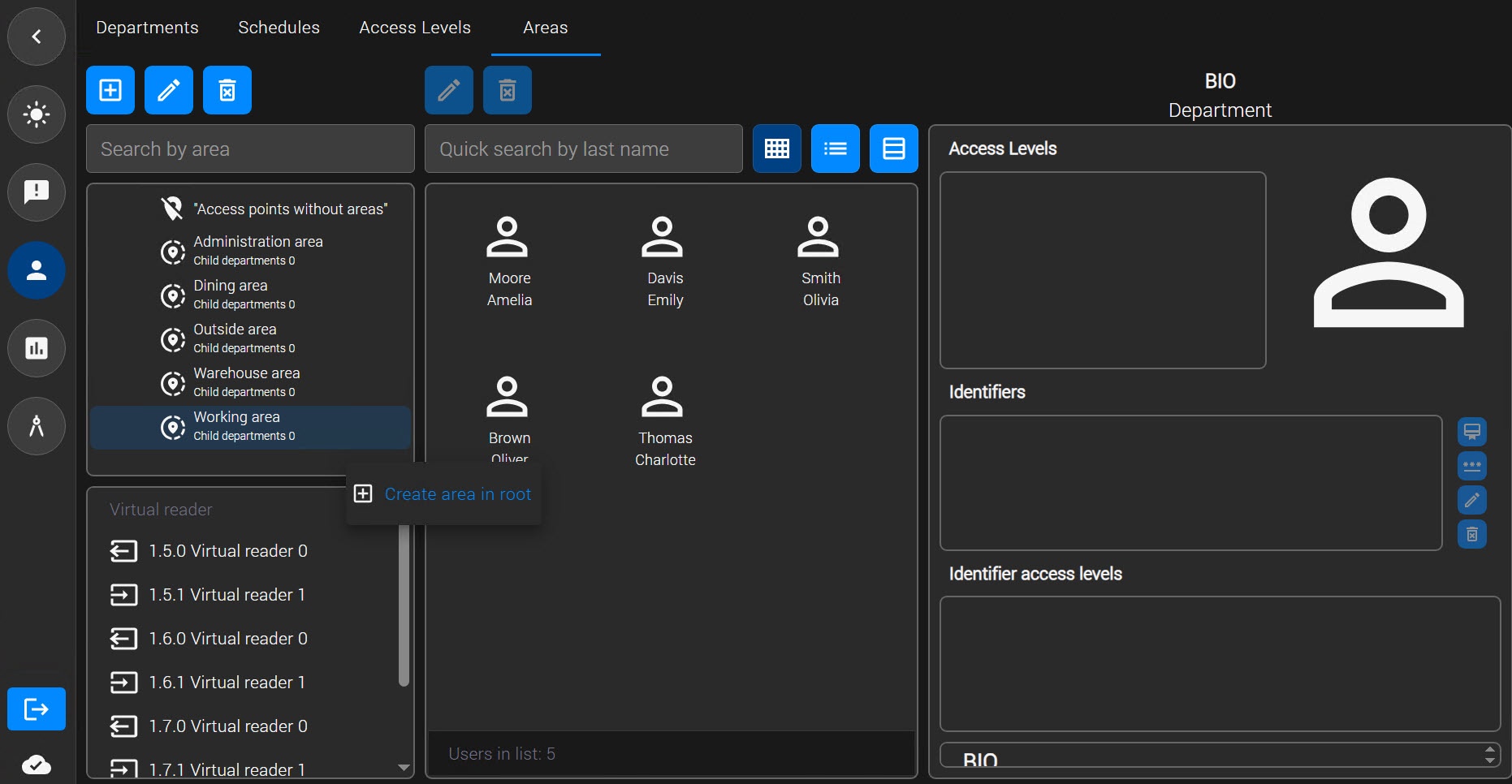
- Right-click a free area on the left. In the menu that opens, select Create area in root.
- In the window that opens, in the Name field, enter the name of the area. The name must be unique. If an area with this name already exists in the system, a corresponding message is displayed when you attempt to save such an area. Such an area won't be saved. Also, the name must not contain the following characters: < | >.
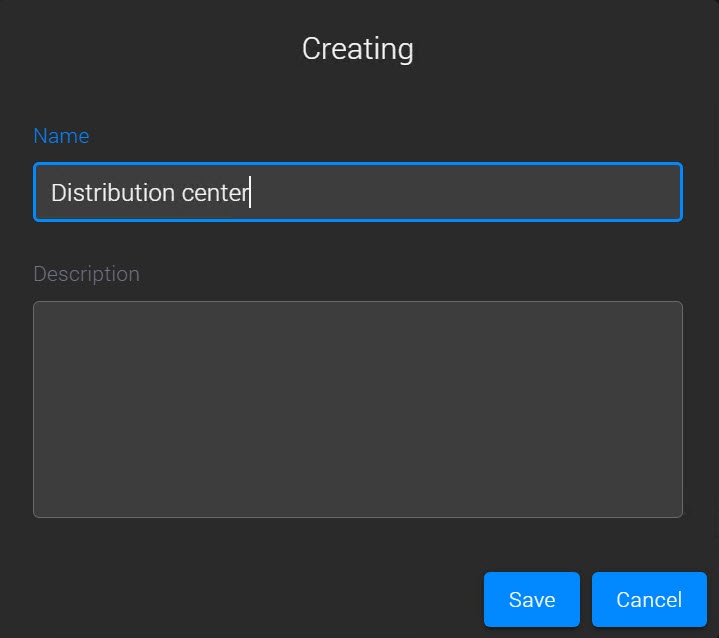
- If necessary, enter a description of the area in the Description field.
- Click the Save button.
An area is created.
Create child areas
To create an area based on an existing area:
- Right-click the required area and select Create child area.
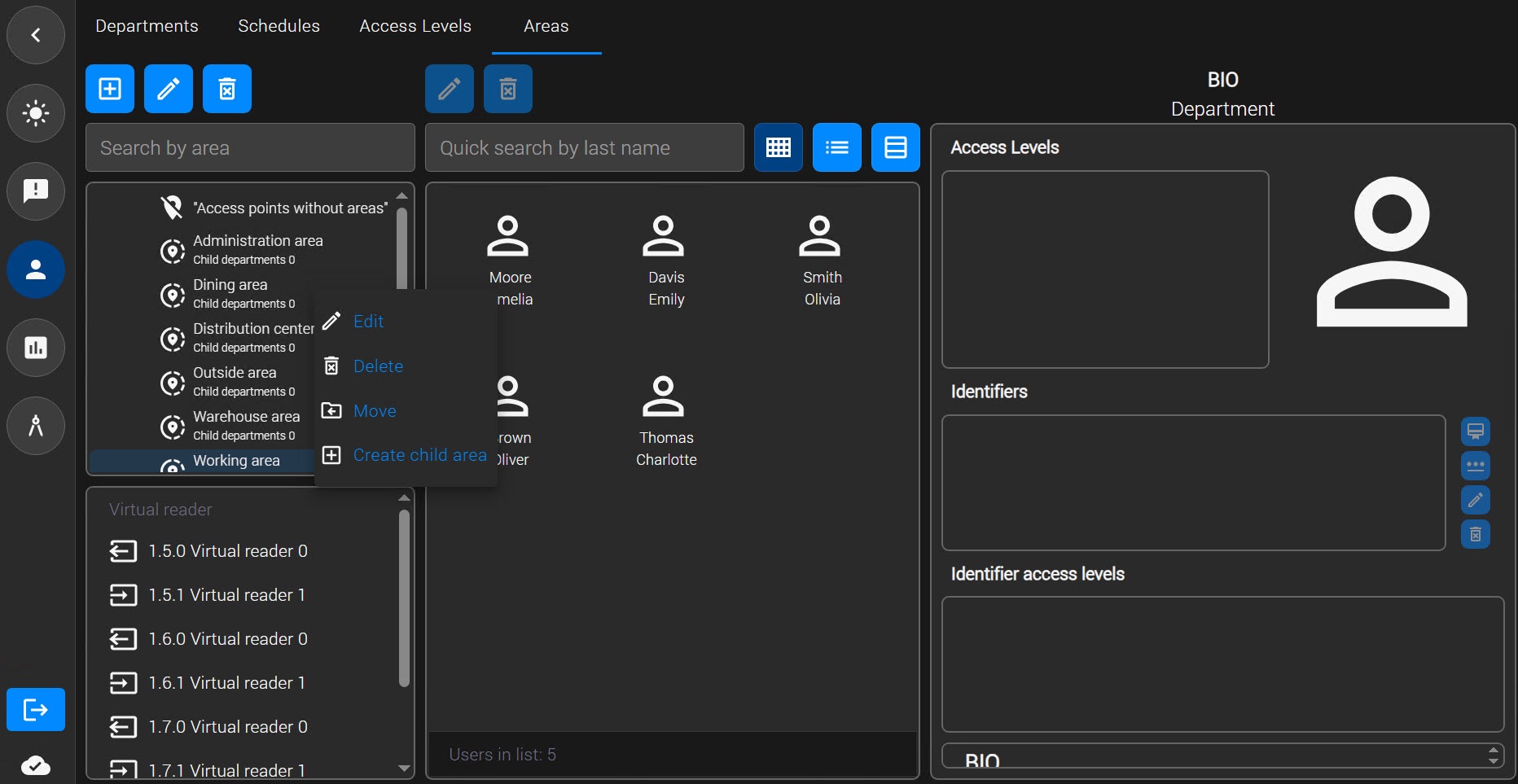
- Next, configure the child area in the same way as you configured the root area (see Create an area).
The child area is displayed below the root area. You can create additional child areas in the same way.
Edit an area
To edit an area, right-click the required area in the list and select Edit.
Search for an area
In the Access Manager module, you can search for an area by name. In the Search by area field, enter the name or part of the name of the area. The search results table displays areas that match the specified search criteria. The search is case-insensitive.
Change the hierarchy
To change the area hierarchy:
- Right-click the name of an area and select Move.
- In the window that opens, select a new parent area.
- Click the Save button.
The selected area is moved in the hierarchy.
Note
The area is moved in the hierarchy together with its child objects.
Delete an area
To delete an area:
- Right-click the area that you want to delete.
- In the menu that opens, select Delete.
An area is deleted. When you delete a parent area, all its child areas are deleted as well.