
Go to documentation repository

Documentation for Axxon PSIM 2.0. Documentation for other versions of Axxon PSIM is available too.
Previous page Next page

The telemetry control panel allows you to control all types of PTZ devices connected to the system.
To access the control of a PTZ device, you must first select the object corresponding to the given PTZ device from a list  .
.
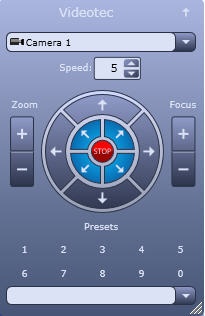
The elements of the telemetry control panel are described below.
Move the camera lens up-down and left-right:

Move the camera lens in diagonal directions:

Stop the movement of the camera lens when changing orientation:

Set the conditional speed of the camera lens movement when changing orientation:

Note
You must set the conditional speed separately for each camera. The default speed is 5. The set value is automatically saved for all users within one server.
Certain types of cameras allow adjusting focus and image zoom.
You can adjust focus with the following control element:

Focus is set with the  and
and  buttons.
You can adjust the zoom (zoom-in or zoom-out) with the following control elements:

You can change the zoom with the and buttons.
If the camera supports autofocus, select  to enable this function.
In addition, to make control of PTZ devices more convenient, custom PTZ settings are available. Custom settings include PTZ orientation, as well as zoom and focus settings for the camera lens.
You can select and specify custom settings of the PTZ device using the block of control elements named Presets.
To select a preset, left-click the corresponding number of the preset or select a preset from the list. After a short delay, the text of the block header changes to Go to present No. <number of the selected preset>, and the current settings of the PTZ device will be set to the selected preset.
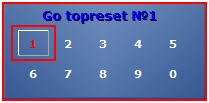
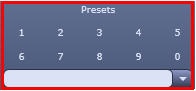
To specify a custom preset, left-click the preset number and hold it until the text of the control block header changes to Save preset No. <number of the selected preset>.
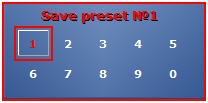
After this, the current settings of the PTZ device are saved in the selected custom preset.
Note
If you use the Lilin IP devices, you must specify a custom preset differently:
- Set the number of a custom preset by left-clicking it.
- Adjust the PTZ device to the required position.
- Click and hold down the left mouse button on the specified custom preset number until the text of the control block header changes to Save preset No. <number of the selected preset>.
To change the size of the telemetry control panel, click and hold down the left mouse button in the lower right corner of the window and move the cursor.
Overview
Content Tools