
Go to documentation repository

Documentation for Axxon PSIM 2.0. Documentation for other versions of Axxon PSIM is available too.
Previous page Next page

Search by color is performed within the search by line crossing or search by motion in the area.
Note
Specifying a color range is part of setting the search parameters for line crossing or motion in area.
To search by color, do the following:
- Select the type of search (search by line crossing or search by motion in area).
- Start the search (see Search by line crossing, Search by motion in the area).
- To set the color range for which the search will be performed, click the
 button on the specified line or area.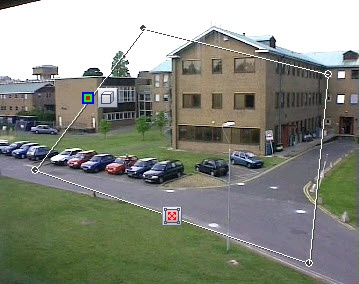
The form for setting the color range appears.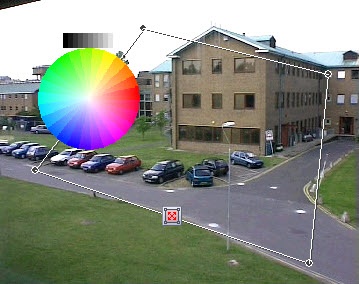
- Select the color range for the search. Hover the cursor over the supposed beginning of the range (color or black-and-white), and holding down the left mouse button, drag in a circle to the end color of the range.
Setting the black-and-white range: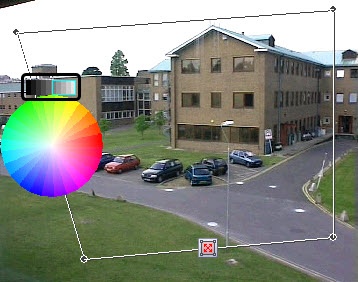
Setting the color range: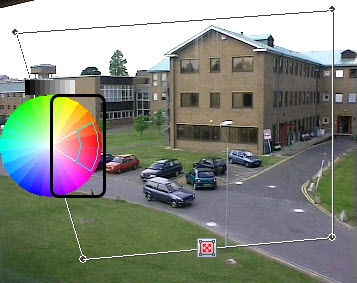
- After you specify the color range, the form will be automatically hidden.
To discard the specified color values, open the form again (use the button) and right-click it. After you discard the specified color values, the search is performed without taking into account the color of the moving object.
Note
When you left-click one color in the spectrum, the search is also carried out for the adjacent colors (in the figure below, the arrow indicates the color that was selected).
Note
To make the search more efficient, you can specify a range of colors rather than a specific color (which depends on lighting conditions and other environmental parameters). The search checks whether the object has been colored in the range of colors from color 1 to color 2. If the result is positive, the video appears in the search results.
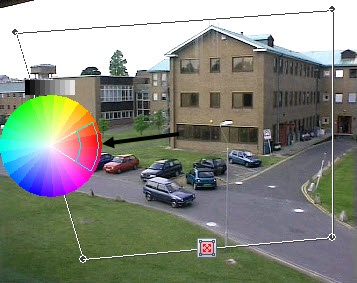
As a result, the search selects videos that match the selected search parameters (line crossing or motion in area) and in which the moving object contains at least one color from the selected range. The found videos are displayed in the timestamp column.

Overview
Content Tools