
Go to documentation repository

Documentation for Axxon PSIM 2.0. Documentation for other versions of Axxon PSIM is available too.
Previous page Next page

You can search for a video recording by line crossing from the function menu of the archive window.
Note
Search by line crossing is possible only when:
- The Metadata database and the Tracker objects are created for the camera that is used for searching in Axxon PSIM (see Configuring smart video detection tools).
- The Metadata database is selected for the corresponding camera on the settings panel of the Monitor object (see Selection and configuration of cameras).
You can search by line crossing only on a given day.
Note
For the information on specifying the date, see Search for video by date and time of creation.
To search by line crossing, do the following:
- From the Archive search drop-down menu, select Line crossing.
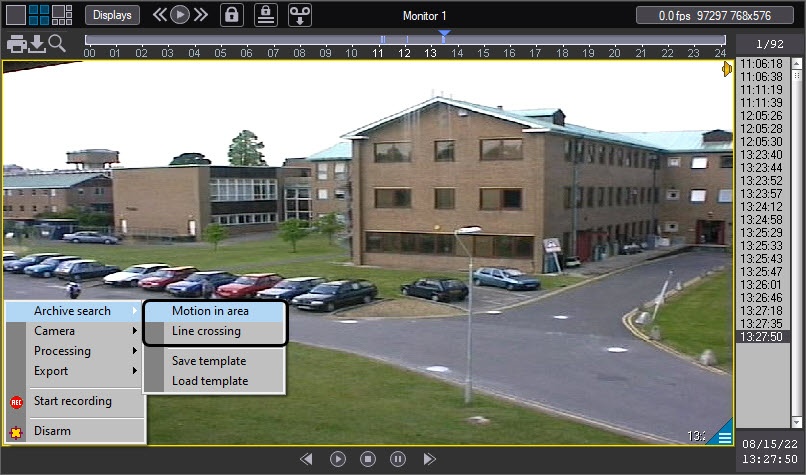
- Using the left mouse button, set the end points of the line in the video recording display.
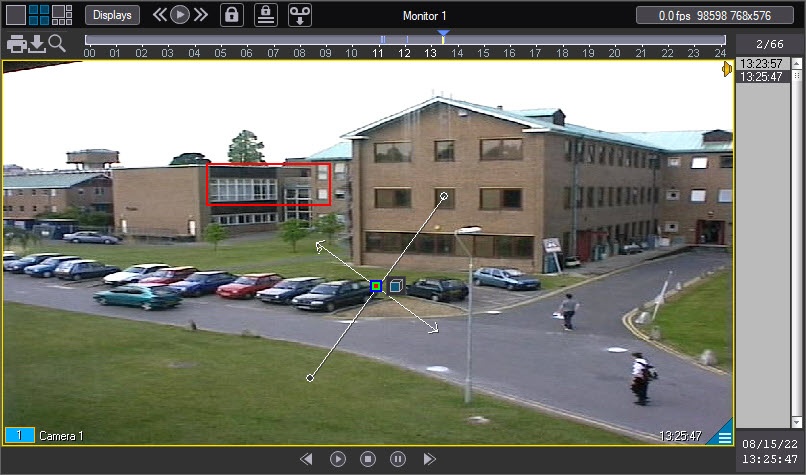
You can change a line using the actions described in the table below.
Operation
Operation result
Click the surveillance window
An endpoint of the line is created
Hover the cursor over the anchor point, click the left mouse button and move the mouse
An endpoint of the line is moved
Hover the cursor over the anchor point and click the right mouse button
A line is deleted
Note
You can remove the
 button by pressing the Ctrl + Q key combination. When you press this key combination again, the button reappears. The button also automatically disappears when you create and move points of a search line and reappears after a line is created.
 To select the type of an object that crossed the set line, click
 . Available types of objects are listed below.
- Any object. Search finds video recordings in which a line is crossed by any object.
 Human. Search finds video recordings in which a line is crossed by an object whose width is less than its height.
 Car. Search finds video recordings in which a line is crossed by an object whose width is greater than its height.
- By default, the search is set to find line crossings in both directions. Left-click one of the arrows to exclude crossings in one of the directions. The selected arrow is grayed out.
The approximate speed of objects that you want to find is displayed next to an arrow. At the minimum and maximum values of speed, the "?" sign is displayed, and only records containing line crossings regardless of speed are searched for. You can change the value of speed by changing an arrow's length by moving an arrowhead with a pressed left mouse button.Note
When you add a line, an arrow has a minimum length.
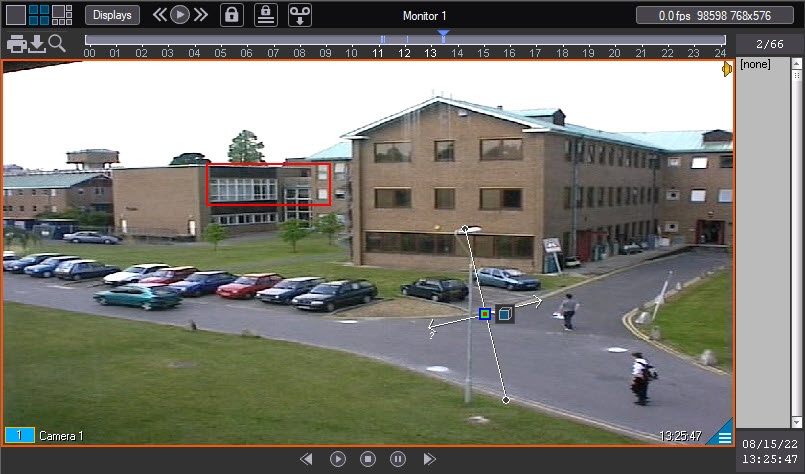
As a result, the search finds the video recordings by given parameters. Search results are displayed in the timestamps column.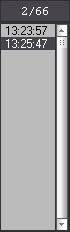
You can cancel the search by line crossing at any time by pressing the Esc button on the keyboard. In this case, no search results are displayed, and the text [none] is displayed in the list of video fragments.
After the search is complete, press the Esc key to clear the list of search results and exit the mode of search by line crossing.
Note
Detection of object movement direction by the line crossing detector strongly depends on the settings of the Tracker object (see Create and configure the Tracker object). When you don't select the settings correctly, there is a probability of incorrect detection of the movement direction, and consequently, when searching the archive by line crossing, there can be false results. You must select the settings of the Tracker object experimentally for each case.
Overview
Content Tools