
Go to documentation repository
Previous page Next page
Note
You can use templates when you create a report.
To add a new template, click Report templates → New template and fill in the Name and Description fields. The template will use the selected parameters of the current report.
Templates work the same way as templates in the scheduler and can be used interchangeably.
When you create a response using a template, click Report templates at the top of the page and select the required template from the list of saved templates (the required template is highlighted). As a result, the parameters of the current report are updated according to the selected template.
To create the report, select the Change person protocol report from the list of General reports (see Select the type of general report). Specify report parameters in the form that opens.
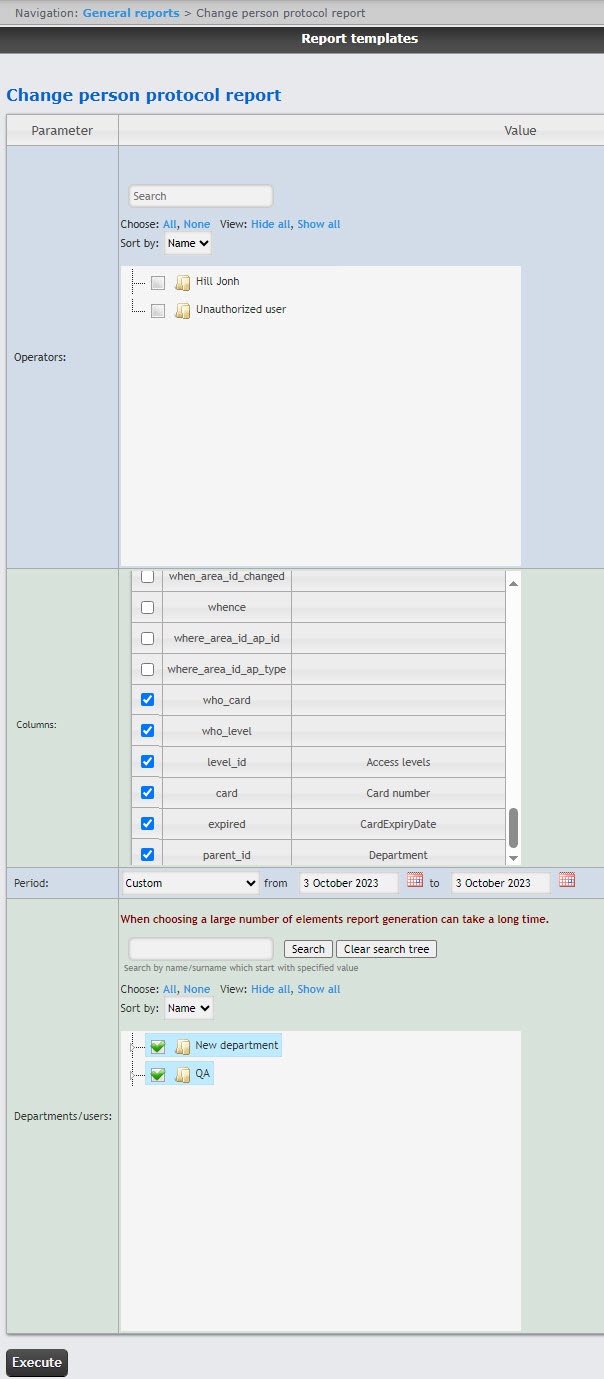
You can find an operator using the search. The search starts from the first character. The result is highlighted in a different color.
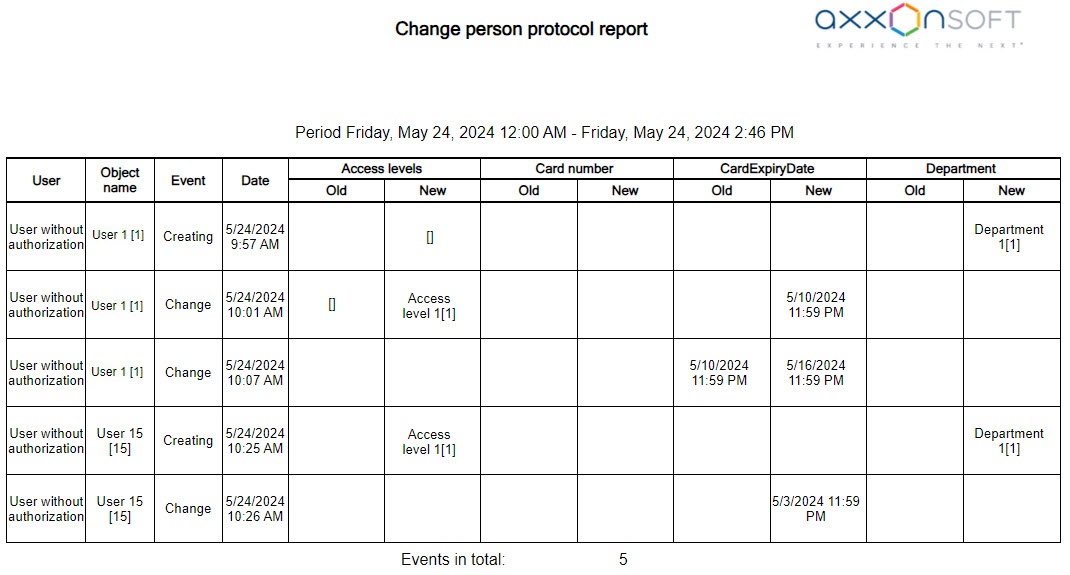
Example of a change person protocol report.
Note
In the change person protocol report, the Department and Access levels columns are displayed: Department name[id] and Access level name[id], respectively.
Several access levels are separated by commas.
The access level inherited from a department is displayed in the report: [].
The Access forbidden access level is displayed in the report: Access forbidden[-].
The Full access access level is displayed in the report: Full access[*].
The Permanent access levels columns are displayed even if no changes have been made to them if the Show permanent access levels toggle is turned on in the settings of general reports (see The Settings tab of the general reports).
The permanent and temporary access levels are displayed in a single cell if the Show all access levels toggle is turned on in the settings of general reports (see The Settings tab of the general reports).

