
Go to documentation repository

Documentation for Monitoring PSIM 2.0 (english)
Previous page Next page

Attention!
Before you create the Monitoring interface object, you must create and configure the Server Of Control object (see Creating necessary Server Of Control objects).
To configure the Monitoring object, do the following:
- Go to the settings panel of the Monitoring object.
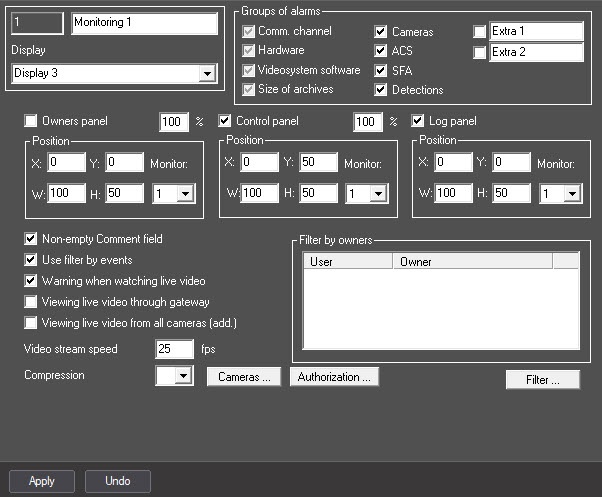
- Set the checkboxes next to the alarm groups that must be visualized. You can rename the Extra 1 and Extra 2 groups of alarms.
If you want to display the Owners panel component on the screen, set the Owners panel checkbox and specify the component coordinates on the monitor screen. From the Monitor drop-down list, select the number of the physical monitor the coordinates of which must be specified. You can also set the scaling of objects from 100% to 500%.
Note
If the scaling parameter exceeds 110%, then the high-resolution icons are displayed on the object, and the Courier New font is used for the text in the object title; otherwise, MS Sans Serif is used.
If you want to display the Control panel component on the screen, set the Control panel checkbox and specify the component coordinates on the monitor screen. From the Monitor drop-down list, select the number of the physical monitor the coordinates of which must be specified. You can also set the scaling of objects from 100% to 500%.
Note
If the scaling parameter exceeds 110%, then the high-resolution icons are displayed on the object, and the Courier New font is used for the text in the object title; otherwise, MS Sans Serif is used.
- If you want to display the Log panel component on the screen, set the Log panel checkbox and specify the component coordinates on the monitor screen. From the Monitor drop-down list, select the number of the physical monitor the coordinates of which must be specified.
- Set the Non-empty Comment field checkbox so that the operator comments on an alarm and/or its actions when accepting this alarm. You can view this comment later in the event log, where the operator who received an alarm is also indicated.
- By default, you can filter objects by the Alarm and Failure events as well as by the Connected and Disconnected states. To disable this option, clear the Use filter by events checkbox. As a result, the drop-down list for selecting events becomes unavailable.
- If you want to display the warning indicating that the video stream transmission can create the critical load on the channel when viewing the live video, you must set the Warning when watching live video checkbox.
If the Agents Of Control and Additional workplaces modules are in different subnetworks, the Monitoring PSIM components aren't combined into the common distributed system in the Axxon PSIM object tree, and Data gateway is used to transmit the live video to Additional workplaces, set the Viewing live video through gateway checkbox.
Note
For information on how to create and configure the Data gateway object, see Creating and configuring Data Gateway.
- To add the All cameras of partition of control item to the Video image playback item that allows displaying all the cameras of the selected control partition, set the Viewing live video from all cameras (add.) checkbox.
In the Video stream speed field, enter the number of the video frame rate when viewing the live video or a video from the archive. This parameter is used to limit the data flow between the Server Of Control and the Agent Of Control (for example, in case the communication channel has low bandwidth).
Note
The Video stream speed setting works for the archive video only when you use CamMonitor.ocx of version 4.11.0.1766 and higher.
If the archive is recorded with the H.264 codec and the video stream speed is set to more than 0 frames per second, the archive video is played back only by reference frames.
If the value of the video stream speed is 0, the live and archive video aren't decimated.
- From the Compression drop-down list, select the required compression rate for the live video.
If you want to set the cameras that the user must not see when viewing the live video, do the following:
Click the Cameras... button.
The settings window opens:
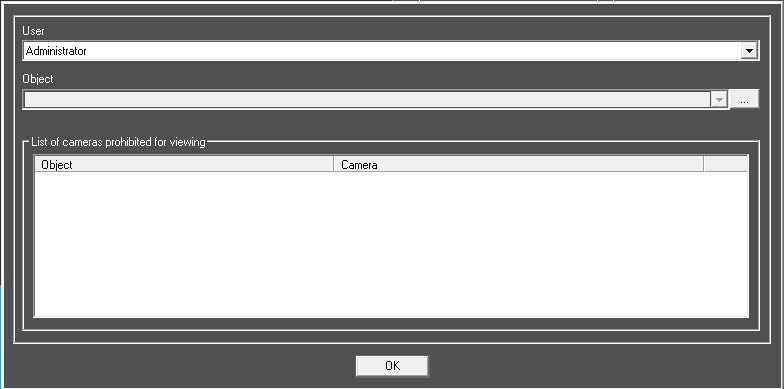
In the User drop-down list, select the user to whom you want to set the restriction.
The List of cameras prohibited for viewing field displays the cameras prohibited from viewing for the selected user. To add a camera to the list, select the required object from the Object drop-down list and click the
 button.
Note
The Object list contains only those objects that have cameras.
- The window with the list of cameras of this object opens:
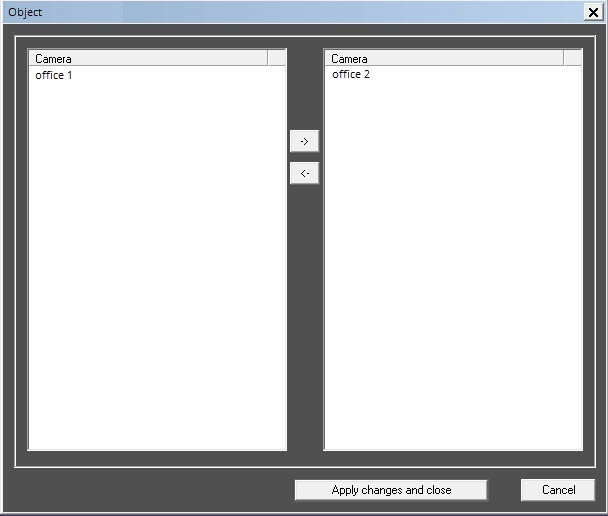
In the left part of the window, select the cameras that must be prohibited from viewing, and move them to the right part of the window using the
 button. Then click the Apply changes and close button.
Note
To cancel the prohibition, select the camera in the right part of the window and click the
 button.
Click the OK button.
Note
If you use the filter by owners for the Monitoring interface object, then its value is taken into account when you configure prohibited cameras.
If the user selects the camera that isn't prohibited from viewing the live video in the Monitoring window, they can enter the camera's functional menu and select the camera prohibited from viewing using the Camera menu item. To prevent this from happening, you must hide the Camera menu item using the MENU_CAMS_DISABLE_OPTION parameter of the HKEY_LOCAL_MACHINE\SOFTWARE\Wow6432Node\BitSoft\VHOST\CamMonitor registry key (for more details, see the Vertical solutions registry key, for information on how to work with the registry, see Working with Windows OS registry).
When you add a camera to the list of cameras prohibited from viewing, a camera isn't automatically removed from the previously created screens to which it is added.
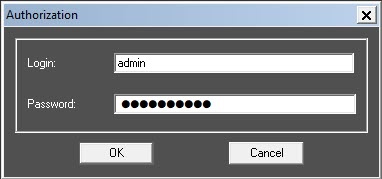
To configure the authorization parameters for getting access to video, you must:
- Click the Authorization... button.
- In the Authorization window that opens, specify the login and password for viewing the live video and a video from the archive in the Login and Password fields, respectively. If you don't specify the authorization parameters, then the user rights of the server to which the connection is performed are used.
If you want specific owners to be available for specific users on the owners panel, set the filter by owners:
- Click the Filter... button.
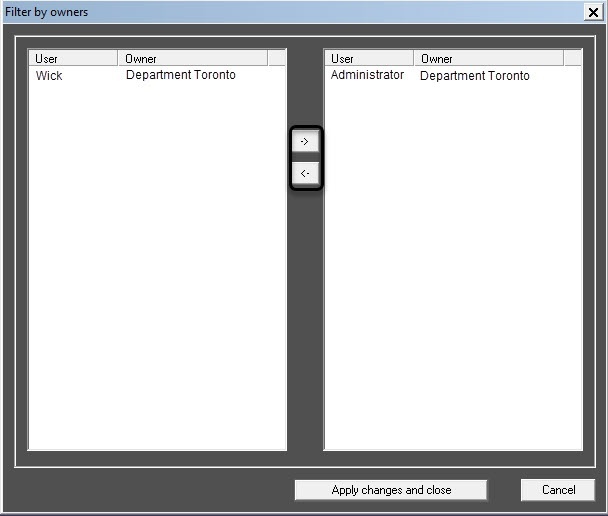
The Filter by owners window opens. The list of available user-owner pairs is on the left side of the window, the list of selected pairs is on the right one.
Note
The list of owners is set on the control panel, for details, see the section Operator's Guide: Regulatory and reference information.
You can configure users and their rights on the Users tab of the System settings window, for details, see the section Axxon PSIM Software Package: Configuration of users and permissions.
- Move the pairs between the lists using the and buttons.
- When you complete forming the list of user-owner pairs, click the Apply changes and close button.
- Selected pairs of users and owners are displayed in the table.
- Click the Apply button.
Configuring the Monitoring interface object is complete.
When you select the screen in Axxon PSIM based on which the Monitoring object is created, the Monitoring interface window is displayed.
Overview
Content Tools