
Go to documentation repository

Documentation for Axxon PSIM 2.0. Documentation for other versions of Axxon PSIM is available too.
Previous page Next page

You can start the ArpEdit utility in one of the following ways:
- Starting from the Axxon PSIM installation directory. To start the ArpEdit utility from the Axxon PSIM installation directory, do the following:
- Go to the folder where you installed Axxon PSIM (the default directory is C:\Program files\Axxon PSIM).
- Go to the Tools64\Arpedit folder.
- Run the arpedit.exe executable file.
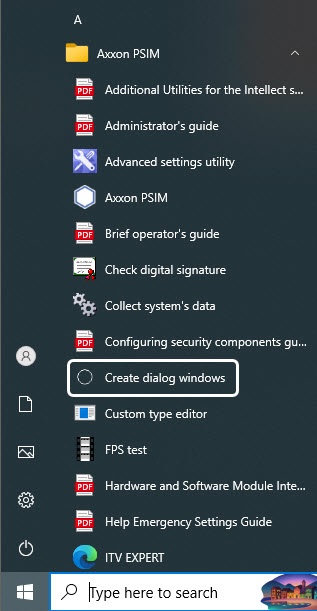
- Start from the Start menu. To start the ArpEdit utility from the Start menu, select the Create dialog windows menu item, located in the Start → Axxon PSIM menu item.
To shut down the ArpEdit utility, use one of the following ways:
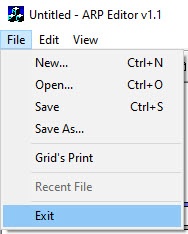
- In the system menu of the ArpEdit utility, select Exit in the File item.
- Click the
 button.
If the document contains any unsaved changes, the Report's editor dialog window is displayed.
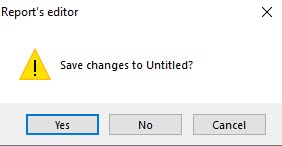
To confirm the changes saved, click the Yes button. To exit the program without saving changes, click the No button.
The utility window is closed.
Overview
Content Tools